Event Software Roles and Permissions Guide
October 7, 2026

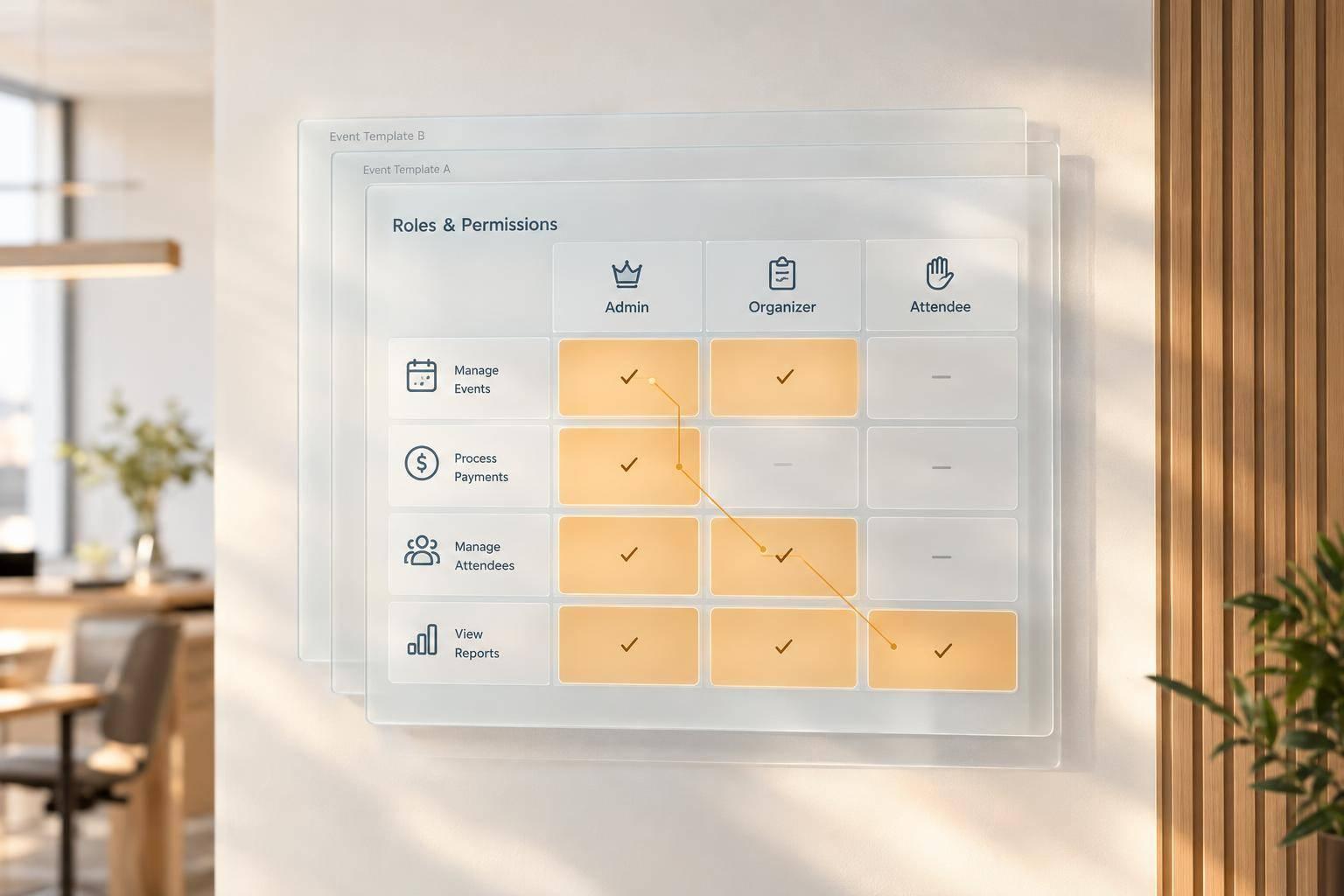
I recommend giving each person access only to the tasks and event records their job requires. For example, a coordinator may prepare schedules for assigned events without access to payroll or account settings.
I build an access plan around 3 questions: Who needs access? What can they do? Which records can they use?
My rule: <u>verify access before granting it</u>, then check it again whenever responsibilities change.
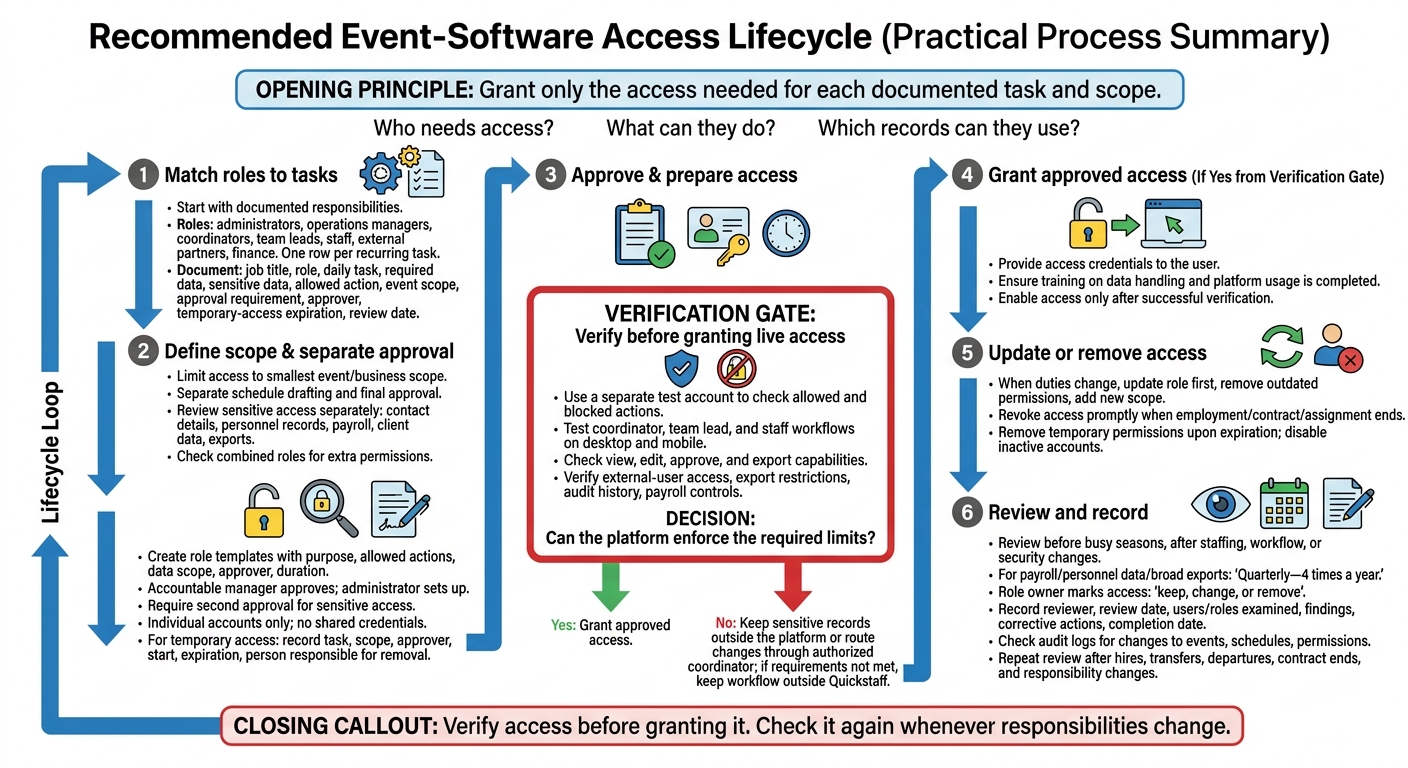
Event Software Access and Permissions Workflow
Use the access levels above to connect permissions to day-to-day job duties.
Start with documented responsibilities, not seniority. Identify the data and records each task needs, then limit access by venue, client, or assigned event. Document multi-team exceptions separately. Use this task mapping to choose the right access level for each role. This approach is a key component of scalable event scheduling for growing teams.
Keep account settings and user administration with administrators. Operations managers need to oversee coverage and approve changes within their assigned scope. Coordinators need tools to prepare schedules and assign staff.
Keep payroll, finance, and personnel records outside operations access. Separate schedule preparation from approval when changes affect overtime, staffing costs, minimum coverage, or clients.
Team leads need event instructions, team assignments, and approved day-of updates - not control over the entire schedule. Staff need access to their own shifts, messages, and availability tracking apps.
External partners should see only approved event details and contacts. Finance users should receive approved hours, rates, and financial records. If the system can't enforce these limits, use an approved report or export rather than broad account access.
Use the matrix below as a recommended access plan that ties each role to specific tasks. Each cell defines an action and its scope. Keep editing and approval permissions separate.
| Role | Event creation | Schedule editing | Staff assignment | Messaging | Availability | Reporting | User administration |
|---|---|---|---|---|---|---|---|
| Administrator | None | None | None | None | None | Access review records | Administer organization-wide |
| Operations manager | Create within assigned business area | Manage and approve assigned events | Manage assigned teams and events | Send to assigned teams and clients | View for assigned coverage | View assigned operations reports | None |
| Coordinator | Create for assigned clients or events | Prepare assigned schedules; approval separate | Assign within assigned events | Send within assigned events | View and collect assigned-team responses | View assigned operations reports | None |
| Team lead | None | Limited day-of updates for assigned event | Recommend replacements; changes require approval | Send to assigned event team | View needed coverage; record attendance | View assigned-event summary | None |
| Staff member | None | None | None | Receive and respond for own shifts | Manage own availability and responses | View own shift history if needed | None |
| External partner | None | None | View approved staffing counts only | Exchange messages with approved contacts | None | View approved event information | None |
| Finance user | None | None | None | Finance-related notices only | None | View or export approved hours, rates, invoices, and financial reports | None |
Build one row per recurring task. Include the job title, role, daily task, required data, sensitive data, allowed action, event or record scope, approval requirement, approver, temporary-access expiration, and review date.
Record schedule drafting and final approval as separate tasks where required. Before granting access, check that the user can complete the task without access to unrelated records.
Turn the worksheet into role templates before granting access. For each role, record its purpose, allowed actions, data scope, approver, and duration. The accountable manager or data owner approves access; an administrator then sets it up. Store approval records with the access register. Use these role definitions to assign permissions in Quickstaff.
Start with the matrix, then limit each role to the smallest event or business scope needed. Record the events, recurring series, venues or locations, departments, client accounts, or regional teams the role supports. Map each role to one event, series, venue, department, client account, or region.
Review sensitive access separately, including contact details, personnel records, payroll information, client data, and exports.
Give every person an individual account - never shared credentials. Before activating access, use a separate test account to check both allowed and blocked actions. For temporary access, record the task, scope, approver, start time, expiration time, and person responsible for removal. Require a second approval for sensitive access.
When someone’s duties change, update their role first. Remove outdated permissions before adding the new scope. Revoke access promptly when employment, a contract, or an assignment ends. Remove temporary permissions when they expire, and disable inactive accounts.
Review permissions before each busy season and after changes to staffing, workflows, or security. Organizations that handle payroll, personnel data, or broad exports should review permissions quarterly.
Have the role owner confirm each user’s access and mark it keep, change, or remove. Record the reviewer, review date, users and roles examined, findings, corrective actions, and completion date. Where audit logs are available, use them to check who changed events, schedules, or permissions - and when.
Use the reviewed access plan to keep daily scheduling and communication permissions matched to current duties.
Start with the workflows that address event staff scheduling challenges and coverage. Assign one owner to handle event creation, duplication, scheduling, waitlists, and coverage tracking. That person also approves replacements and confirms the final roster.
Job titles describe responsibilities - not permissions.
Apply the same access limits to communication tools. Put one coordinator in charge of messages and reminders. Quickstaff supports messaging all staff or specific roles, plus mobile access to directions, event notes, and attached files. Share only call times, locations, dress codes, and event notes. Leave out private client and financial data.
Mobile access does not require administrator authority. Check the exact visibility rules for staff and managers in your account.
Before launch, check who can view assigned events, edit availability, change rosters, and activate or deactivate accounts. Verify external-user access, export restrictions, audit history, and any payroll controls, too. Don't assume role-based scheduling gives users edit rights.
Test coordinator, team lead, and staff workflows on desktop and mobile. Check what each account can view, edit, approve, and export before granting live access.
If Quickstaff lacks a required access limit, keep sensitive records outside the platform or route changes through an authorized coordinator. If that process still cannot meet the requirement, keep the workflow outside Quickstaff.
Use this checklist to verify access before launch and after any role change. Grant only the access needed for each documented task and scope.
Before closing a review, confirm:
Assign an accountable business owner to the review. Check permissions and scheduling tools on a recurring schedule and after each hire, transfer, departure, or contract end. Repeat the review whenever responsibilities change.
Give each role only the permissions it needs, following the principle of least privilege. In Quickstaff, schedule staff by role so they receive only the updates and details tied to their current assignment.
When staff change roles, immediately check that their credentials and certifications meet the requirements of the new task to avoid compliance risks. Remove any extra or unneeded access within five business days of the role change.
Use role-based access control (RBAC) and approval workflows in Quickstaff to keep editing and approval separate. Restrict sensitive tasks, such as contract edits and budget management, to authorized roles. Match all other access to each person’s daily tasks.
Require manager review when scheduling high-visibility, safety-sensitive, or alcohol-service roles. Auto-approve routine, low-risk shifts. Record a timestamp for every claim, approval, and denial, and review permissions regularly.
Use role-based access and the principle of least privilege to limit staff access to the data they need for their tasks. Make permissions time-bound and location-aware, with access expiring automatically at the end of each shift.
Keep a dedicated all-hands channel, such as Event Control, for urgent, site-wide alerts. In an emergency, use two-way radios for instant broadcasts and mobile apps to share details or photos.