Event Workforce Management Software Guide
August 27, 2026

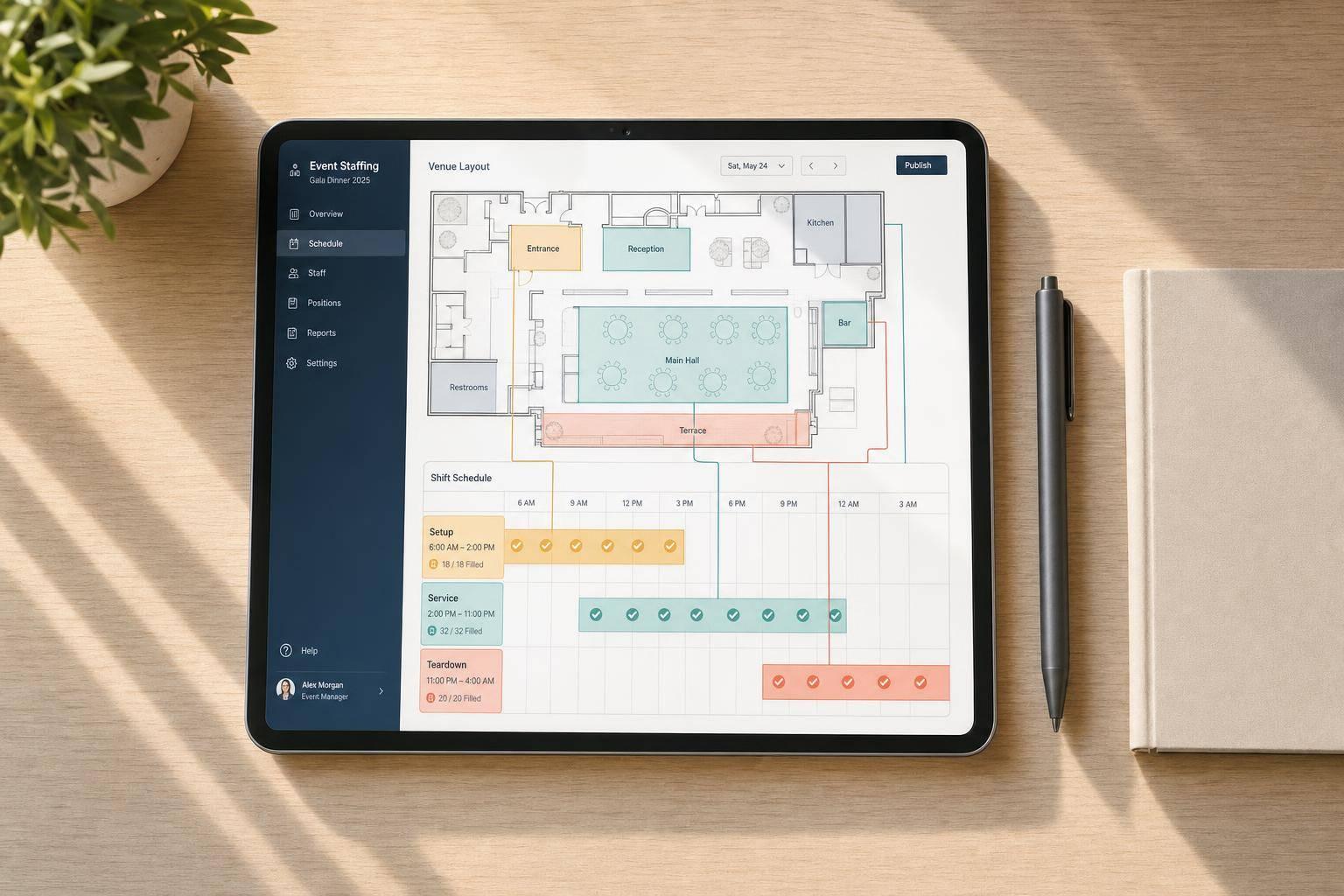
If your event team is short on staff, slow to fill shifts, or stuck fixing schedule mix-ups, this type of software is built to fix that. It helps me assign roles, track availability and confirm shifts, message workers, and keep labor lined up with setup, service, and teardown needs.
Here’s the short version:
Two stats show why this matters: 89% of event professionals say staffing shortages have hurt event delivery, and 57% of event workers deal with last-minute schedule changes. That tells me one thing fast: if staffing moves all day, my system has to keep up.
I’d focus on three things first:
A simple way to judge any option is this: if it saves me time on scheduling, keeps workers informed, and gives me a clear view of labor hours, it’s doing the job.
| Area | What I’d Look For |
|---|---|
| Main job | Staff scheduling, availability, confirmations, attendance, messaging |
| Best fit | Caterers, wedding companies, event vendors, staffing agencies |
| Must-have features | Role-based scheduling, conflict checks, mobile access, reminders, waitlists |
| Planning focus | Setup, service, teardown labor by event |
| Buying test | Run 3–5 event scenarios during trial |
| Setup needs | Staff roster, roles, pay rates, overtime rules, payroll export test |
| Main risk to check | Staff caps, event caps, thin reporting, admin workload |
So if I’m choosing event workforce software, I’m not looking for the longest feature list. I’m looking for a system that helps me staff events with less confusion, fewer gaps, and better labor control.
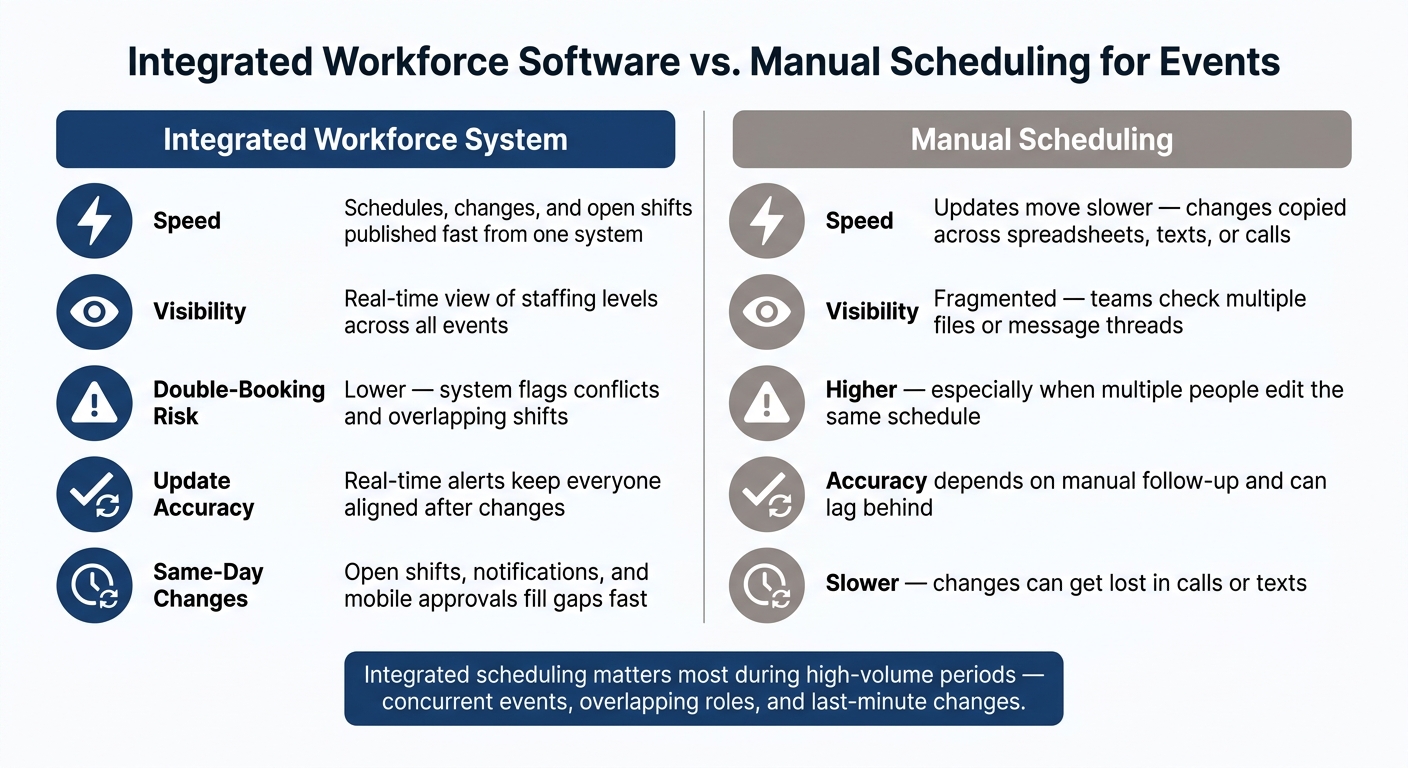
Integrated Workforce Software vs. Manual Scheduling for Events
The scheduling layer is where event teams line up roles, shifts, and staff availability. Managers assign people by role, venue zone, and time block. A load-in crew, for example, is scheduled in a very different way from a bar team or service staff working later in the day.
Availability tracking helps keep that plan from coming apart. Staff can block off dates or event windows when they can't work, and managers can filter by role, skill, or availability window before sending invites. That cuts down on double-booking and those last-minute scrambles nobody wants. Open shifts, confirmation workflows, and waitlists also make the schedule more dependable. Open shifts go to qualified staff, confirmations create a clear record of who said yes, and waitlists give managers a backup when someone drops out. Those assignments should then flow into capacity planning for each event window.
Quickstaff supports event creation, staff scheduling, availability tracking, waitlists, reminders, and mobile communication.
Capacity planning turns event details into staffing numbers. The starting point isn't headcount on its own. It's event demand. Attendee count, service format, venue layout, setup and teardown windows, event length, and overlapping bookings all affect headcount by role. A plated dinner needs more front-of-house coverage than a buffet. A bigger guest count also means more servers, bartenders, setup staff, and runners.
A planning model usually breaks demand into three windows:
Each window has its own labor needs, and those needs can overlap when events run back to back. Tracking planned vs. actual labor hours gives managers a clearer view of whether a staffing model keeps coming in overstaffed or understaffed. Those windows also help teams check whether staffing can handle same-day changes without things slipping.
Spreadsheets and text threads can work for one small event. Once several managers are editing the same roster, or a shift changes right before start time, that setup starts to crack. The risk gets worse when multiple people are touching the same schedule.
| Area | Integrated Workforce System | Manual Scheduling |
|---|---|---|
| Speed | Schedules, changes, and open shifts can be published fast from one system. | Updates move slower because changes must be copied across spreadsheets, texts, or calls. |
| Visibility | Real-time view of staffing levels across all events. | Fragmented; teams have to check multiple files or message threads. |
| Double-booking risk | Lower, because systems can flag conflicts and overlapping shifts. | Higher, especially when several people edit the same schedule. |
| Update accuracy | Real-time alerts keep everyone aligned after changes. | Accuracy depends on manual follow-up and can lag behind what changed. |
| Same-day changes | Open shifts, notifications, and mobile approvals help fill gaps fast. | Same-day changes are slower and can get lost in calls or texts. |
Integrated scheduling matters most during high-volume periods. That's when concurrent events, overlapping roles, and last-minute changes all land at once. Those are the pressure points to use when narrowing your shift assignment software shortlist.
Start with the staffing gaps you already see. The first job is simple: figure out what the software must fix first. That usually means problems like no-shows, double-bookings, slow confirmations, or staff missing shift details.
Turn those pain points into a short must-have list. For most event teams, that includes role-based scheduling, availability tracking, mobile access, and shift confirmations. Put things like waitlists, reminders, payroll sync, and recurring-event templates in a second-tier list. Nice to have, yes. First priority, not always.
Next, test the software against the way your team actually works. Build 3–5 real event scenarios from your own operation, such as:
Run those scenarios during a free trial or pilot. Have a supervisor test the mobile experience during a real or mock event week. If common tasks take too many taps, that’s a red flag. At that point, it makes sense to cut that tool from the shortlist.
Then narrow the field to three vendors that match your workflow and budget. Run side-by-side trials for one to two weeks. Compare how fast each tool lets you build schedules, how easily staff start using it, and what happens when plans change at the last minute. A shortlist only helps if every option can hold up under actual event pressure.
Check each vendor against the things that affect staff coverage, shift follow-through, and schedule changes. Don’t get distracted by generic feature lists.
Configuration
Compliance
Communication and shift reliability
Onboarding
Once you know the workflow fit is there, compare price, limits, and rollout effort. Pricing models can vary a lot. Some tools charge per user each month. Others charge by staff bands or feature tier. For event companies with big on-call rosters, flat-fee tiers based on staff count are often easier to plan around.
| Capability | Why It Matters for Event Teams | What to Verify |
|---|---|---|
| Scheduling depth | Event work often needs role-based shifts, recurring setups, and fast last-minute changes. | Can you duplicate events, assign roles with headcount targets, and handle schedule changes quickly? |
| Availability tracking | Prevents double-booking and wasted invites. | Can staff block dates via mobile? Does the system flag conflicts before you schedule? |
| Communication & confirmations | Reduces no-shows and missed details. | Are reminders automated? Can you message a specific role group or only unconfirmed staff? |
| Reporting | Shows labor hours, no-show patterns, and coverage gaps. | Does it report by staff member and by event? Can you export data for payroll? |
| Implementation | Small teams can't afford a long, complicated rollout. | Is assisted onboarding included, or is setup self-service? What's the go-live timeline? |
| Capacity limits | Staff caps and event limits affect peak-season fit. | Is pricing flat by staff tier or per-user? Are there hard caps on staff or events? |
Quickstaff uses a tiered flat-fee model: $49/month for up to 35 staff, $99/month for up to 70 staff, and $249/month for up to 175 staff. All three plans include unlimited events, unlimited managers, and assisted onboarding. That pricing structure gives you a useful baseline when you compare tiers, limits, and add-on fees across vendors.
Once you’ve picked a platform, launch comes down to two things: clean data and clear rules.
Before go-live, load a clean staff roster, role list, availability rules, notification settings, overtime rules, and a payroll export test. Put simply, start with clean staff data, role rules, and payroll export settings.
Your staff roster should include:
You’ll also want to attach each role’s pay rate so payroll and billing exports pull the right numbers.
From there, set up common event templates and define notification rules. Decide who gets SMS, who gets email, and how far ahead messages should go out. Set overtime rules before building the first live schedule. In the U.S., that means time-and-a-half after 40 hours per week at minimum, plus any state-level daily overtime rules that apply.
One more step matters more than people think: test your payroll export format before launch. If your system exports CSV or XLSX, make sure those files map cleanly to your payroll system before you schedule your first live event. It’s a lot better to catch a broken field during testing than on payroll day.
Build templates using the same setup, service, and teardown windows you used in capacity planning. That keeps staffing logic lined up from planning through execution.
Once the system is live, the daily rhythm should stay steady: setup, coverage, and closeout.
It usually starts with a dashboard review. The goal is simple: spot upcoming events that still have open slots. Then the coordinator opens an event record, or duplicates a past one, chooses the event type, date, start and end time, location, and guest count, and lets the template auto-fill staffing needs.
After that comes sending offers. The system sends invites by role and availability, fills declines from the waitlist, and sends reminders plus event details before call time. Before staff arrive, the coordinator uses the dashboard to confirm coverage across setup, service, and teardown.
After teardown, the coordinator reviews hours worked, adjusts for early departures or overtime, and exports the timesheet to payroll.
Before rollout, check the limits that shape day-to-day staffing volume. Look at staff-count caps, event-volume limits, reporting depth, and admin load before rollout.
Reporting depth is a big one. Some smaller event-focused tools can export hours and pay totals, but they may not give you detailed analytics like labor cost per event or overtime trend tracking. If your finance team needs itemized reports for client invoicing - itemized labor billing - make sure the export format supports that before you commit.
Admin load matters too. At some point, one or two coordinators may stop being able to handle the current event volume without strain. When that happens, you may need tighter workflows, more admin support, or both.
After looking at fit, limits, and setup work, the choice comes down to one thing: daily workflow value. Event workforce management software needs to do three jobs well: fill shifts, keep staff informed, and control labor. staffing needs change with event capacity, so the best platform is the one that keeps labor in line as events grow or shrink - not the one with the longest feature list.
Pick the platform that makes day-to-day scheduling, confirmations, and labor visibility fast and dependable. After that, keep implementation just as tight.
The first 30 days should center on clean staff data, standard roles and pay rates, reusable templates, and default communication rules. Those pieces help keep staffing ratios and event windows steady from planning through execution.
Once the basics are stable, teams can add deeper reporting and capacity rules. A system that fills shifts, confirms staff, and shows coverage gaps will beat a feature-heavy system people hardly use.
Start by pinpointing your team’s biggest day-to-day gaps, instead of just lining up feature lists.
For example, if you depend on freelance or part-time staff for one-off events, look for an invitation-based setup that lets you check availability and lock in roles for each event.
It also helps to have a central place to see staffing across multiple events at once. That way, you can deal with the issues that hit hardest, like last-minute no-shows or keeping track of details such as dress codes and call times.
Before going live, verify system security and data sync. Check that device policies like screen-lock timeouts and disk encryption are enforced. Then test integrations, API access, automated provisioning, and single sign-on flows.
Also confirm that offline-created shifts sync across devices after reconnection. Make sure logs can be exported and tied to a clear escalation path. Review the vendor’s latest SOC 2 Type II report.
Yes. Quickstaff is built to deal with last-minute staffing changes and cancellations without slowing you down.
You can invite more staff than you need and put extra workers on an automated waitlist. If someone cancels, the system can pull from that waitlist to fill the open spot. Real-time scheduling views also make it easy to track attendance and make fast changes from anywhere.