How to Use WhatsApp for Event Staff Scheduling
June 20, 2026

WhatsApp is good for fast event updates, but it should not be your main schedule tool. If you run staff scheduling through chat alone, messages get buried, old versions stay visible, and event staff scheduling challenges add up fast. In teams above 5 to 6 people, manual chat scheduling can cost managers 2+ hours per week fixing issues and chasing replies.
If I were setting this up, I’d keep it simple:
Here’s the short version: regular WhatsApp works for very small teams, WhatsApp Business fits most small and midsize event crews, and the Business API is for larger teams that need automation and bulk messaging. WhatsApp Events can help with call times and confirmations, but it still does not track availability, approvals, or schedule history well.
| Option | Best use | Main use case | Main limit |
|---|---|---|---|
| Regular WhatsApp | Very small teams | Basic group messaging | Few controls for staff scheduling |
| WhatsApp Business app | Small to midsize teams | Labels, quick replies, staff updates | Still not a full scheduling system |
| WhatsApp Business API | Large teams | Automation, CRM sync, bulk sends | Added setup and per-conversation cost |
| WhatsApp + budget-friendly scheduling tools | Most event teams | Schedule in one place, chat for live updates | Needs a clear process |
My takeaway: use WhatsApp as the communication layer, not the roster itself. Instead, follow an ultimate guide to scalable event scheduling to build a robust system. That gives you one place for approved shifts and one place for live team coordination during the event.
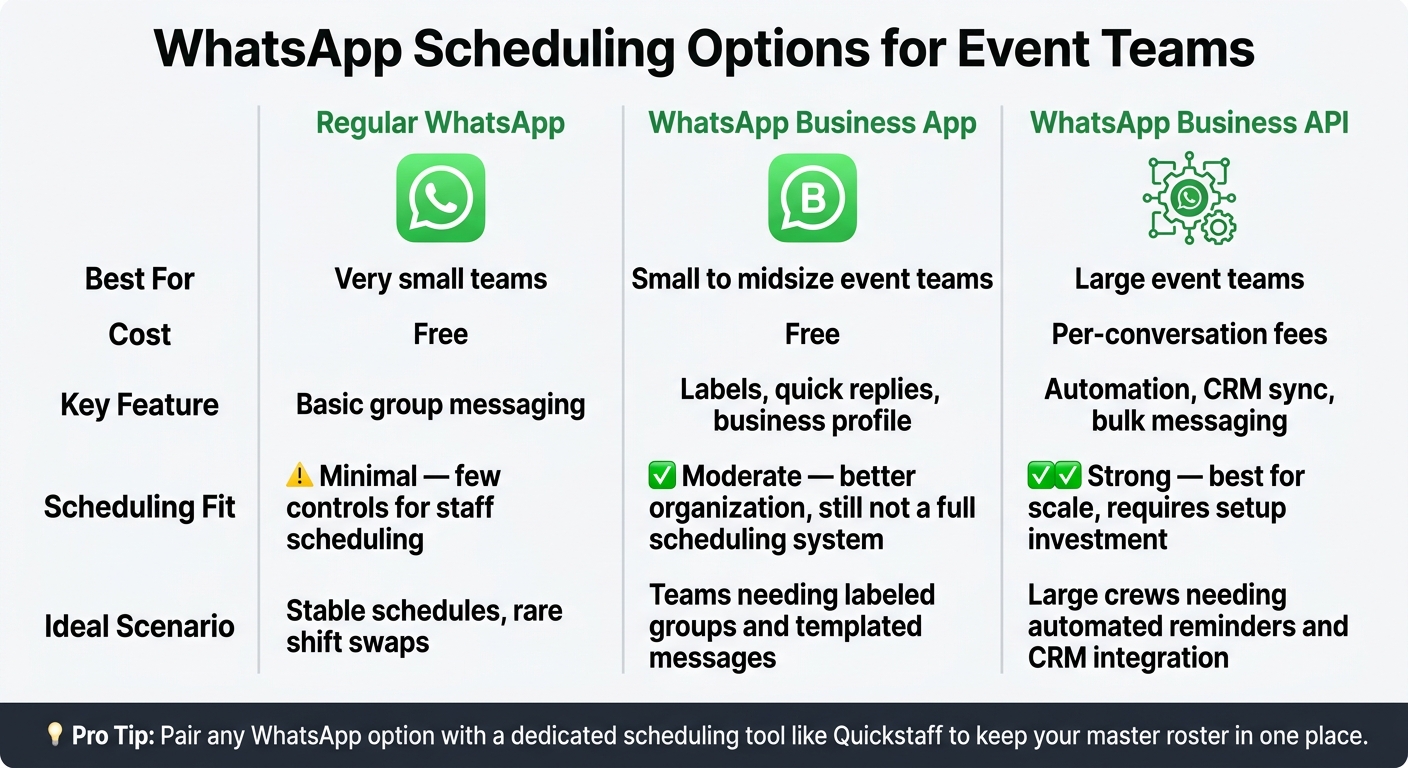
WhatsApp vs WhatsApp Business vs API: Which Is Right for Your Event Team?
Pick the version that fits your team size and how often plans change. Regular WhatsApp is fine for very small teams that don't deal with many last-minute updates. The free WhatsApp Business app is a better fit for small and midsize event teams because it gives you labels and quick replies. If you're running a large team, the WhatsApp Business API adds automation, CRM integration, and bulk messaging.
| Version | Best For | Cost | Key Feature |
|---|---|---|---|
| Regular WhatsApp | Very small teams | Free | Basic group messaging |
| WhatsApp Business App | Small/midsize teams | Free | Labels, quick replies, business profile |
| WhatsApp Business API | Large teams | Per-conversation fees | Automation, CRM sync, bulk messaging |
Set up your groups before event day. Add the venue address, the date in MM/DD/YYYY format, shift times in 12-hour format with AM/PM, and the contact person for late arrivals or emergencies.
It also helps to keep groups tied to roles. One giant chat for the whole roster can get messy fast. Separate groups for catering, bar, and setup make it easier for people to spot the updates that apply to them.
Gather each staff member's full name and mobile number before you create any groups. If you want to send broadcast messages, make sure staff have saved your number.
Ask everyone to use their real name and a clear profile photo. In a busy chat, supervisors can spot clear names much faster than random nicknames.
With your team sorted, you can move on to posting schedules and shift details in WhatsApp.
Once your groups are set up, share each shift in the group where the right staff already are. That keeps updates in the right place and cuts down on mix-ups.
Use a WhatsApp Event card in the right group for each shift. Add the shift name, date, time, location, and response options. To make one, tap the attach or plus icon and choose Event. Staff can reply with Going, Maybe, or Not Going, which gives you a simple way to see who has confirmed.
The Description field is a good spot for extra details like dress code, parking, and check-in instructions. If the day includes more than one shift, post them as separate Event cards. For example, use one card for Setup 7:00 AM–11:00 AM and another for Service 5:00 PM–10:00 PM so each team sees only what applies to them.
Use Event cards for shifts that are locked in. If details may change later, post those updates as plain text instead.
Use the same format every time. It makes updates easier to scan, and staff know where to look for each detail.
📋 Date: [MM/DD/YYYY] | Role: [Role] | Call Time: [Time AM/PM] | Staff Name: [Name] | Location: [Zone/Room] | Dress Code: [Attire] | Check-in: [Instructions]
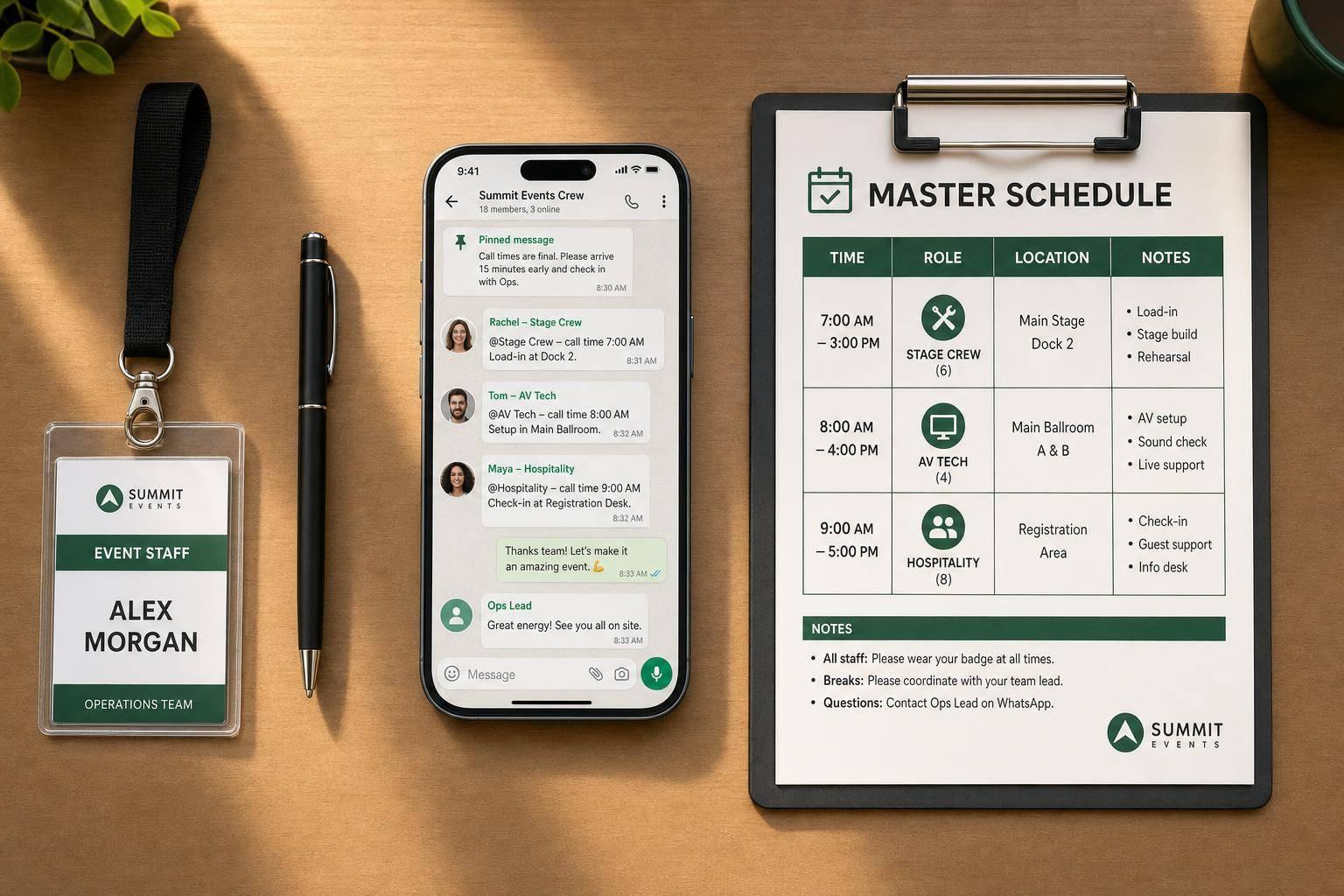
You can also attach a screenshot of the master schedule for a fast visual reference.
Too many versions in chat can throw people off fast. Pin the newest schedule at the top of the group chat, and remove the older pinned version right away. Start every new schedule post with LATEST VERSION on the first line so no one has to guess which one to follow.
If Quickstaff is your official roster, let WhatsApp do one job: send approved changes to the team. Once the schedule is pinned, keep using that same chat for day-of updates.
During the event, staff move fast. Updates need to stay clear. Since the schedule is already pinned, use WhatsApp for live changes only.
If someone calls out or a room change affects timing, message the impacted team first. Tag the person being moved so they get a direct alert instead of missing it in the group chat. Then send a short update:
REASSIGNMENT: [Name] → [New Location] | [Time] | [Reason]
When a call-out happens, fill the most time-sensitive roles first: catering, bar, and AV, or use tools for last-minute catering staff scheduling. Deal with lower-priority gaps after that. Once the change is set, send one final confirmation and then update the official record.
Keep these messages tight. People should be able to read them and act right away.
Use the same format for each status update:
STATUS: [Name] – [Action] – [Location]
Example:STATUS: Sarah – Checked In – North Gate
Send break updates only to the group involved. At the end of a shift, ask for a plain station check-out. Something like this works well:
"Station cleaned, checked out – Marcus"
That gives you a clear record without turning the chat into a long thread.
Unmoderated group chats can slow things down and create confusion when updates need to be timely and trustworthy. A thumbs-up reaction is often enough to confirm receipt without adding another notification.
If a message needs more detail, attach a map, PDF, or photo instead of typing a long explanation. Use radios for urgent alerts. Use WhatsApp for updates, photos, and coordination.
If WhatsApp starts holding too much schedule detail, use it alongside an event staff scheduling system that keeps the official roster in one place.
Once shifts start moving around in real time, WhatsApp’s weak spots show up fast. It’s good for quick coordination with a small team, but things get messy when schedules change a lot.
There’s no built-in way to track availability, so managers have to ask staff one by one. Old schedule images also stay in the chat history, with no clear sign that a newer version exists. That can lead to confusion, missed shifts, or people showing up late. And when the whole group gets every single update, people often mute notifications and miss the messages that matter most.
| Advantages of Using WhatsApp for Staff Scheduling | Limitations to Be Aware Of |
|---|---|
| Free to use with no per-employee cost | No built-in availability tracking - must ask staff manually |
| Instant day-of updates | Critical updates can get buried under casual messages |
| Easy to share quick updates and map pins on the fly | Old schedule versions stay visible in chat history |
| Works well for very small teams with stable schedules and rare shift swaps | Too many broadcasts make staff mute the chat |
| No reliable audit trail for changes or approvals |
When the chat starts to feel noisy, the fix is simple: keep the actual schedule in one source of truth.
That’s the gap Quickstaff fills. Quickstaff keeps the master schedule, while WhatsApp handles the fast back-and-forth during the day.
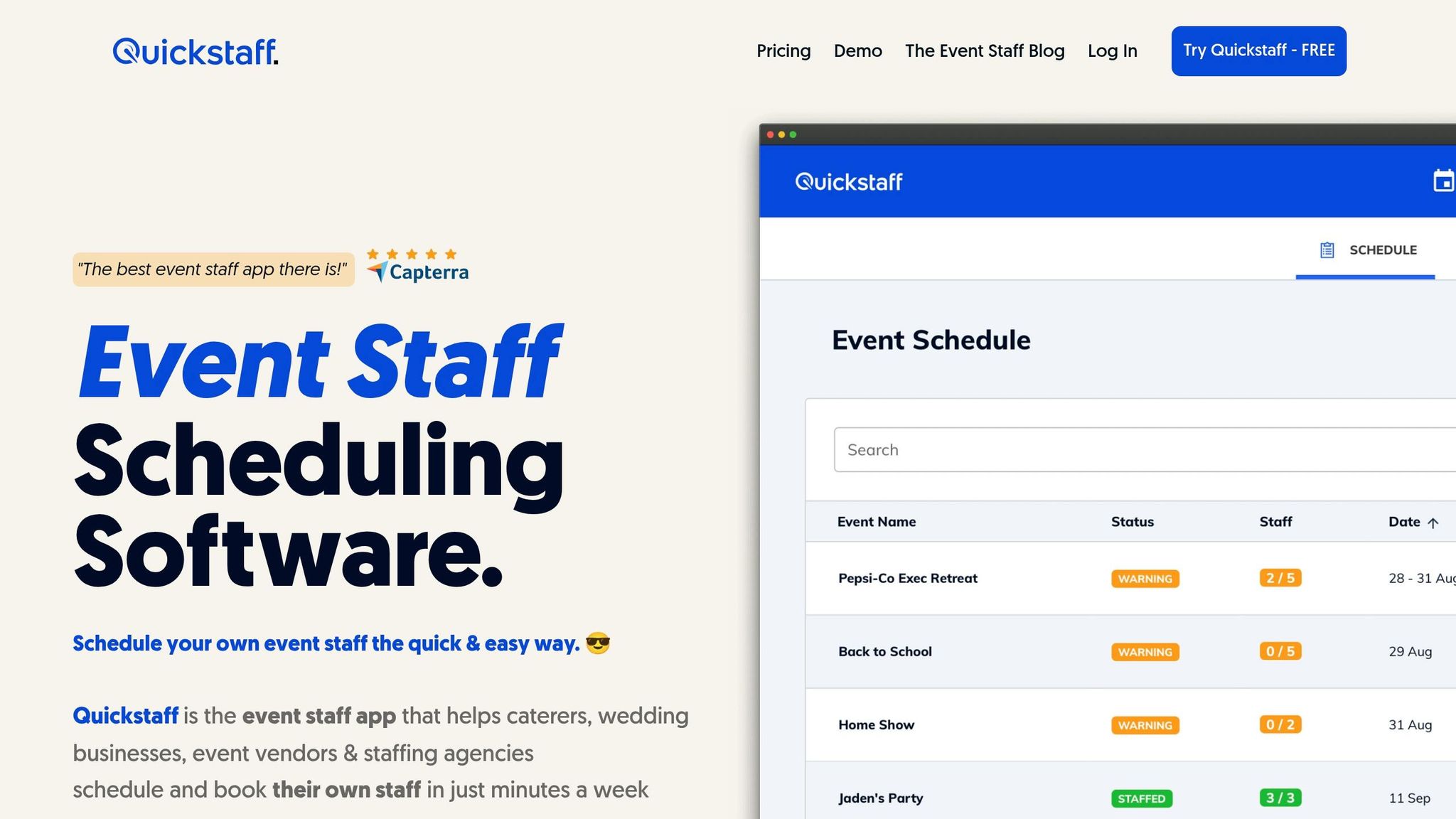
Use Quickstaff to build events, assign roles, track staff availability using event staff apps, manage waitlists, and send reminders. It keeps the main schedule in one place and stores a timestamped record of changes. A pinned link to the current Quickstaff schedule also gives staff one place to check the latest version.
WhatsApp then takes over for live coordination. It works well for day-of confirmations, live reassignments, check-in status updates, and anything that needs an instant reply.
Use WhatsApp for live coordination and Quickstaff for the master schedule. During the event, keep messages short and the format clear. Skip long threads. Give each tool ONE job: Quickstaff for the schedule, WhatsApp for updates.
Use WhatsApp for scheduling only if your team is very small - fewer than five or six people - with a fixed weekly schedule, rare shift swaps, and just one location.
It can also work as a backup messaging channel for fast event updates in the moment.
For professional event staffing, Quickstaff gives you a more dependable central system, so you’re not stuck juggling manual tracking, scattered chats, and avoidable logistics mistakes.
Minimize manual messaging, and use one-to-many broadcast lists instead of group chats to keep updates clear and private. On WhatsApp, there’s no version control or automatic conflict detection. So when a schedule shifts, confusion can pile up fast.
For fewer errors, use a centralized platform like Quickstaff. It brings scheduling, real-time availability tracking, and automated reminders into one mobile-friendly place. That means staff can check the latest info without waiting on manual updates or digging through old messages.
Tracking staff availability in WhatsApp alone gets messy fast. There’s no built-in scheduling system, which means you end up chasing replies across different chats and threads by hand.
Quickstaff makes this much easier. Staff can set their availability in one place, and you can see updates in real time. That gives you a clear view of who’s free, lets you assign shifts faster, fill gaps before they turn into problems, avoid double-bookings, and keep an accurate record that stays up to date.