How to Manage Last-Minute Schedule Changes
January 30, 2026

When a team member cancels at the last minute, it can disrupt operations, delay services, and stress your staff. To handle these changes effectively:
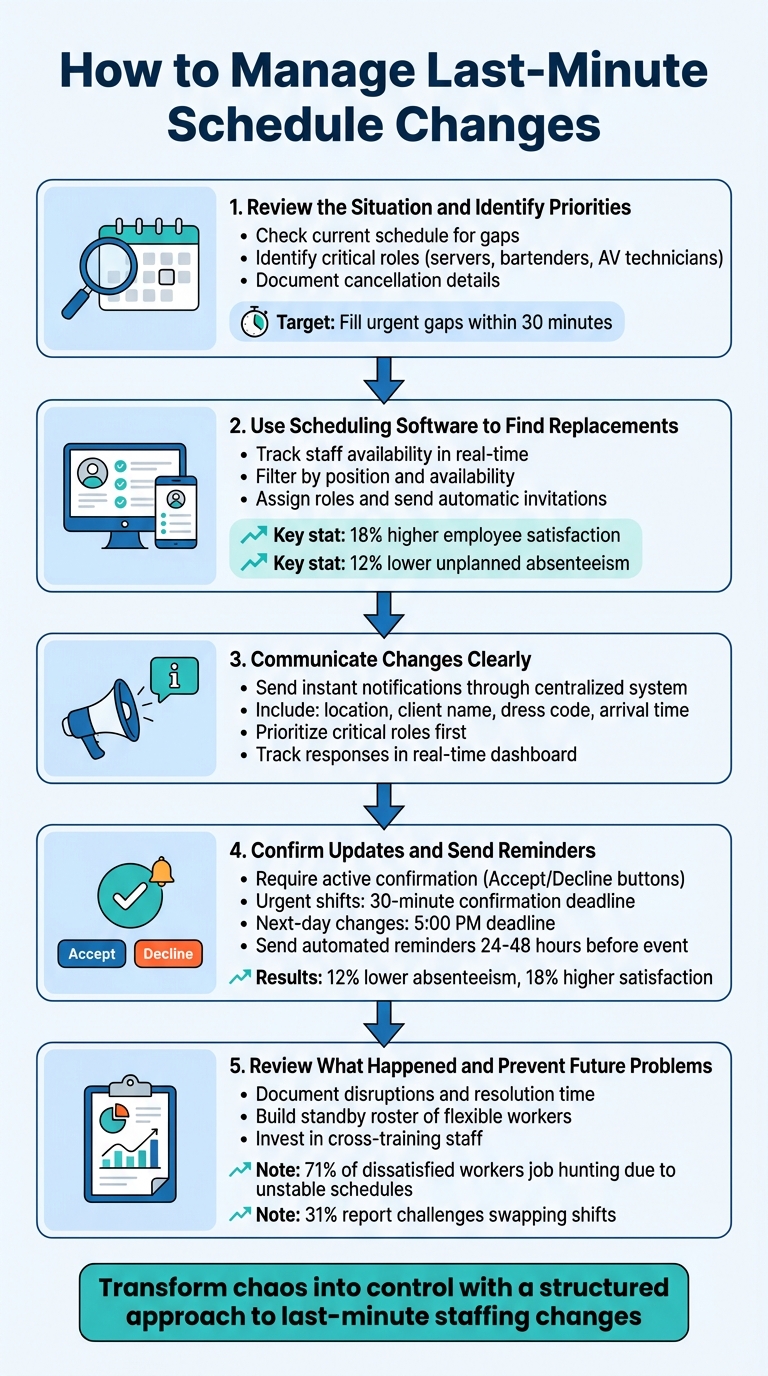
5-Step Process for Managing Last-Minute Schedule Changes
When a last-minute cancellation happens, the first step is to review your schedule immediately. Use your scheduling tools to pinpoint any uncovered shifts or roles that need attention. Look for gaps in crucial areas like catering, bar service, or AV support. Tools like a visual dashboard or a color-coded calendar can make it easier to spot these issues quickly.
Take a close look at your event timeline to determine when and where the cancellation will have the biggest impact. For instance, losing a bartender during peak cocktail hour could lead to long lines and unhappy guests. On the other hand, a cancellation during the setup phase might give you more flexibility to adjust. Keep an eye out for real-time signs like delays or bottlenecks that might need immediate action. Make sure to document details like the cancellation time, the role affected, and how urgent the issue is - this will help you make faster decisions and analyze the situation later.
Once you've identified the gaps, shift your attention to the roles that are most critical to keeping the event running smoothly.
Focus on filling roles that directly impact the guest experience, such as servers during dinner, bartenders for happy hour, or AV technicians needed before a presentation. Assess the consequences of leaving a role unfilled. If it could lead to safety concerns, service delays, or unhappy guests, it needs to be addressed right away. Having an on-call list ready can help you fill these urgent gaps within 30 minutes.
If possible, rely on cross-trained team members who can step into multiple roles. This flexibility can minimize disruptions and help you turn a potentially chaotic situation into one that's under control.
Once you've pinpointed critical roles, scheduling software can help you secure replacements in no time. Forget the hassle of scrolling through endless spreadsheets - this tool allows you to see who's available and send out invitations in just minutes. It eliminates guesswork and ensures everyone stays aligned during high-pressure situations. Plus, it seamlessly ties into real-time tracking of staff availability.

Quickstaff makes it simple to see which team members are available at a glance. Employees can block off dates they can't work, and the system automatically filters them out when you're searching for replacements. This means you're only reaching out to people who are actually free to take the shift.
Need to fill a specific role, like a bartender or server? Quickstaff lets you filter your staff by position, so you're contacting the right people instead of sending out a mass message. Businesses using advanced shift-swapping tools report 18% higher employee satisfaction and 12% lower unplanned absenteeism. This translates to a more dependable pool of available staff over time.
The centralized dashboard also helps you quickly identify any staffing gaps and track responses to invitations, cutting down on unnecessary back-and-forth communication.
Once you've found the right replacement, you can assign them directly through Quickstaff. The system sends automatic emails, allowing staff to accept or decline the shift with ease. This streamlined process fills staffing gaps in just minutes.
After the shift is confirmed, Quickstaff updates the schedule in real time for everyone involved. This eliminates any potential confusion and keeps the entire team informed.
"Prior to Quickstaff, I was using Excel spreadsheets to track my employees and their shift availability. My life changed the day I started using Quickstaff!" - Jaime S, VP, Lisa's Catering
To ensure nothing slips through the cracks, verify that the assigned staff have acknowledged their new schedules using Quickstaff's response tracking. This step ensures everyone is on the same page and lets you move forward with confidence. Clear communication is key as you implement these changes across your team.
Once you've secured replacements, it's crucial to notify everyone right away. Relying on scattered methods like sticky notes, spreadsheets, or multiple text threads can lead to confusion and missed updates. A centralized system ensures everyone stays on the same page and receives updates without delay. Using built-in tools can make this process seamless and efficient.
Quickstaff's messaging feature allows you to instantly notify your team about schedule updates. You can send announcements to your entire roster or narrow it down to specific roles, ensuring only the relevant staff members are contacted.
"Send unlimited messages to all your staff - or just the 'servers' whenever you want." - Quickstaff
Staff members receive automatic email notifications with one-click options to accept or decline the changes. A centralized dashboard lets you track responses in real time, so you can see who has confirmed and who still needs to reply. After sending out updates, make sure your instructions are clear and leave no room for misunderstanding.
Avoid sending vague messages like "your schedule changed", as they often lead to confusion. Instead, include all the essential details in your updates - like the event's location, client name, dress code, arrival time, and any special instructions. Quickstaff's event notes feature organizes this information in one place, making it easily accessible from any phone.
Prioritize communication for critical roles - such as catering, bar, and AV staff - before addressing less urgent positions. When team members receive detailed, role-specific instructions, they know exactly what's expected of them, which helps ease any pre-event nerves and reduces last-minute questions. Clear communication ensures everyone is prepared and ready to perform.
Make sure your team has received and acknowledged schedule updates to avoid the dreaded no-shows. Without confirmation, you’re leaving the door open for unexpected absences that could disrupt your event.
"I didn't know I was scheduled!" is probably one of the most irritating things to hear from an employee, yet sometimes it may be genuine. However, true or not, that does not help no show induced staffing shortages.
– Quickstaff
Hearing this excuse is not only frustrating but also impacts your ability to run a smooth operation. Whether the claim is valid or not, it contributes to staffing gaps. That’s why implementing verification procedures and automated reminders can make a big difference. In fact, organizations using these tools report 12% lower unplanned absenteeism and 18% higher employee satisfaction. These results stem from better communication and keeping schedules front and center for your team.
Don’t assume your team will check their emails or messages - require active confirmation instead. Quickstaff simplifies this process with one-click Accept or Decline buttons in work invitations, which instantly update your dashboard with real-time responses.
For urgent shifts, request confirmation within 30 minutes. For next-day changes, set a deadline of 5:00 p.m. the previous day. If someone doesn’t respond, follow up with a text or call to secure an answer. Taking these steps early gives you time to address potential gaps before they become emergencies.
Even confirmed staff can forget their shifts, which is why automated reminders are so effective. Sending reminders 24 to 48 hours before an event ensures the shift stays top-of-mind and offers a final chance for staff to flag potential issues.
Once confirmations are in, reinforce them with automated reminders via text, email, or the Quickstaff app. These reminders reduce last-minute surprises and help everyone stay on track. Encourage your team to sync their Quickstaff schedules with their personal calendars (Google, Outlook, or Apple Calendar) so work shifts appear alongside their other commitments. This not only helps prevent double-booking but also ensures everyone is fully aware of upcoming events.
Once your event wraps up, take a moment to evaluate any schedule disruptions. This step helps you turn unexpected challenges into actionable improvements for your next event.
Start by recording the details of the disruption. Note which roles went unfilled, why it happened (e.g., personal emergencies, no-shows, or communication breakdowns), how long it took to find replacements, and any financial impacts like overtime costs or lost revenue.
Keeping these records isn’t just about looking back - it’s about spotting patterns and addressing recurring issues. For instance, 71% of dissatisfied hourly workers are actively job hunting because of unstable schedules and difficulties in reaching managers. Recognizing these trends early can help you tackle problems before they lead to high turnover.
Next, evaluate how well your backup plan worked. Did replacements step in quickly? Was cross-training effective? Use this review to fine-tune your contingency strategies and close any gaps that surfaced during the event.
Turn your observations into stronger contingency plans. If certain roles often go uncovered, invest in cross-training your staff. For example, ensure servers or bartenders can handle multiple responsibilities. Address no-show issues by improving shift-change processes, as 31% of hourly employees report challenges swapping shifts with coworkers, often forcing them to work while sick or underemployed.
Create a standby roster of flexible workers who can step in at a moment’s notice. Tools like Quickstaff’s centralized dashboard can simplify this process by showing which staff members are available and ready to fill in, saving you from endless phone calls during emergencies. Additionally, regularly review staff certifications - like food safety or liquor licenses - to avoid compliance headaches.
"Smart event planners don't just fix problems - they learn from them. Each last-minute staffing challenge reveals opportunities for improvement." – Avery From Qwick
Investing time in post-event analysis can transform how you manage future events. As Jennifer Manley, a Staffing Coordinator, shares:
"My time spent scheduling has shrunk majorly, leaving me more time to focus on recruiting, on-boarding and training."
Dealing with last-minute schedule changes doesn’t have to be chaotic. By sticking to a structured process - assessing the situation, leveraging scheduling software to find replacements, clearly communicating updates, confirming changes, and reflecting on each incident - you can transform potential setbacks into manageable tasks.
Preparation is key. Ditch outdated methods like spreadsheets and phone calls in favor of a centralized system. Since 2013, Quickstaff has supported caterers and event vendors in scheduling staff for over 20,000 events. This shows how the right software can simplify team management.
With features like automated reminders, real-time availability tracking, and instant communication, Quickstaff eliminates the delays caused by endless phone calls. Give it a try with a free 14-day trial - no credit card needed.
When a staff member cancels at the last minute, quick action is crucial. Start by leveraging a dependable event staff scheduling tool like Quickstaff. These platforms let you check real-time availability, making it easier to find and confirm a replacement without wasting time.
To handle future challenges more smoothly, create a backup pool of reliable staff and keep communication lines open with your team. Tools with automated scheduling features can reduce mistakes and simplify the process, helping you adjust seamlessly to unexpected changes.
Scheduling software like Quickstaff simplifies the often chaotic task of managing event staff. It brings everything - scheduling, communication, and updates - into one place, saving time and cutting down on manual mistakes. By automating key tasks, it helps avoid common headaches like double-booking, no-shows, or assigning the wrong person to a role. This ensures your team’s availability and skills match up perfectly with the event’s needs.
Another standout feature is its ability to improve communication. Quickstaff sends instant updates and reminders directly to your team, keeping everyone on the same page and minimizing last-minute surprises. If things change unexpectedly, the platform makes it easy to adjust plans quickly, keeping operations smooth and stress-free. The result? A more efficient process, happier staff, and events that run without a hitch.
When dealing with last-minute schedule changes, the key is to communicate swiftly and clearly. Start by using a dedicated communication tool or platform to notify your team in real time. This minimizes the chance of anyone missing important updates.
Scheduling software like Quickstaff can be a game-changer. It allows you to send instant notifications, check staff availability, and manage updates efficiently. Having clear policies in place for handling schedule changes also helps reduce misunderstandings and builds trust. Finally, encourage open dialogue so team members feel comfortable discussing their availability or raising concerns, making the entire process less stressful for everyone.