10 Tools for Resolving Staff Scheduling Conflicts
July 2, 2026

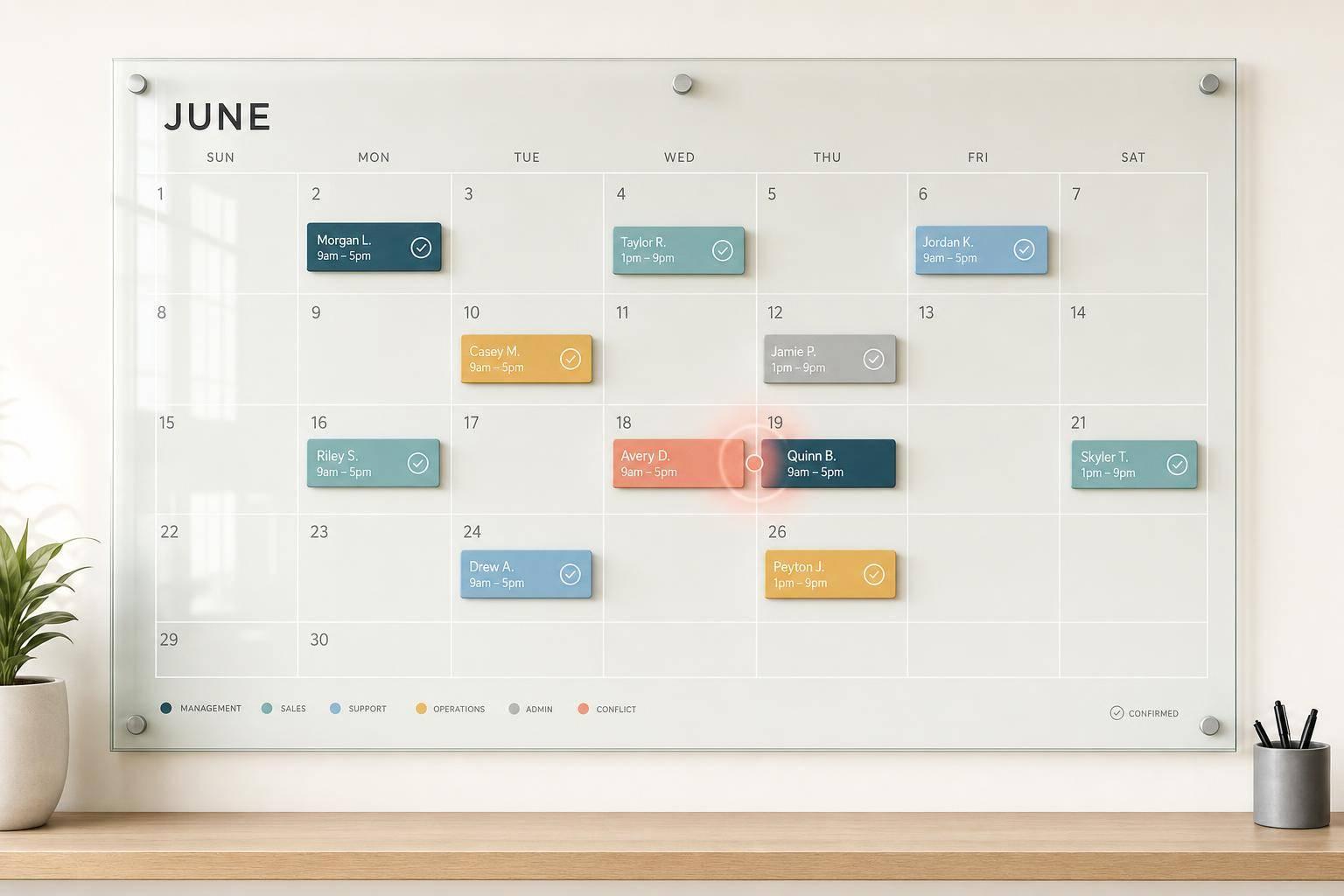
One scheduling mistake can wreck an event day. My takeaway from this list is simple: if you run event or hospitality teams, the right tool helps you catch double-bookings, shift overlaps, time-off conflicts, and uneven shift coverage before the schedule goes out.
I’d boil the article down like this:
A few points stood out to me right away:
If I were choosing fast, I’d start with one question: Do you need shift scheduling, meeting booking, or project staffing? That alone cuts the list down a lot.
Quick comparison
| Tool | Best Fit | Conflict Help | Main Limitation |
|---|---|---|---|
| Quickstaff | Event teams | Availability flags, waitlists, mobile invites | Best fit is event-based staffing |
| Google Calendar | Small teams using shared calendars | Shared visibility, some conflict checks | Free plans need more manual review |
| Microsoft Teams | Microsoft 365 teams | Shift conflict icons, swap approvals | No guest user support |
| Asana | Project staffing | Workload and dependency warnings | Not built for hourly shifts |
| Calendly | Meetings and walkthroughs | Real-time booking checks, buffers | Not for shift rotations |
| Sling | Hourly hospitality teams | Live alerts for overlaps, overtime, rest gaps | More centered on hourly work |
| Timewatch Whitespace | Capacity planning | Red-day conflict flags, skill matching | Less focused on staff messaging |
| ServiceNow | Enterprise teams | Rule-based checks, capacity views | Higher-tier setup |
| Event Staff App | Small to mid-sized event teams | Overlap alerts, reminders, confirmations | More narrow event use case |
| ShiftForce | Shift-based teams | Swap rules, backup alerts, live conflict checks | Best for structured shift setups |
My short read: the article shows that the best tools don’t just display a calendar. They check availability first, flag problems early, and give managers control over swaps and approvals. That’s what helps you spend less time fixing the schedule later.
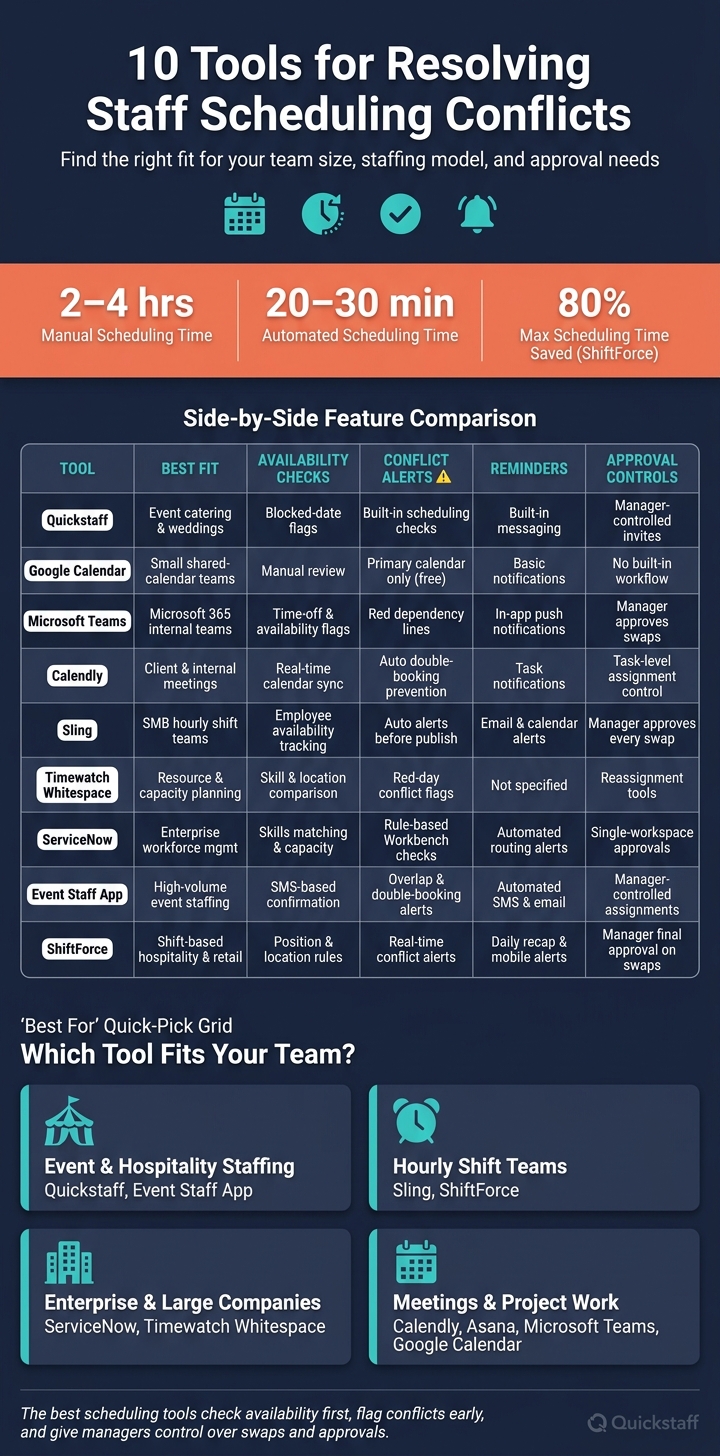
10 Staff Scheduling Tools: Features & Best Fit at a Glance
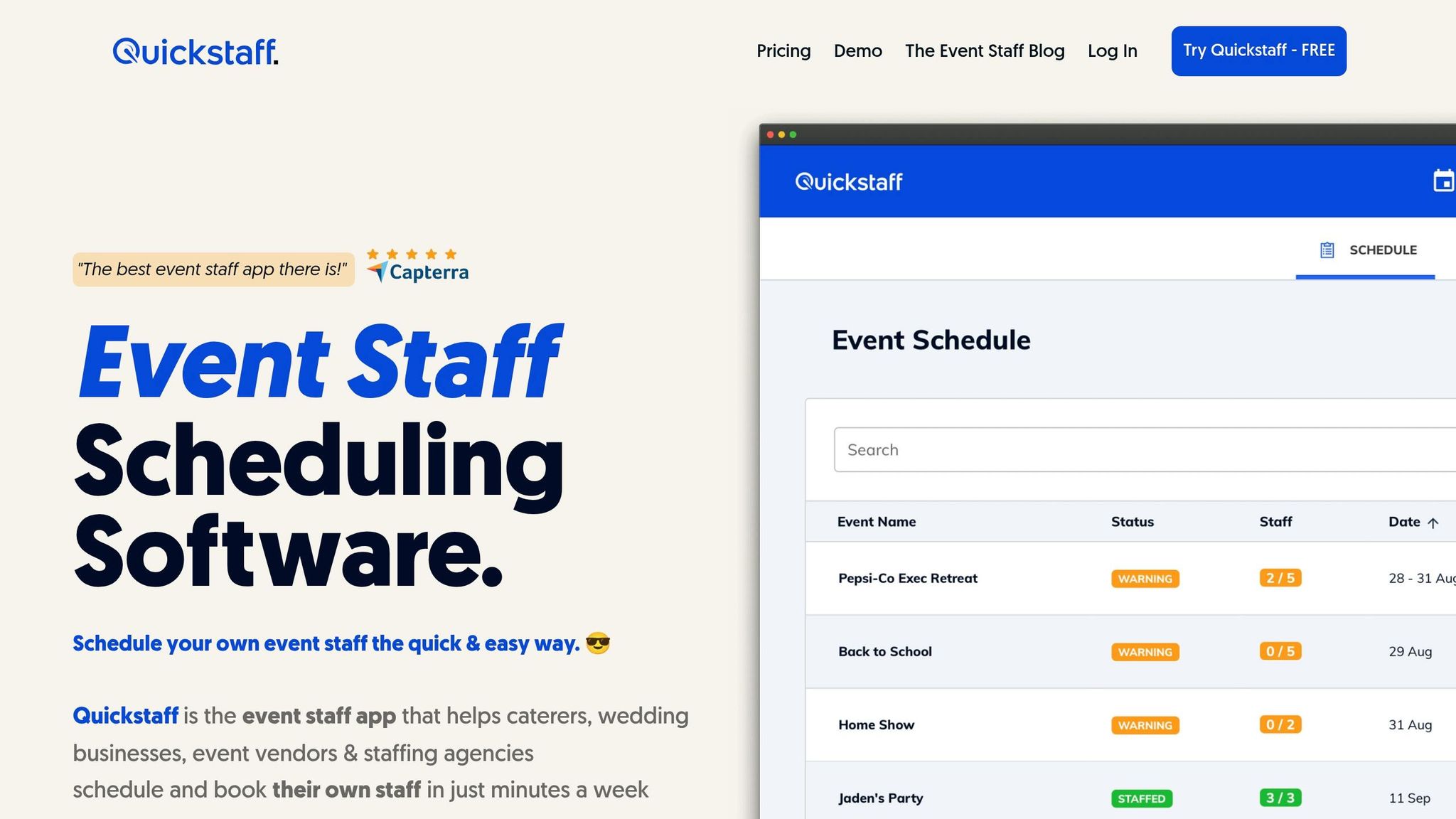
Quickstaff helps event teams avoid double-bookings by showing staff availability before shifts get assigned. That means managers don’t have to dig through notes or messages to figure out who’s free.
The platform flags blocked dates on its own, so schedules are built around actual availability. In plain terms, that helps stop double-bookings before they happen. Staff also get email invites and can accept or decline right away, which cuts a lot of the back-and-forth that usually slows manual scheduling.
It also uses role-based scheduling, so managers can match people to the right shifts instead of guessing. And if an event fills up, the Automagic Waitlist handles extra responses automatically. On the staff side, Quickstaff sends reminders, directions, and notes to mobile devices, and the app works on both iOS and Android.
Its core strengths are availability tracking, waitlists, and mobile scheduling.
Current pricing:
| Plan | Monthly Price | Staff Limit |
|---|---|---|
| Boutique | $49/month | Up to 35 staff |
| Growing | $99/month | Up to 70 staff |
| Large | $249/month | Up to 175 staff |
All plans come with unlimited events, assisted onboarding, and a 14-day free trial with no credit card required.
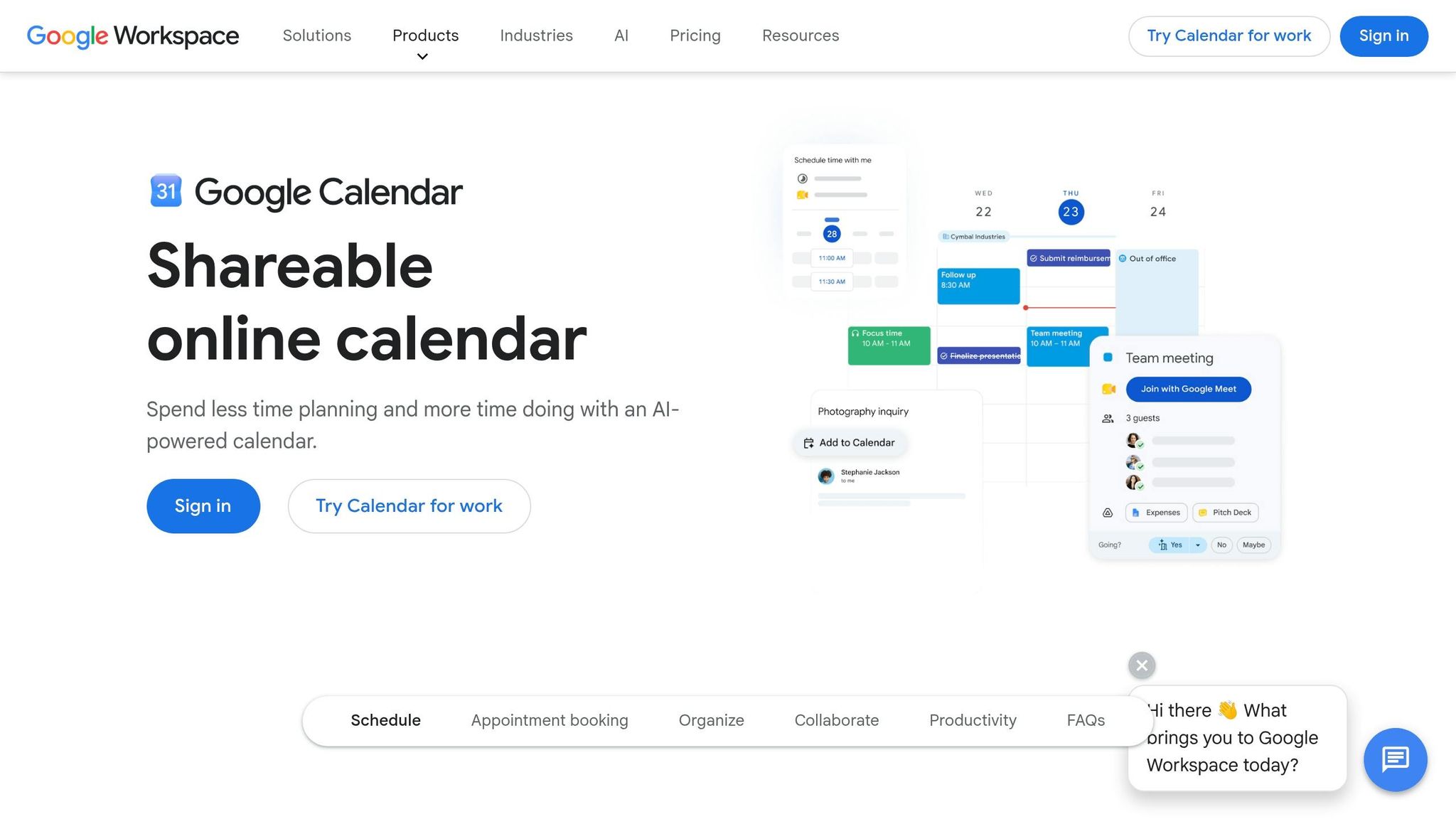
If your team just needs a budget-friendly staff scheduling tools, Google Calendar is an easy way to track who’s available and when. Managers can set up a shared shifts calendar, choose permission levels like "See only free/busy" or "See all event details", and use color-coding by role to make gaps and overlaps stand out fast.
The catch is simple: on free accounts, managers still have to do most of the conflict checking by hand. Google Calendar does not automatically stop double-bookings unless the team is on a paid Workspace plan with conflict detection. The "Find a Time" tab helps with that manual review, but the side-by-side view only shows up to five calendars at once. Paid Workspace plans can check for conflicts across multiple calendars, while free accounts check only the primary calendar.
| Feature | Free Account | Business Standard |
|---|---|---|
| Shared Visibility | Single shared calendar | Multiple shared calendars |
| Conflict Detection | Primary calendar only | Across multiple calendars |
| Calendar Limit (Side-by-Side) | Up to 5 at once | Up to 5 at once |
| Reminders | Basic notifications | Up to 5 automated email reminders |
Google Calendar works well for shared visibility, color-coding, and device sync.
Teams that want tighter scheduling control often move to tools with built-in conflict handling. This transition makes event staff scheduling quick and easy by automating manual checks.
If your team already runs on Microsoft 365, Shifts in Microsoft Teams can turn conflict spotting into something you can act on right away.
The built-in Shifts app flags overlapping shifts, approved time off, and availability mismatches. You’ll see conflict icons right on the schedule and in the Requests tab before anything gets published or approved.
Staff can swap shifts or offer them up in the app, and managers can handle approvals there too. If you want to see every issue in one place, the Filter > Conflicts view pulls all conflict items together.
For teams spread across more than one location, managers can post open shifts across sites to fill schedule gaps fast.
Shifts comes with a Microsoft Teams license and is pinned by default for Microsoft 365 F1 and F3 users. One catch: Shifts doesn’t support guest users, so only licensed team members can be scheduled. That makes it a strong fit for internal teams already using Microsoft 365.
For teams that plan work as projects instead of shifts, Asana can spot staffing issues early. Its Workload and Timeline views make it easier to see conflicts before they turn into bigger problems. For event teams assigning people to roles, not just checking off tasks, that matters a lot.
Workload is usually the first place issues show up. Capacity bars turn red when someone has too much on their plate. Hour-based assignments show actual effort, not just how many tasks a person has. And if someone has Out of Office time set, Asana shows a warning there too. From there, Timeline helps teams catch timing issues tied to those same assignments.
Timeline is useful for dependency problems. If a task is set to start before the task it depends on is done, Asana shows a red dependency line. Managers can then drag and drop work to fix the schedule. The Critical Path toggle also points out which tasks could delay the whole project if they slip.
The Universal Workload view shows team capacity across projects and subtasks. That's handy when people are split across several events at once. Filters also let you narrow the view by role or skill, which helps confirm whether key spots are covered.
Plan access depends on the feature. Timeline is available on Starter and higher tiers. Workload reporting is available on Advanced, Enterprise, and Enterprise+ plans. Universal Workload is limited to Enterprise and Enterprise+ tiers.
Asana does not include built-in shift scheduling or time clock tools, so it works better for task-based staffing than for hourly rotations. That makes it a stronger pick for event teams managing tasks, dependencies, and coverage across many projects.
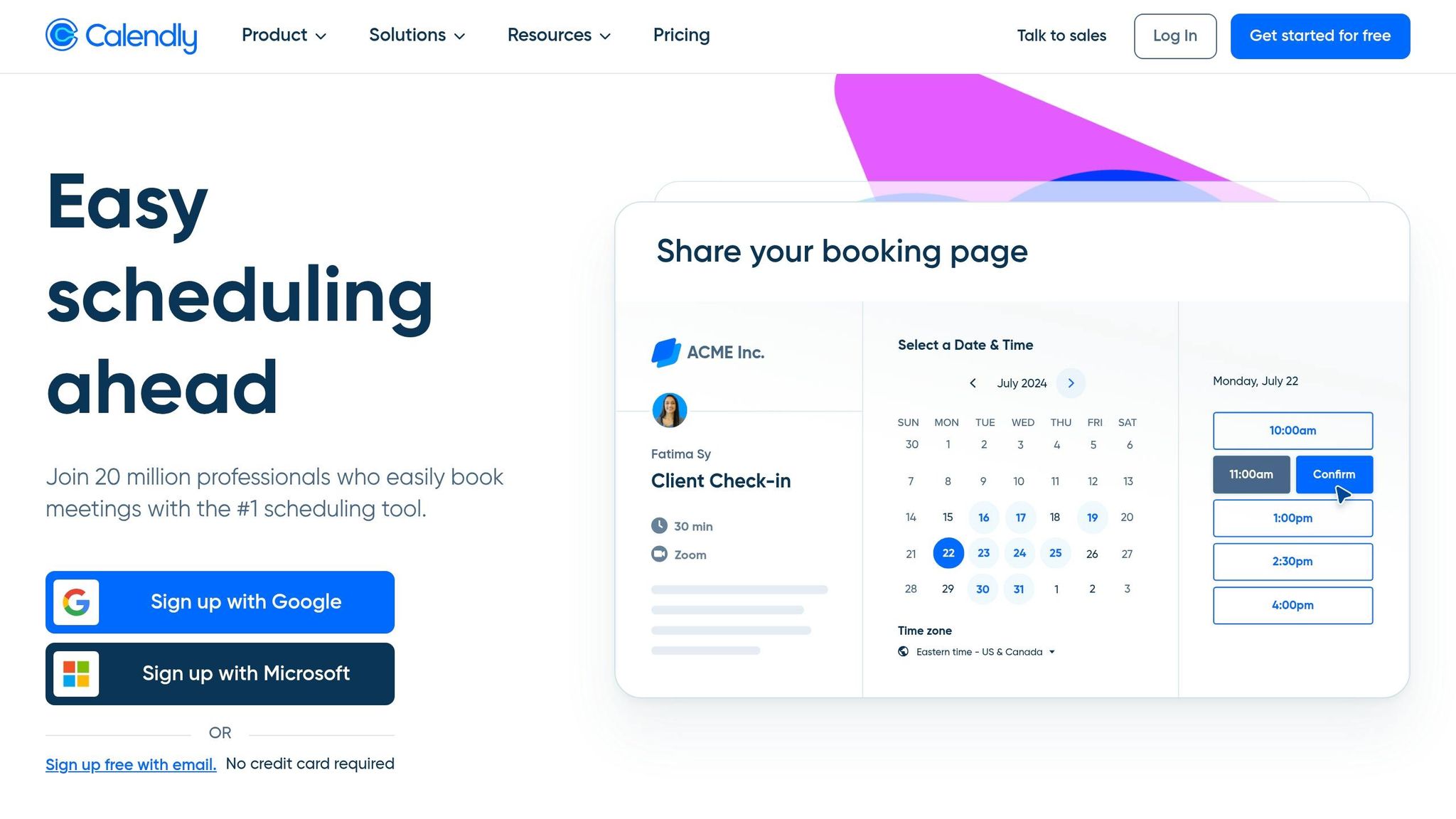
For teams that set up walkthroughs, interviews, or client meetings, Calendly adds booking controls tied to your calendar. It checks busy times across Google Calendar, Outlook, Office 365, and Exchange in real time, which helps cut down on double-bookings automatically.
You can also add buffers before and after meetings to leave room for prep or travel. And booking caps let each person limit how many appointments they can take, which helps during busy periods.
Collective event types are handy when more than one person needs to be there. Calendly checks each required team member’s calendar at the same time and only shows slots when everyone is free. That’s useful when a walkthrough needs both an event planner and a catering manager present.
Calendly fits client bookings and internal meetings well, but it doesn’t handle hourly shift rotations.

For hourly teams, conflict resolution isn't just about who works when. It also means keeping enough people on the schedule without blowing past labor limits.
Sling is built for hourly teams in restaurants, hotels, catering, and event venues. Its AI checks schedules in real time and flags double-bookings, overlaps, unavailability, and clopening shifts with too little rest. It also keeps track of approved time off and employee unavailability, so managers can see the full picture when they need to fill open shifts with catering scheduling tools.
Labor cost control is a big part of the appeal too. Sling calculates shift costs while you build the schedule and can flag overtime or budget overruns before they turn into a problem. That kind of live feedback gives managers a chance to make changes before the schedule is published. Following a catering staff scheduling checklist can further ensure no detail is missed during this process.
If someone calls out, employees can post, swap, or offer shifts to help cover the gap. Managers still approve every exchange, which helps stop new conflicts from popping up.
On pricing, Sling's free plan covers up to 30 users and includes shift scheduling and time-off requests. Premium starts at $1.70 per user/month when billed annually, and adds mobile time tracking, labor cost management, and shift swapping.
That makes Sling a strong fit for teams that deal with open shifts, last-minute swaps, and tight labor cost control at the same time.
For teams that need to compare availability across several people or locations, Whitespace shows open time blocks in one place and lets managers compare capacity by team, skill, and location.
When a conflict shows up, the day turns red and the View Conflicts button flags the issue. Managers can open the conflict list and fix overlapping bookings with reassignment tools. That means less time hunting for the problem and more time assigning the right person.
One feature stands out here: the Scheduling Advisor. It matches the skills and dates you need with the best available resource. That matching system is the main reason many teams use the platform.
Users say schedulers usually save 6 to 8 hours per month. Pricing starts at $10 per employee/month for Essentials, while Pro starts at $15 per employee/month and includes Scheduling Advisor, resource groups, and mobile access.
For larger enterprise teams, ServiceNow adds stricter rules and approval controls. It uses rule-based checks and the Allocation Workbench dashboard to flag overlaps and show staff capacity in one view. Managers can see tentative and confirmed assignments side by side, then approve or reject staffing requests from a single workspace.
It also helps match work to the right people. ServiceNow supports skills matching and automated routing, so when an assignment calls for specific skills, it can flag mismatches and route work based on team, capacity, and availability.
ServiceNow says Workforce Optimization can save 104 hours per agent per year on scheduling. Conflict detection is included in higher-tier enterprise packages.
Event Staff App is made for small to mid-sized event, hospitality, and security teams. It helps with one of the biggest scheduling headaches: shift overlap. Built-in conflict alerts catch double-bookings and overlaps before shifts are sent out, and managers can check staff availability before assigning anyone. That matters most when last-minute changes start piling up.
The app also helps teams cut down on no-shows. Automated SMS and email reminders go out before shifts, and staff can confirm or decline assignments right in the app. For on-site tracking, GPS time tracking covers clock-ins and clock-outs. Put together, those tools help managers fill open shifts faster and keep schedules in better shape.
Event Staff App has handled over 1,000,000 shifts across 200,000+ events. Pricing starts at $45 per month for up to 30 staff, with unlimited events included.
ShiftForce helps shift-based teams in restaurants, hotels, manufacturing, and retail spot conflicts, manage swaps, and fill coverage gaps in real time while managers build or adjust schedules.
The swap process is tightly controlled. Staff can only trade shifts with coworkers in the same position and location, based on preset rules. And even then, the receiving employee has to accept the swap, and a manager still has to give final approval.
When a shift opens up, ShiftForce sends mobile alerts to pre-approved backup workers. That helps teams fill open coverage faster instead of scrambling at the last minute.
It also keeps everyone on the same page. Daily recap emails show managers and staff what changed in the schedule, while ShiftNote puts schedule notes and shift updates in one searchable place.
ShiftForce is used by more than 100,000 employees across hospitality, manufacturing, and retail. The company also says it can cut scheduling time by up to 80%. If you want to try it first, there’s a 30-day free trial with no credit card required.
Next, compare how each tool handles conflict detection, swaps, and coverage gaps.
This table makes the trade-offs easier to see at a glance. It compares each tool using the same four checks: availability, conflict alerts, reminders, and approval controls.
| Tool | Primary Use Case | Availability Checks | Overlap/Conflict Alerts | Messaging & Reminders | Approval Controls |
|---|---|---|---|---|---|
| Quickstaff | Event catering and weddings | Availability tracking and blocked-date flags | Built-in scheduling checks | Built-in messaging and reminders | Manager-controlled invitations |
| Google Calendar | Shared team visibility | Manual review of shared calendars | Primary calendar only (free); multi-calendar on paid plans | Basic notifications; up to 5 automated email reminders (paid) | No built-in approval workflow |
| Microsoft Teams | Internal shift scheduling | Availability and time-off flags in Shifts | Automated conflict icons before publishing | In-app and push notifications | Manager approves swaps and requests |
| Asana | Project and task-based staffing | Workload capacity bars and Out of Office warnings | Red dependency lines and overload alerts | Task notifications and reminders | Task-level assignment control |
| Calendly | Client and internal meeting booking | Real-time calendar sync across Google, Outlook, and Exchange | Automated double-booking prevention | Email and calendar notifications | Booking caps and buffer controls |
| Sling | SMB hourly shift scheduling | Employee-set availability and time-off tracking | Automated conflict alerts before publishing | In-app and push notifications | Manager approves every swap |
| Timewatch Whitespace | Resource and capacity planning | Skill- and location-based availability comparison | Red-day conflict flags with View Conflicts button | Not specified | Reassignment tools with manager control |
| ServiceNow | Enterprise workforce management | Skills matching and capacity tracking | Rule-based checks via Allocation Workbench | Automated routing notifications | Manager approves via single workspace |
| Event Staff App | High-volume event staffing | SMS-based staff confirmation | Automated overlap and double-booking alerts | Automated SMS and email reminders | Manager-controlled assignments |
| ShiftForce | Shift-based hospitality and retail | Position- and location-based availability rules | Real-time conflict alerts during scheduling | Daily recap emails and mobile alerts | Manager gives final approval on every swap |
A few patterns stand out fast. Google Calendar works best when your team can manage conflicts by hand, while tools like Calendly, Sling, and ShiftForce do more of that work for you. If approvals matter a lot, Microsoft Teams, ServiceNow, and Quickstaff give managers tighter control over who gets assigned and what gets approved.
That usually narrows the field pretty fast: pick the tool that fits your team size, staff setup, and how strict your approval flow needs to be.
After looking at these 10 tools, the right pick mostly comes down to your staffing model, team size, and how fast you need to build and change schedules.
For catering companies, wedding vendors, and staffing agencies, an event-focused tool like Quickstaff tends to fit the day-to-day work better. If your team handles recurring shifts at a hotel, venue, or multi-location hospitality group, a shift scheduling platform with compliance and overtime tracking is often the better match. And if last-minute changes happen all the time, put SMS or push notifications near the top of your checklist so staff see updates fast.
Across all 10 tools, the pattern is pretty clear: the best systems stop conflicts before the schedule goes live. The strongest options bring together visibility, alerts, and fast updates so managers can spot issues early and fix them without a lot of back-and-forth.
Start with your staffing model. Teams that rely heavily on freelancers usually need invitation-based scheduling. Hourly teams usually need shift controls and compliance rules. Pick the tool that fits your staffing model first, then narrow it down based on workflow and approval needs.
Choose a scheduling tool based on the features that solve your team’s day-to-day staffing problems. Start by deciding if you need a focused tool with things like skill-based shift matching, or a broader workforce management platform that handles more of your staffing work in one place.
Look for features such as:
It also helps to weigh your team size and budget early. Some tools charge per user, while others use a flat monthly fee.
The most effective features are automated conflict detection and accurate, employee-managed availability tracking.
Together, these tools catch overlapping shifts, double bookings, and labor-rule issues in real time. They also help managers schedule ONLY people who are actually available.
Skill-based matching, centralized communication, and self-service shift swapping can also help teams fill open shifts fast and with less back-and-forth.
Move past a shared calendar when scheduling keeps breaking down with double bookings, overlapping shifts, or too much manual back-and-forth. A basic calendar doesn’t stop those mistakes. And when plans change at the last minute, it can slow everything down.
Specialized software like Quickstaff helps by flagging conflicts automatically, showing real-time availability, and giving teams one place to handle shift swaps and event management.