Top Notion Templates for Event Managers
July 9, 2026

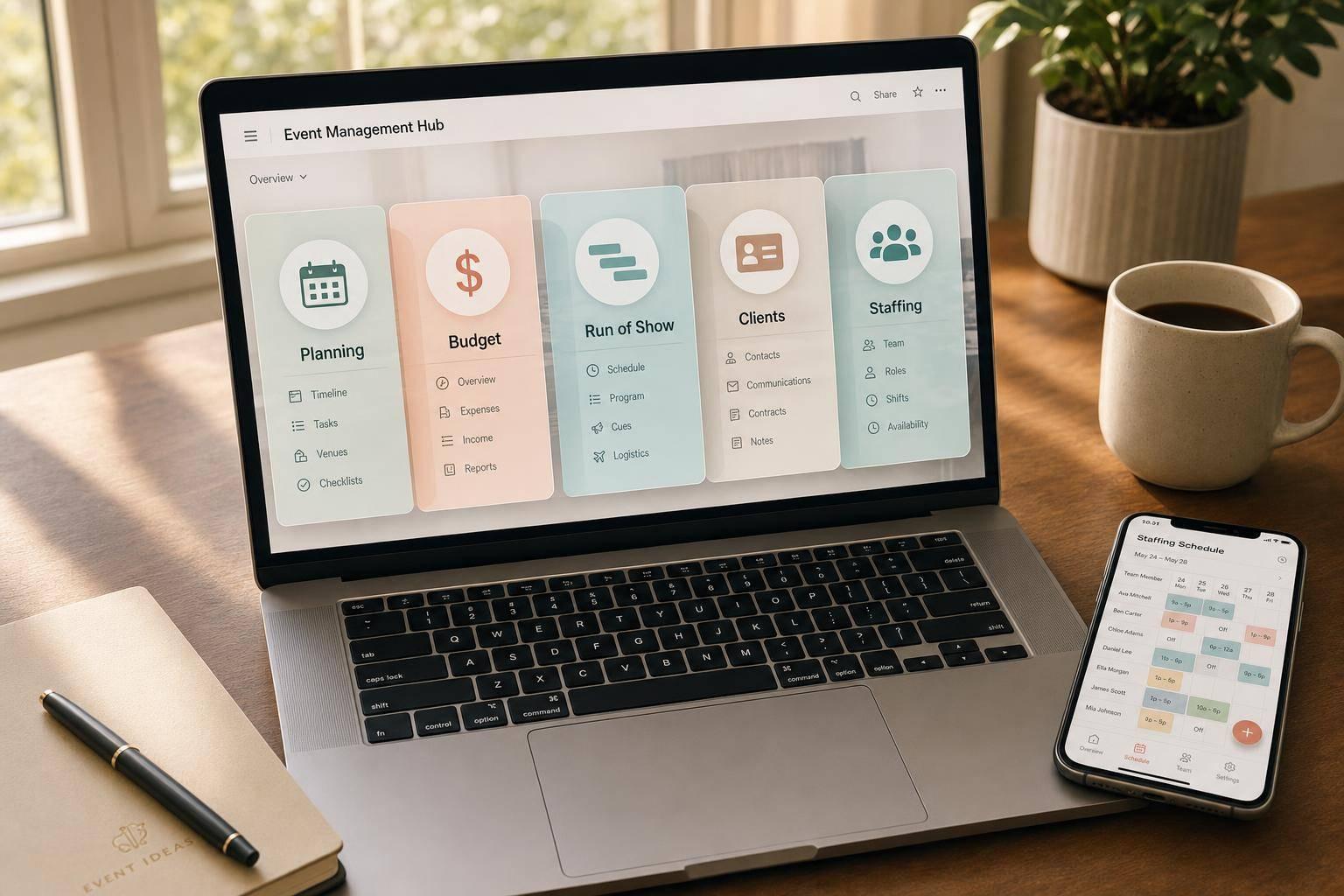
If you run events, the best Notion template depends on one thing: are you planning the event, running the event, or staffing the event?
I’d sum it up like this: Notion works best for planning, budgets, vendors, timelines, client records, run-of-show docs, and debriefs. But once you’re scheduling 15–20+ temp staff, dealing with availability, filling last-minute gaps, or sending shift reminders, Notion starts to feel manual, and you'll run into common event staff scheduling challenges. That’s where Quickstaff fits better.
Here’s the short version:
A few details matter more than they seem: budgets should stay in USD ($), dates should use MM/DD/YYYY, and event-day schedules should use 12-hour time like 06:30 PM. Those small choices cut down on mistakes when your team is under pressure.

Notion Event Templates Compared: Which One Is Right for You?
| Template | Best for | Main strength | Best used alone or with staffing tool? |
|---|---|---|---|
| Event Plan Template by Notion | Single-event planning | One event hub for goals, logistics, and budget | Pair with staffing tool for temp teams |
| Event and Creative Project Management Dashboard | Events with file reviews and approvals | Tasks, files, and approvals in one place | Pair with staffing tool if shifts are involved |
| Ultimate Event Planner Template | Small to mid-size events | Simple layout with budget and vendor tracking | Pair with staffing tool for staff-heavy events |
| Notion Event Planning Checklist Template | Teams that want clear task lists | Phase-based checklist view | Fine for light staffing, not shift-heavy work |
| Event Flow OS | Large or repeat events | Linked databases for tasks, budgets, and vendors | Strong with a staffing tool |
| Notion CRM Template | Repeat client and vendor work | Relationship history and contract tracking | Use with staffing tool after booking is confirmed |
| Run of Show Template | Event-day timing | Minute-by-minute schedule and cues | Best paired with staffing tool |
| Meeting and Debrief Template | Post-event follow-up | Decisions, action items, and notes | Supports staffing follow-up, but doesn’t run shifts |
Bottom line: if you need to plan, document, and review an event, Notion can do a lot. If you also need scalable event scheduling, waitlists, confirmations, and mobile shift updates, use a second tool for that part.
That’s the lens I’d use when reading the rest of this guide.
The best Notion templates give event teams structure, clarity, and speed. That matters when deadlines are tight and no two events look exactly the same. A solid template should help you plan, run, and review an event in one place, not send you bouncing between five tabs and a half-buried email thread.
Here’s what separates a useful template from one that just looks nice on the surface.
A strong template keeps everything connected to one event page: briefs, venue details, vendor contacts, contracts, and post-event recaps. When you're on-site, you shouldn't have to dig around for the catering manager’s phone number or the load-in window. You should be able to find it in seconds.
A master Event database helps a lot here. It can link each event to its tasks, vendors, budgets, and documents, so the full picture lives in one workflow instead of being scattered across different tools.
Once everything sits in one place, the next job is keeping the numbers easy to read and update.
Budget tracking falls apart fast when part of it lives in a spreadsheet, part in an email chain, and part in someone’s head. A good template keeps line items, vendor ownership, payment status, and approval notes together, formatted in USD ($).
A useful budget table usually includes:
That setup makes it much easier to spot what’s paid, what’s pending, and where costs are drifting before they become a problem.
Event teams need two views at once: the big-picture timeline and the minute-by-minute plan. A good template supports both. That usually means a calendar view for major milestones like deposit deadlines, RSVP cutoffs, and rehearsals, plus a run-of-show view for the event day itself.
For U.S.-based teams, dates should use MM/DD/YYYY format and times should appear in 12-hour AM/PM format. For example, 06:30 PM–07:00 PM: Guest Arrival. That small detail matters more than people think, because under pressure, even simple timing errors can throw things off.
A timeline is only useful if each stage of the event has the right amount of detail.
A template that only helps with pre-event planning won’t do much for your team once the event begins. The best setups are built around the full event lifecycle: planning, on-site execution, and post-event debriefing.
Each phase should show only what matters in that moment. Before the event, that’s logistics and task lists. During the event, it’s the run-of-show and vendor contacts. You may also need a dedicated system for event staff scheduling to manage your team on the ground. Afterward, it shifts to feedback summaries and performance metrics. That kind of setup keeps everyone on the same page and cuts down on random mid-event docs floating around.
If you want one place to run an event from start to finish, this is the best place to begin. Notion’s Event Plan template is a free, all-in-one setup for a single event. It includes sections for goals, target audience, schedule, budget, marketing, and logistics like venue, equipment, catering, and transportation.
It works well for conferences and multi-venue productions, but it can handle smaller events too. If one event needs one complete planning hub, this template does the job.
Treat it like a living event record, not just a checklist.
You can create sub-pages for each part of the event. For example, a wedding might have a Ceremony page and a Reception page, each with its own checklist, vendor info, and visual references. That setup keeps the main page clean while giving each piece of the event room to breathe.
It also helps to add a Lessons Learned section after each event. Over time, that turns your workspace into a go-to reference instead of a pile of old notes.
Once the event page is set up, Notion’s database views make the schedule much easier to follow.
You can use:
You can also link vendors and stakeholders right to the event page. That way, ownership, payment status, and confirmations stay in one spot. No hunting around to figure out who owns what, what’s paid, and what’s confirmed.
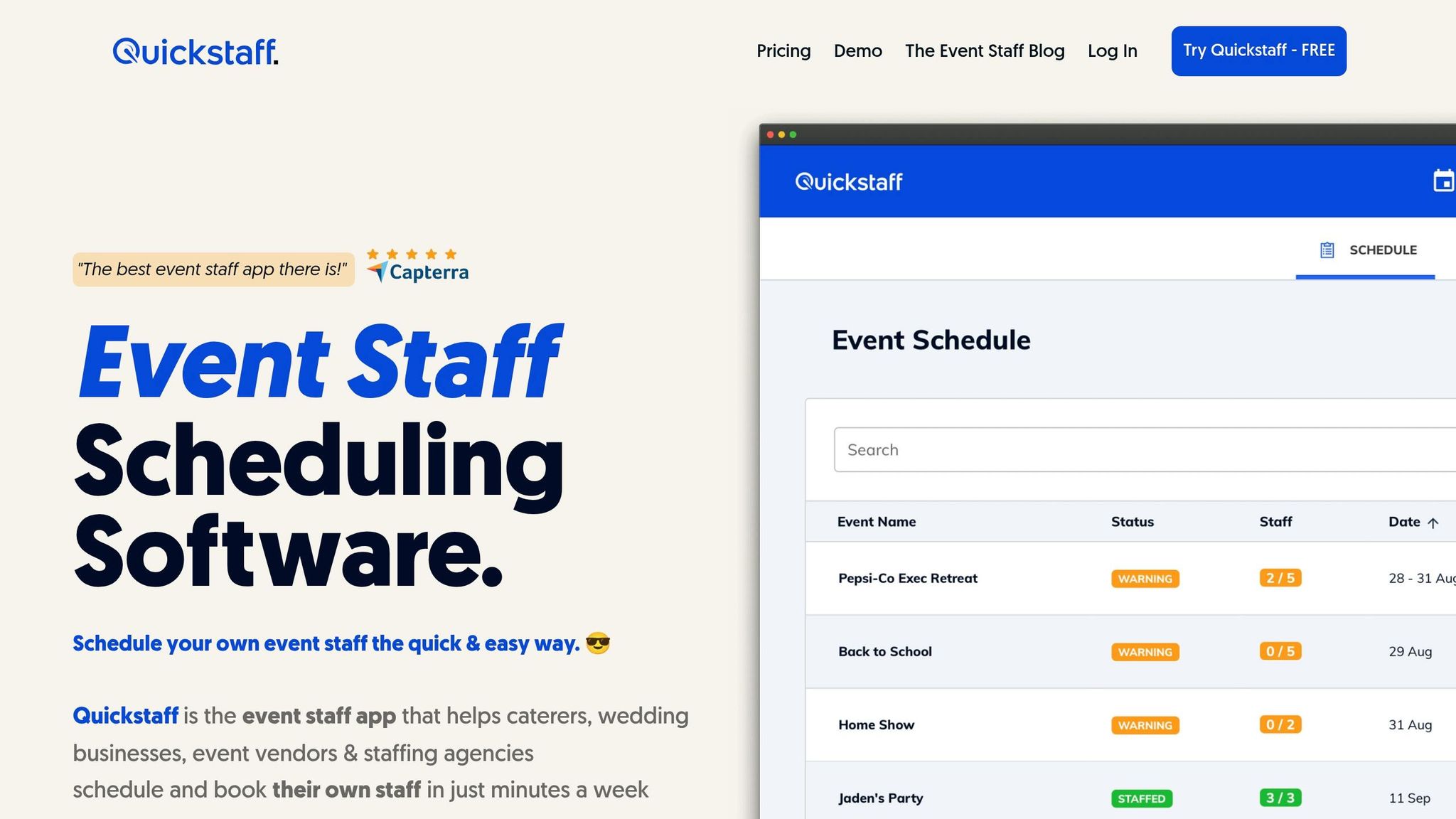
This template is strong for planning, but staffing at scale is a different story.
It starts to struggle when you need to manage large groups of temporary staff, track live availability, or work through waitlists. Notion can still hold staffing notes and assignments. But for scheduling, confirmations, and reminders, Quickstaff is the better fit.
If you want a more visual command center, the next template pushes further in that direction.
Use this dashboard when creative approvals and event logistics need to live in the same workspace. It pulls briefs, deliverables, tasks, files, notes, creative assets, and status updates into one shared hub. That way, the planning team and creative team can stay on the same page without bouncing between tools. It works best for teams that need both creative sign-off and day-to-day control.
This template goes beyond a basic task list. You can keep objectives, scope, venue details, approvals, risks, and debriefs in one linked workspace, which makes past decisions much easier to find later.
The dashboard supports event timelines with milestone dates, task dependencies, deadlines, and run-of-show sequencing. You can use calendar, board, and timeline views to track deadlines, dependencies, and day-of sequencing. In plain English, it handles more moving parts than a simple task list, which makes it a better match for complex event timelines.
Track contacts, deliverables, approvals, and contract notes for each stakeholder in one place. The main strength here is the connection between creative approvals and operations. Sign-offs, contract status, and open deliverables move through planning and execution in one linked workflow instead of getting split across separate tools.
This dashboard is strong for planning and documentation, but it is not built for staffing logistics. Use Quickstaff when staffing, waitlists, and shift reminders need their own system.
If your process is more execution-first than creative-first, the next template is leaner and easier to scan.
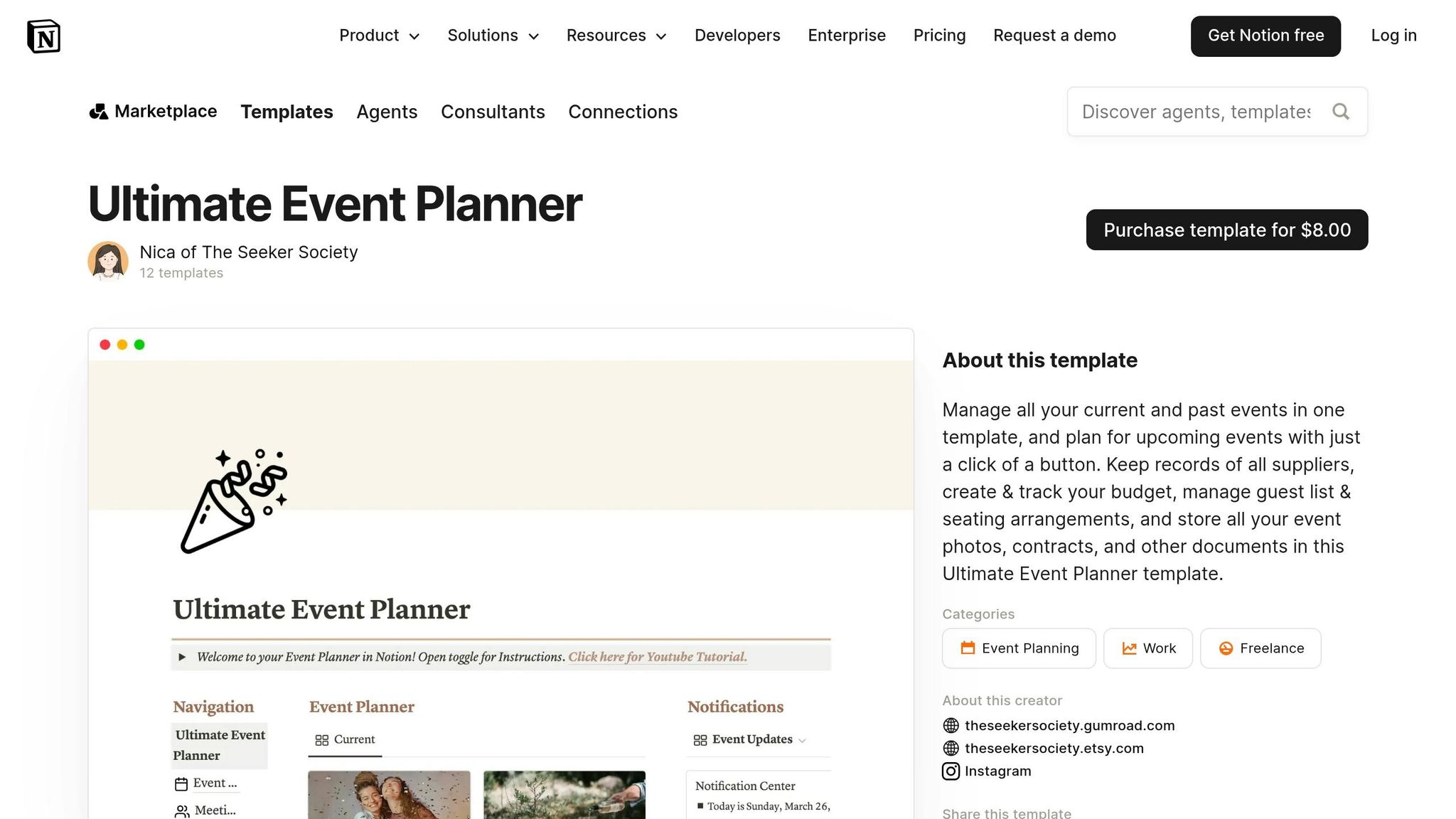
If the earlier templates feel a bit bulky, this one keeps things simple. The Ultimate Event Planner Template costs about $8 as a one-time purchase, and it gives you one place to run a single event from beginning to end without turning the job into a full project-management system.
This template sticks to the event details most managers use day to day: event name, date, venue, client, goals, attendee count, deliverables, budget, and post-event notes. The setup is compact, which helps keep the full picture together when work gets passed to another team member.
It also covers the timeline pieces that can trip teams up if they slip through the cracks. You can track milestones, vendor deadlines, internal approvals, and a time-blocked agenda for the event day itself. Status labels such as not started, in progress, waiting on vendor, and complete make it easier to see where things are getting stuck before small delays turn into bigger issues.
This template doesn't stop at tasks and dates. It also keeps the people side of the event organized, with fields for contact info, contract status, payment status, assigned tasks, and communication history. In plain terms, it puts contacts, contracts, payment details, and message history into one searchable workspace.
Use Quickstaff for staff scheduling, availability tracking, waitlists, reminders, and mobile communication.
If you want something lighter than a full dashboard, this template keeps planning, event-day work, and wrap-up in one trackable list. Compared with the dashboard-style options mentioned earlier, it’s faster to scan when your team just needs a clear execution list.
Each task can include status, assignee, due date, phase, priority, and dependency fields. That makes handoffs clearer and cuts down on confusion. The template covers all three phases - pre-event, event day, and post-event - so your event documentation stays in one place from start to finish. Phase-based tasks also make handoffs faster and help teams avoid missing context.
You can use the timeline view to map tasks against milestones like deposit deadlines or final headcount lock-ins. Filtered views make it easy to spot due, overdue, and high-priority tasks. So this checklist helps with planning, but it also holds up when you need day-of control.
You can link vendors, clients, and stakeholders directly to each task so approvals and ownership stay tied to the work. For example, a task like "Confirm final menu" can link to the catering vendor and client contact. That cuts down on back-and-forth during approvals and keeps records in one place.
The checklist can track event staffing needs, but Quickstaff handles availability, waitlists, reminders, and shift communication for temporary teams. If your workflow needs more day-to-day staffing control, the next template goes deeper into that setup.
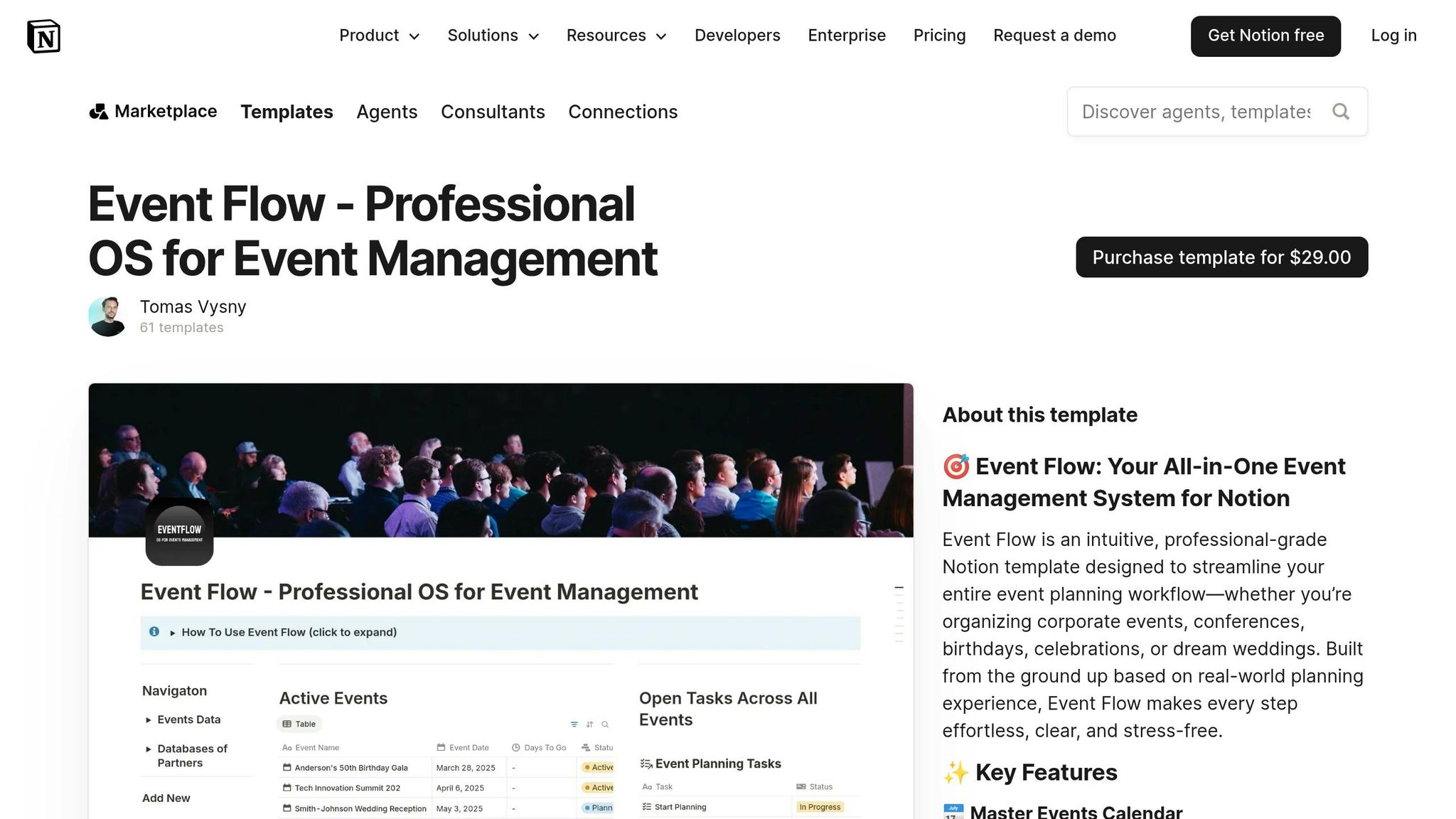
If a basic checklist feels too thin, Event Flow OS gives you more structure. It’s built for event managers who need one connected planning hub, not just a to-do list. For complex or repeat events, it links tasks, budgets, vendors, venues, and guest details across connected databases.
Each event gets its own page, with related tasks, schedule, budget, vendor details, and files pulled into one place. That linked setup makes it easier to trace each decision back to the main event record, from the first inquiry, date-stamped in MM/DD/YYYY format, through contracts, production, and post-event wrap-up. You can also keep floor plans, PDF contracts, and meeting notes on that same page. In practice, that makes the timeline much easier to follow across each phase.
Event Flow OS uses Notion’s calendar and timeline views to map milestones, deadlines, and run-of-show steps. You can add entries like "Guest arrival – 4:30 PM" and "Reception doors – 6:30 PM" using the 12-hour clock, along with internal deadlines such as "Final guest count due 14 days before event." For multi-city corporate events, adding time zone fields like ET and PT, plus filtered views by location, helps remote teams stay on the same page.
The template comes with contact databases for vendors and clients, and both connect back to events and tasks. A vendor record can include service category, contact details, contract status, and a 1–5 rating based on past work. You can also tag vendors as "preferred", "backup," or "do not use" so it’s easier to sort options when putting together a new proposal. Budget totals can roll up to the event page, which lets you compare spending against the client-approved cap.
Event Flow OS works well for planning and record-keeping, but it doesn’t manage staff schedules. If staffing is a big part of the job, it makes sense to use Event Flow OS for planning and keep shift scheduling in Quickstaff.
For U.S. events that depend on temporary staff, like catered receptions, festivals, and corporate dinners, you can map roles, headcounts, and time blocks in Event Flow OS, then assign shifts in Quickstaff. Quickstaff handles availability tracking, waitlists, and mobile-friendly reminders.
The earlier templates lean hard on tasks and timelines. This one does something different: it keeps track of the people and companies you work with again and again. A Notion CRM template for event managers brings client, vendor, and partner records into one place, along with communication history and contract details.
The main draw here is the linked databases. A client record can connect to related events, proposals, and communication logs. A vendor record can hold service category, contract terms, pricing, region, and notes on past performance.
That setup matters more than it sounds. Instead of digging through email threads or old docs, you can open one record and see the full picture.
For stakeholders like venue managers, sponsors, or keynote speakers, the template can track their role for each event, their responsibilities, deliverables, and preferred communication channel. That keeps the relationship history inside your workspace instead of scattered across inboxes.
Each event record should go beyond basic contact info. It should include call notes, site visits, decision history, shared files, milestone dates, and time zones. Key milestones like contract signed, deposit received in USD, and final headcount due can be tied to the event date and shown in a timeline view.
That gives you more than a contact list. It gives you event history, approval context, and a clear record of how each relationship has developed across multiple events.
Once those client and vendor relationships turn into staffing work, it makes sense to split the job between two tools. Use Notion CRM for relationship records and contracts. Then move shift work into Quickstaff for shift scheduling, availability, waitlists, and reminders. This transition helps you avoid common scheduling problems that often arise when managing large teams.
Once the relationship records are set, move into the live sequence that runs the event.
A run of show (RoS) is the live event schedule: a minute-by-minute breakdown of timing, cues, and responsibilities. It’s built for event-day execution, not broad planning. Keep the planning work elsewhere. That’s what makes this template most useful when the event is actually happening.
Set this up with linked databases for events, segments, and stakeholders like speakers, vendors, and internal team members. The event record should hold the date in MM/DD/YYYY format, location, capacity, and key objectives. Each segment should track start and end times, duration, owner, needed resources, and status. Use toggle lists and filtered databases so each crew sees only the fields tied to its work.
You can also attach floor plans, cue sheets, shot lists, and other reference files right inside the related segments. For AV leads and stage managers, add a technical brief view so they don’t have to dig around during the show.
Build the draft RoS 3–4 weeks out, tighten it up 2 weeks out, and lock it 7 days before the event. Save the final 48 hours for rehearsal and small tweaks.
After the structure is ready, switch to the view crews will use in real time.
Include a planning timeline and a Live Run of Show view, often split into 5- or 10-minute intervals. Each segment can show start time, end time, duration, dependencies, and a status field. Color-coded tags help crews spot what’s planned, in progress, or done without stopping to think about it.
Add Original Start Time, Current Start Time, and Delay fields so timing changes stand out right away. You can also tag segments by type, such as AV Cue, Food Service, or Speaker Onstage. That makes it much easier to filter the view for each crew.
A simple setup works best here: build the run of show in Notion, then move staffing needs into events and shifts in Quickstaff. Use Notion as the source of truth for the event sequence, and use Quickstaff for staffing assignments, availability, waitlists, and reminders.
Once the live event sequence wraps up, the follow-up work starts. Client calls, vendor check-ins, and debrief meetings lead to decisions, open questions, and next steps that shouldn’t get buried in email. This is the piece that connects planning, on-site execution, and what happens after.
Set up the template with structured fields for meeting date and time, event name, attendee list, agenda items, decisions made, unresolved questions, next steps, and action items with assigned owners, due dates, and follow-up status. Add only the files that support each decision, so the record stays clean and easy to use.
For recurring events, this setup keeps a clear history of what was decided and when. Instead of digging through scattered notes or inbox threads, your team gets one searchable event record that shows the full story.
Tag each record by participant type and decision authority so follow-up is easier to manage. Add fields for role, organization, follow-up status, and decision authority. That way, ownership stays visible even after the meeting ends and people move on to the next task.
Use Notion to log staffing notes, shift gaps, and schedule changes, then update live schedules in Quickstaff. It’s also the right place to capture post-event staffing changes.
Debriefs often bring up coverage gaps, future staffing needs, and the reasons behind schedule changes. Notion keeps that context in one place, while Quickstaff carries those updates into the active schedule.
Each template fits a different part of event work.
Some are built for early planning. Others help you manage tasks, client details, or the live run of show. The table below gives you a fast side-by-side look at use case, event fit, and staffing needs. After that, you can figure out when Notion can handle the job on its own and when staffing ops need a separate system.
| Template | Primary Use Case | Best Event Type | Strongest Feature | Pairs Well With Quickstaff |
|---|---|---|---|---|
| Event Plan Template by Notion | Planning blueprint | Corporate events, weddings, fundraisers | Centralized event overview page | Yes – schedule temporary staff once scope is set |
| Event and Creative Project Management Dashboard by Notion | Cross-project task control | Brand activations, multi-city roadshows, agency projects | Multi-board view with Kanban-style tracking | Yes – track staffing tasks in Notion, then schedule people in Quickstaff |
| Ultimate Event Planner Template | All-in-one planning hub | Weddings, social events, small corporate events | Budget and vendor tracking in one workspace | Yes – ideal for staffing-heavy, multi-day events |
| Notion Event Planning Checklist Template | Reusable checklists | Wedding ceremonies, recurring corporate meetings | Pre-built, phase-based checklists | Limited – mainly procedural, with staffing checkpoints |
| Event Flow OS | Complex event operations | Large conferences, trade shows, festivals | Linked databases for operations and run of show | Yes – Notion holds the plan; Quickstaff schedules the team |
| Notion CRM Template for Event Clients and Partners | Client and partner CRM | Weddings, corporate events, nonprofit galas | Sales pipeline and relationship tracking | Indirect – informs staffing once a booking is confirmed |
| Notion Timeline and Run of Show Template | Run-of-show scheduling | Weddings, galas, live shows | Time-blocked schedule with cues and dependencies | Yes – each segment can map to Quickstaff assignments |
| Notion Meeting and Debrief Template | Meeting notes and debriefs | Corporate events, recurring institutional events | Agenda and action-item capture | Limited – surfaces staffing insights for future planning |
A simple way to read this: if your main need is planning, tracking, or documenting, Notion can do a lot of the heavy lifting. But when you need to choose shift assignment software to manage people and keep staffing moving on event day, that’s usually where a separate system starts to make more sense.
Notion is strong for planning. Staffing operations are a different story.
That line matters because it helps you avoid clunky manual workarounds. A simple rule works well here: use Notion when the job is mostly planning and recordkeeping. Add Quickstaff when staffing turns into active, day-to-day coordination.
For planning and documentation, Notion handles the core workflow well.
It’s a good fit for small to medium events with stable teams, such as in-house corporate meetings, workshops, networking events, and community gatherings. In those cases, the main job is usually organizing the event plan and catering schedule, keeping notes in one place, and tracking what needs to happen.
Notion also works well for static staff assignments, especially when schedules don’t change much. If the team is set, roles are clear, and last-minute updates are rare, Notion can do the job without much friction.
Once staffing becomes active work, Quickstaff covers the gaps that Notion leaves behind.
If you’re regularly scheduling 15–20 or more temporary staff or freelancers per event, Notion starts to feel heavy. Availability tracking often turns into manual updates. Shift confirmations can slip into long email threads or a pile of phone calls.
Quickstaff is built for that part of the job. Managers can:
Staff also get mobile access to schedules, reminders, directions, and event notes. That matters when people are on the move and need details fast.
A simple setup works best: use Notion for the event plan and Quickstaff for staffing operations. After the event, pull details from Quickstaff into your Notion debrief, including attendance, late arrivals, replacements, and overtime, so future debriefs have a clear record.
After looking at the templates above, the best pick comes down to where your workflow gets stuck. Choose the template that fits how your team works, not the one with the longest feature list. Simple templates work well for solo planners. Bigger teams usually need shared ownership and a clearer phase-by-phase view.
If staffing starts to become part of that bottleneck, it makes sense to split planning and shift management across different tools. Use Notion for planning and documentation. Bring in Quickstaff only when staffing turns into a repeated day-to-day task.
Choose the simplest template that fully supports the way your team works.
The search results don’t point to one single Notion template as the best pick for large events.
And that makes sense. For bigger or more complex events, manual templates can start to slow you down. They often need constant updates, and they don’t offer automation out of the box.
In that kind of setup, a central tool like Quickstaff may be a better fit for scheduling, availability tracking, and day-to-day event management.
Use Notion on its own when your main goal is to keep static docs, simple task lists, or event timelines in one place. It’s a good fit for planning details like venue notes, contact lists, and agendas, especially when you don’t need live staff scheduling or automated availability tracking.
If your event also involves temporary staff, live availability, or last-minute shift swaps, that’s where Quickstaff comes in. Use it for scheduling and team communication while keeping Notion for the planning side of things.
You need Quickstaff when event planning moves past docs and into day-to-day staff coordination. Notion templates are great for notes, timelines, and schedules. Quickstaff handles the people side: availability, shift commitments, and filled roles across multiple events.
It becomes most useful when you need to automate availability checks, assign people by role, manage waitlists, and send team messages to the right groups.