Shift Optimization Software for Staffing Agencies
October 8, 2026

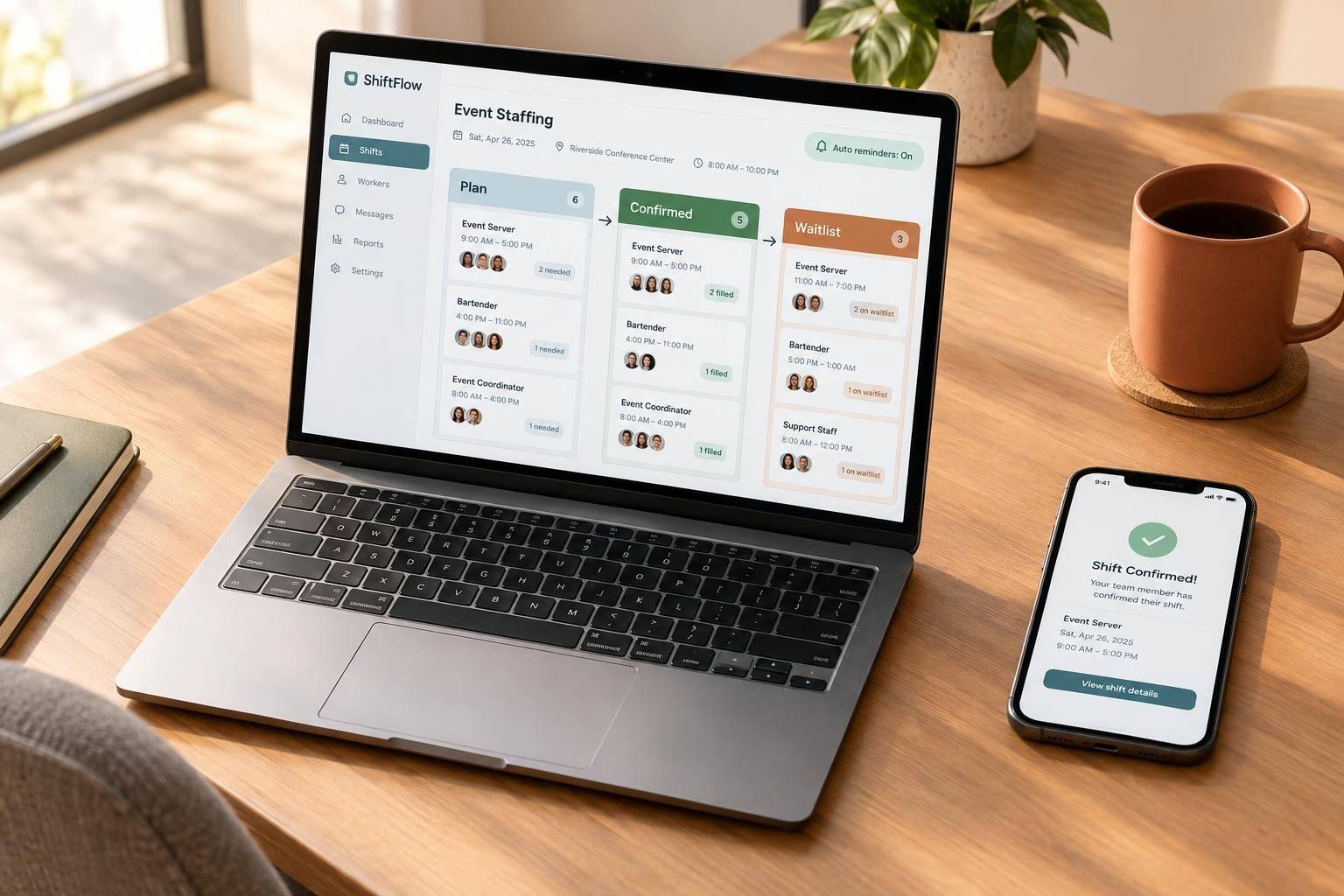
I count confirmed workers - not invitations - when checking shift coverage. Start with one event, and review unfilled roles 72 hours and 24 hours before the start.
Shift optimization software puts schedules, worker availability, invitations, and job details in one place. My approach is simple:
With Quickstaff, I’d use events, invitations, waitlists, notes, and files while keeping separate checks for qualifications, payroll, and compliance. <u>The coordinator still makes the assignment decisions.</u>
After the first event, I’d compare scheduling time, coverage gaps, and follow-up messages before using the process again. The goal: less chasing replies and a clear view of who is confirmed.
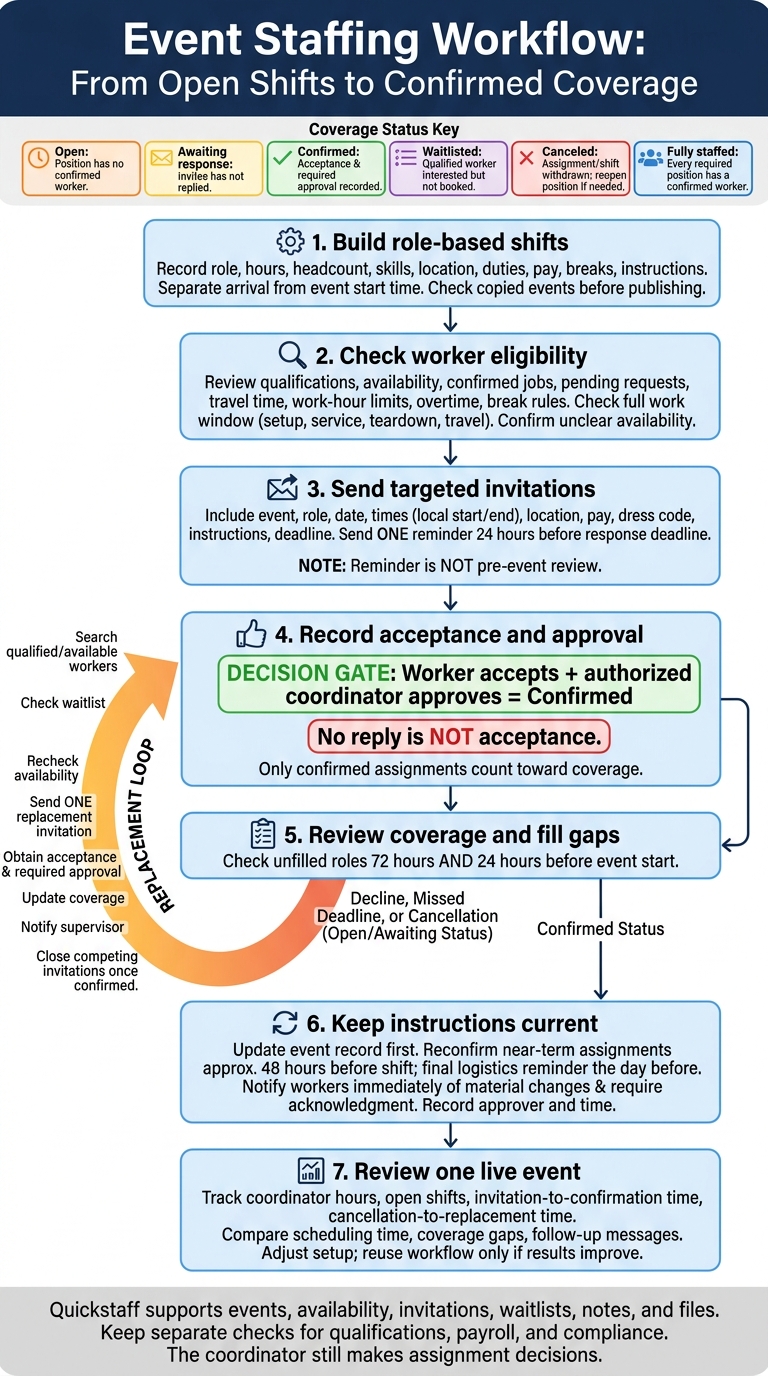
Event Staffing Workflow: From Open Shifts to Confirmed Coverage
Build the shifts, match workers to the requirements, then check coverage.
Once you’ve created the event record, divide the job into roles and time windows you can staff separately. Record the client, venue, contact, access rules, dress code, equipment needs, and service requirements. Give each shift a clear name, event phase, and headcount.
For instance, schedule setup, service, and bar shifts separately when each role has different hours.
Each shift should list required skills, check-in location, on-site contact, duties, pay, breaks, and end time. Make worker arrival time separate from the event’s start time.
Format dates, times, and pay in U.S. style: October 16, 2026, 5:00 p.m. ET; $25.00 per hour.
Duplicate events to reuse a proven structure for recurring clients, venues, or event formats. Before using a copy, check the date, venue, contact, headcount, pay, breaks, and duties. When staffing needs or service hours change, update the headcount and shift times, and record who approved the change.
Check the full work window, not just the event hours. Include setup, service, post-event teardown, and travel between assignments. Compare that window with recorded availability, confirmed jobs, and pending requests. Repeat the check whenever event times or staffing needs change.
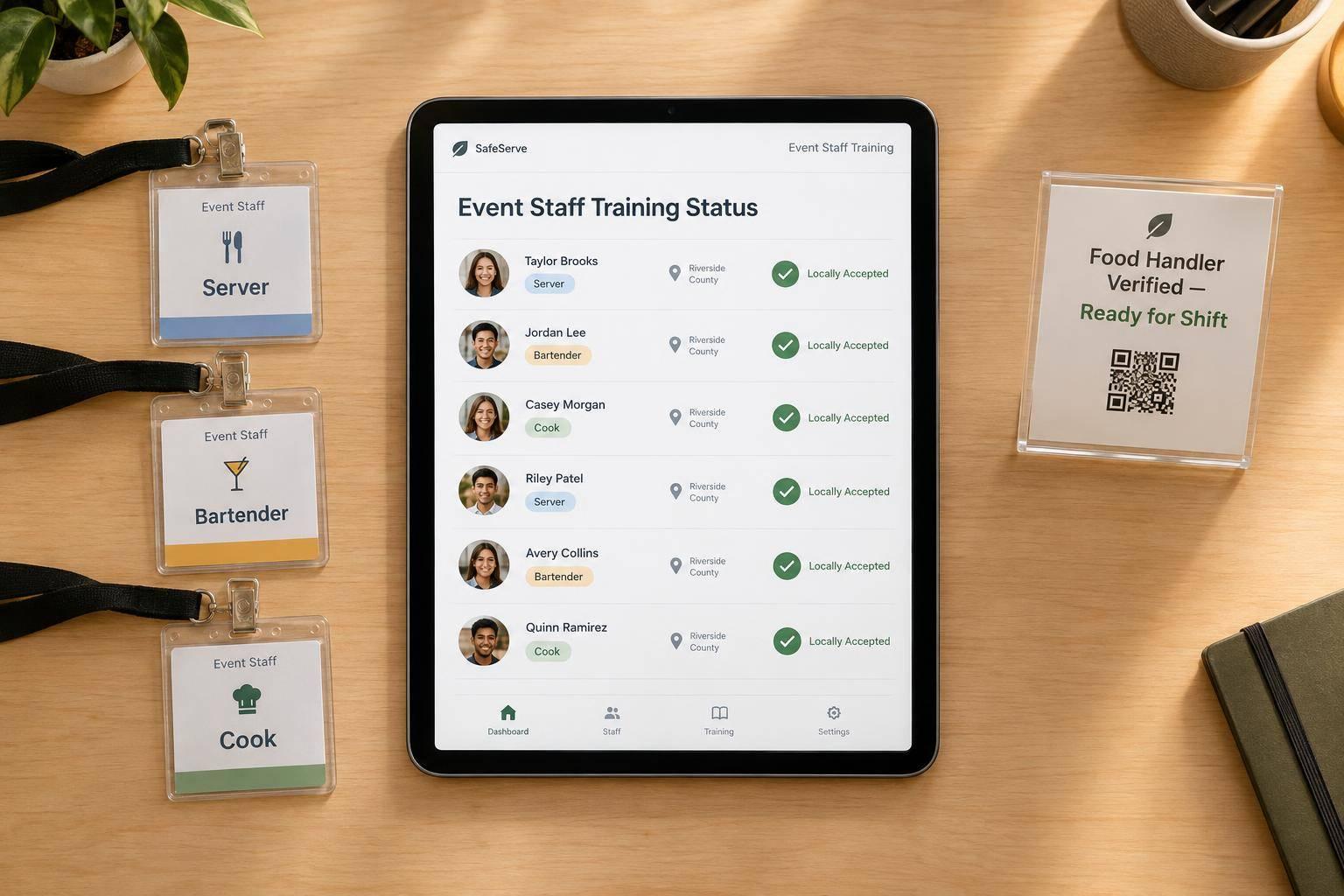
Review each worker’s relevant experience, required permits or certifications, training, transportation access, language skills, and any client or venue requirements. Factor in distance in miles, drive time, transportation method, and parking conditions. Quickstaff’s blocked dates and conflict visibility can help with this review. If availability is unclear, confirm it directly with the worker before assigning the shift.
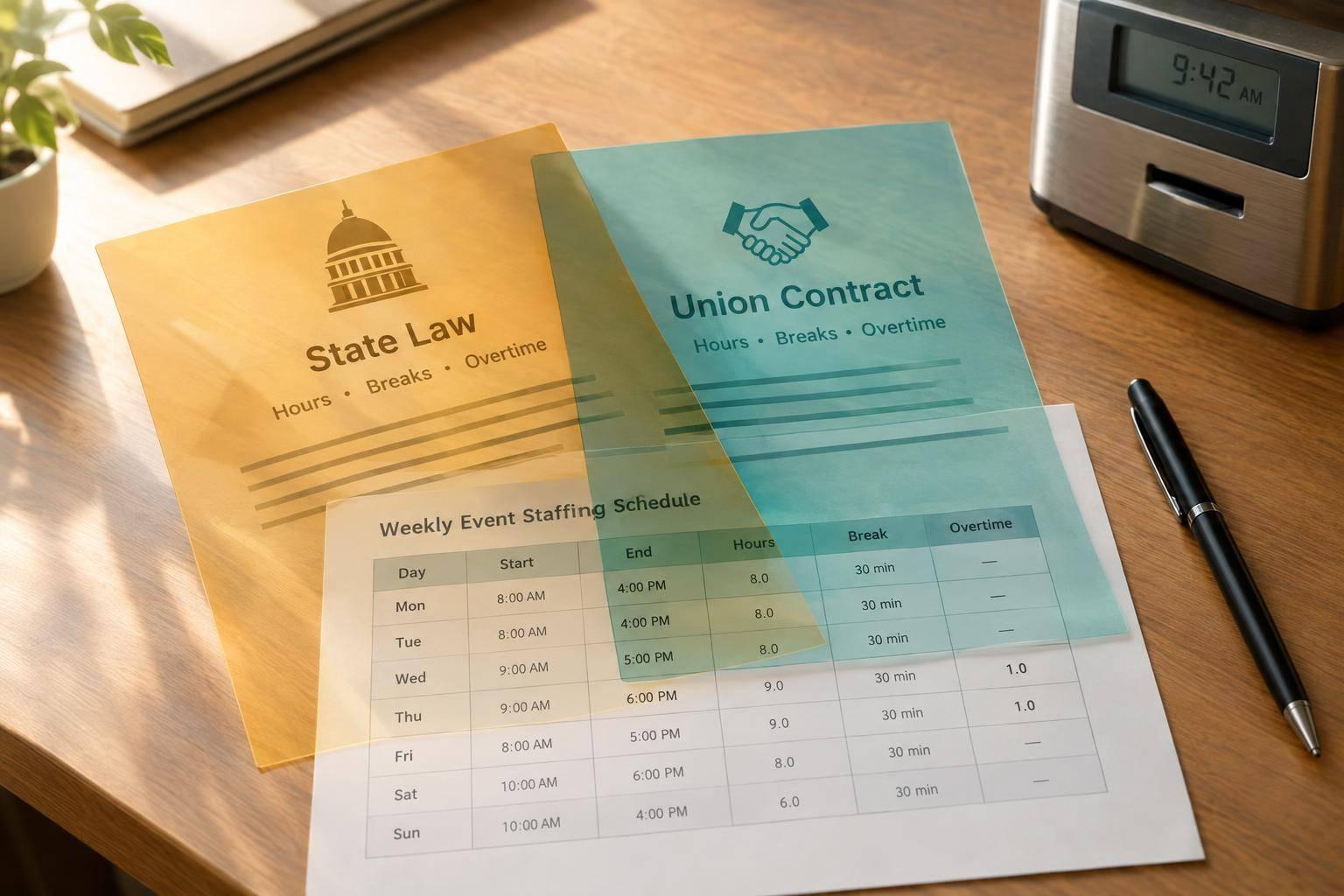
Before making an assignment, check total hours, travel time between assignments, overtime exposure, and break rules under federal, state, and local law. Agencies use software to flag these conflicts before sending assignments.
Software helps match workers and review coverage, but the agency makes the final assignment decision. It reduces manual work through faster searches, cleaner availability checks, and clearer coverage status.
| Scheduling activity | Manual workflow | Software-assisted workflow |
|---|---|---|
| Worker searches | Search spreadsheets and messages | Review centralized worker profiles |
| Availability checks | Ask workers individually and reconcile replies | Compare shift times with recorded availability and responses |
| Qualification verification | Gather separate certification and training records | Review stored qualifications, then verify before approval |
| Conflict review | Compare calendars across assignments | Review overlapping jobs in one workspace |
| Notifications and follow-up | Send individual messages and track replies separately | Send assignment requests and manage responses centrally |
| Coverage visibility | Maintain a separate vacancy list | View assigned, pending, declined, and open shifts |
Once shifts are built, turn invitations into confirmed coverage.
Count a shift toward coverage only after the worker accepts and an authorized coordinator approves the assignment. Send targeted invitations that include the event, role, date, local start and end times, location, pay, dress code, instructions, and response deadline. Quickstaff supports mobile-friendly invitation responses to simplify the scheduling process. Keeping replies tied to the event also cuts down on separate message threads.
Send one reminder 24 hours before the response deadline. No reply is not acceptance. Reconfirm near-term assignments about 48 hours before the shift, then send a final logistics reminder the day before.
Set clear rules for who can approve assignments, cancellations, swaps, and budget changes. If material details change, notify affected workers immediately and require them to acknowledge the updated assignment.
When a deadline passes or a worker declines, start replacement outreach right away.
Review open positions by role and urgency. Search qualified, available workers first, then check the waitlist. Recheck availability, send one replacement invitation, and update coverage in the same event record to cut down on back-and-forth.
Record cancellations and replacement approvals. Send the replacement worker the updated instructions and notify the supervisor. Once the replacement is confirmed, close any competing invitations.
Use the suggested internal labels below. Invitation and assignment states describe individual records; fully staffed means every required position has a confirmed worker.
| Suggested label | Meaning | Next action |
|---|---|---|
| Open | A required position has no confirmed worker. | Invite eligible workers. |
| Awaiting response | A specific invitee has not replied. | Send the scheduled reminder; escalate after the deadline. |
| Confirmed | Worker acceptance and required approval are recorded. | Count the assignment toward coverage and send reminders. |
| Waitlisted | A qualified worker is interested but is not currently booked. | Recheck availability when a vacancy appears. |
| Canceled | An assignment or shift has been withdrawn. | Reopen the position if coverage is still needed. |
| Fully staffed | Every required position has a confirmed worker. | Monitor cancellations and changes in staffing needs. |
As coverage changes, update the event record first so every message stays consistent.
Keep contacts, rosters, vacancies, shift times, access details, dress code, equipment, duties, check-in instructions, and escalation contacts in that single source of truth for authorized coordinators and assigned workers. Quickstaff supports event notes and attached files, so workers can access instructions from their phones.
Send change notices only to affected workers, and record who approved each change and when. Limit access by job need: workers need job instructions, not other workers’ private details, payroll records, or confidential client notes.
With your schedule structure in place, set up Quickstaff to handle rosters, invitations, and event details in one workflow.
Quickstaff organizes staffing around events, availability, invitations, and shared notes. Keep using your existing processes for qualification checks, payroll, and compliance.
Build consistent staff records with each worker’s name, contact details, preferred communication methods, typical availability, and roles. Ask staff to update their blocked dates.
Next, enter event details and map roles and availability tags to invitations. Check copied events before publishing: confirm dates, shifts, venues, and headcount.
Once records and events are loaded, use those tags to invite the right workers without rebuilding the job each time.
Test the approval and waitlist flow on one job before using it across all events. Before relying on the waitlist, check whether replacements need coordinator approval.
Set approval rules, reminder timing, and message templates before launch, including messages tailored to each role.
Choose a plan based on the number of staff records you manage. In your own sheet, track coordinator hours, open shifts, invitation-to-confirmation time, and cancellation-to-replacement time.
After one live event, compare the results and adjust the setup before using it for more events.
Once you’ve planned roles, matched workers, and tracked responses, test the process with one event. A full schedule isn’t enough. Every required role needs a suitable worker who has accepted or acknowledged the assignment. Keep shift times, locations, headcount, and instructions up to date. Coordinators still need to approve assignments and handle exceptions. This helps you overcome common event staff scheduling challenges before they impact your client.
Use one upcoming event in Quickstaff as your test case. Check coverage 72 hours and 24 hours before the start, then follow up or replace workers as needed. Update the event record so workers can find the latest changes in one place.
After the event, check whether managers spotted coverage gaps quickly and whether the process reduced manual vs digital staff scheduling follow-ups. Reuse the workflow only if those results improve.
Use an event staffing needs analyzer to estimate staffing requirements from past event data, then adjust for the details of your event. Fill critical roles first, including catering, bar service, and AV.
Quickstaff keeps staff in one place, groups workers by role, and uses automated waitlists to fill gaps when someone declines or cancels. Invite extra staff ahead of time, and use availability and performance metrics to give dependable workers priority for high-stakes events.
Plan for a 10% to 20% staffing buffer to cover no-shows, last-minute cancellations, or unexpected demand.
Quickstaff lets you invite more staff than you need. Once accepted invitations fill all required positions, it automatically adds the remaining qualified workers to a waitlist. If someone cancels, the platform can use that waitlist to fill the open spot.
Review the past 1–3 months of manual scheduling for overtime, double-bookings, and last-minute swaps. After switching to Quickstaff, compare monthly scheduling hours against that baseline. Monitor overtime, shifts changed within 24 hours of an event, and positions filled by your cutoff time.
Use centralized event records and reports to see where you’re losing time and money, then adjust your scheduling workflow.