7 Event Communication Channels Staff Teams Use
September 21, 2026

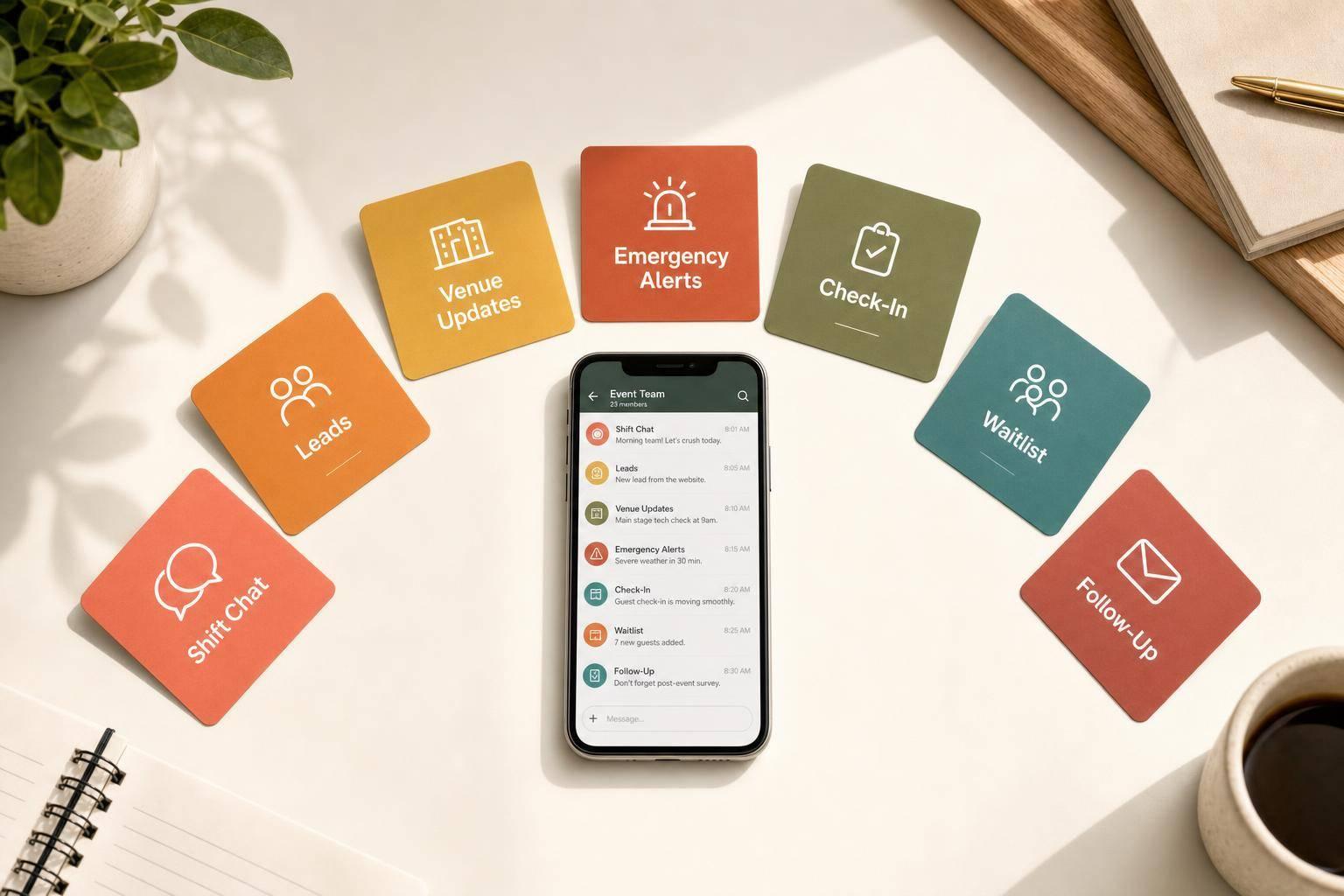
If your event team uses one chat for everything, people miss messages. I’d split event communication into 7 simple channels, each with one job: live shift updates, lead decisions, venue changes, emergency alerts, staff check-in, backup staffing, and post-event follow-up.
Here’s the core idea in plain English: send the right message to the right people at the right time. That means I’d separate messages by audience, urgency, event stage, and message type. For example, a no-show at 4:00 PM should not sit next to a parking reminder, and a weather alert should never get buried in setup chatter.
At a glance, the 7 channels are:
A simple scheduling and channel system can cut noise for teams working weddings, conferences, banquets, and private events. In my view, the biggest rule is this: one channel, one purpose. When teams follow that rule, staff spend less time scrolling and more time doing the job in front of them.
| Channel | Who it’s for | What it’s for | When to use it | Urgency |
|---|---|---|---|---|
| Shift Chat | All on-duty staff | Live work updates | Setup, service, teardown | Medium |
| Lead-Only Chat | Leads and supervisors | Fast lead decisions | Before and during service | Medium |
| Venue Updates | Staff affected by space changes | Layout, access, movement | Load-in through strike | Medium |
| Emergency Alerts | All on-site staff | Safety and security action | Any time on event day | High |
| Arrival Check-In | Staff and leads | Confirm attendance | 1–2 hours before start and at call time | High |
| Waitlist Notices | Backup staff | Fill open roles | Before event and day-of | Low to Medium |
| Post-Event Follow-Up | Staff, leads, management | Pay, feedback, future work | Within 24–72 hours after event | Low |
If I were setting this up, I’d start with those seven channels and keep each one tightly focused.
The rule is simple: each channel should do one job for one group at one urgency level and one message type. The seven channels below follow that rule.
Before anyone hits send, teams can pause and ask four plain questions: Who needs this? How urgent is it? Where are we in the event timeline? What kind of message is this?
Not every message belongs in front of the whole team. A note about black dress shoes fits in a pre-shift channel for confirmed staff. A call to move two servers from the buffet line to cover a bar rush belongs in a leads-only space. Mix those audiences together, and things get noisy fast.
Send messages to the people who need to act on them. Full staff, captains, specialty roles like runners or bar leads, and backup staff all need different details. A staffing decision sent to the entire crew doesn’t make action faster. It just clutters the feed.
A no-show bartender and a parking reminder are not the same kind of message. If both land in one general thread, the urgent one can disappear up the scroll before anyone jumps in.
Urgent issues - coverage gaps, safety problems, and run-of-show changes - need their own channel with stronger notifications. Routine updates can sit in lower-priority spaces that staff check when they have a minute.
Channel choice should also match the event phase. Pre-shift works for confirmations. Arrival works for check-ins. Service works for live coordination. Breakdown or post-event works for wrap-up.
That setup usually starts with the busiest channel: shift chat.
You can tell a channel system is working when staff never stop to ask where something should go. That only works when each channel has a written purpose, plus a short list of what belongs there and what doesn’t.
Names do a lot of the work. Labels like "Event – Emergency Only" or "Event – Staff Shift Coordination" tell people what they’re walking into before they even open the thread. Leads should move off-topic posts out of the way and keep each channel clean.
Shift Chat is the main live coordination channel for everyone actively working an event. Servers, bartenders, setup crews, registration staff, and supervisors use it to stay on the same page in real time.
This channel is for the full on-site crew working the shift. Keep it limited to people who need the same live updates. If someone doesn't need those updates to do their job, they probably don't need to be in the chat.
Time-sensitive, but not emergency-level. For example, "We need two extra hands at the bar in 10 minutes" needs a fast response, but it isn't a life-safety issue.
Shift Chat is busiest during setup, service, and teardown. That's when small changes can ripple through the whole team.
A banquet manager might post "Cocktail hour moved to the patio," a setup lead might say "Need three people at the north entrance now," or a staffing coordinator might note "Dinner service is running 15 minutes behind."
Use this channel for time-sensitive task updates, such as:
Keep each message focused on one clear instruction and include a time or place when needed.
If a message only needs supervisors, move it to Lead-Only Chat.
Lead-Only Chat is the decision-making layer above Shift Chat. Leads sort things out here; staff carry it out in Shift Chat.
Use this channel for team leads, floor managers, captains, and coordinators. General staff should stay out unless they’re filling a lead role for that shift.
Messages here are time-sensitive, but not emergency alerts. This is the place for operational changes that need fast lead alignment, like:
Lead-Only Chat works best during live operations and fast issue handling. Say the weather pushes a ceremony indoors. Leads can line up labor, timing, and team notifications here before sending the final direction to the crew.
Each message should be short and action-focused. Stick to this format: location → issue → action.
Once leads agree, post the final instruction in Shift Chat. If the update needs the whole venue to see it, use Venue Updates.
Use Venue Updates when the change affects space, access, or movement. This channel covers shifts to the physical setup, like room assignments, walking routes, station locations, and other changes that affect how staff move and do their jobs.
Send each layout change to the people who need to act on it: servers, bartenders, AV techs, security, registration staff, and floor leads. Keep distribution tight. If only one group needs the update, send it only to that group.
That role-based approach keeps the channel clean and helps stop people from tuning it out.
Most venue updates fall into the medium-urgency bucket. Think room flips, moved bars, entrance changes, and timing shifts tied to the setup.
Save your Emergency Alerts channel for safety and security problems, such as blocked exits or medical incidents.
At the start of each message, use a prefix like FYI, Action needed, or Urgent change so staff can tell right away how fast they need to respond.
This channel matters at different points in the event. During load-in, service, and strike, use it for dock access, room flips, guest reroutes, and teardown order.
Keep every message short, and start with the location. A simple format works well:
location → what changed → timing, if needed → what staff should do
"Ballroom A: Buffet moved near south doors. Servers, adjust your traffic flow accordingly."
Quickstaff keeps layout updates, schedules, and messages in one mobile view.
If a venue update turns into a safety issue, move it out of the normal ops flow and put it here. This channel is ONLY for immediate threats, such as medical incidents, severe weather, security risks, and facility failures.
Send these alerts to all on-site staff, supervisors, and security. For tactical details, use a separate private lead/security alert.
This is your highest-priority channel. Only designated roles, such as the event manager or head of security, should send messages here.
Use this channel during setup, service, teardown, and travel any time immediate action is needed.
Use one fixed format for every alert:
[Alert Type] – [Location]: [What to do right now]. Leads confirm the area is clear.
Example:
WEATHER – Outdoor Terrace: Lightning within 10 miles. All outdoor staff move guests inside immediately. Leads confirm the area is clear.
This channel answers one question: who is on-site? Use it only to confirm presence, fix a location issue, or prompt a staffing call. If there's a gap, the next move is to pull in a backup.
This channel is for servers, bartenders, registration staff, AV techs, security, and volunteers who need to confirm they’re on-site, on time, and set for their assigned role. For small crews, one chat is enough. For larger events, split chats by team so each report goes to the right lead.
Treat this as high priority, but not an emergency channel. Late arrivals and no-shows can throw off service and leave holes in coverage. Use it early enough to catch no-shows before guests arrive.
This channel fits the pre-event phase. Use it the day before and again shortly before call time, with a clear cutoff so there’s still time to fill any gaps.
Keep this channel strictly check-in only. Messages here should be limited to:
Use a simple reply format like HERE + name. Leads should send brief location fixes and move anything else to the proper channel.
When Arrival Check-In stays focused, leads can spot gaps fast and act before guests notice a problem. If a check-in shows a no-show, move the backup call to Waitlist Notices.
When Arrival Check-In shows a gap, use this channel to bring in backups. It keeps qualified backups on hand until you confirm them, so you have a pool to pull from if a confirmed staffer cancels or your headcount goes up.
Use Waitlist Notices for qualified backups who are not yet confirmed.
Start with email or in-app notifications when you're reaching out early. If an opening comes up at the last minute, switch to SMS or push.
Use this channel during planning, final confirmation, and day-of coverage changes.
Keep the format steady so staff always know what action to take. Each message should fit into one of these four types:
Quickstaff can automate waitlist alerts by role.
After the event, move confirmed staff into Post-Event Follow-Up and release everyone else.
Post-event follow-up is where you wrap up everything that happens after the shift ends: pay, feedback, and messages about upcoming work. Once live staffing is over, move any remaining communication into this channel.
Split this channel by audience so each group gets what it needs.
Frontline staff should get thank-you notes and pay details. Leads should get a short debrief. Management should get the numbers that matter most: headcount, overtime, no-shows, and client feedback.
Timing matters here.
This channel belongs fully in the post-event phase. Industry guidance points to within 72 hours after the event closes as the norm for post-event communication.
Each message should have one clear job. That matches the way Shift Chat, Lead-Only Chat, and Venue Updates each stay focused on a single purpose.
Use this channel for:
If a staff member did a strong job, you can flag them for early access to upcoming shifts. That's a simple way to turn follow-up into a staff retention strategy.
With all seven channels defined, the next step is to compare them by audience, urgency, and event phase.
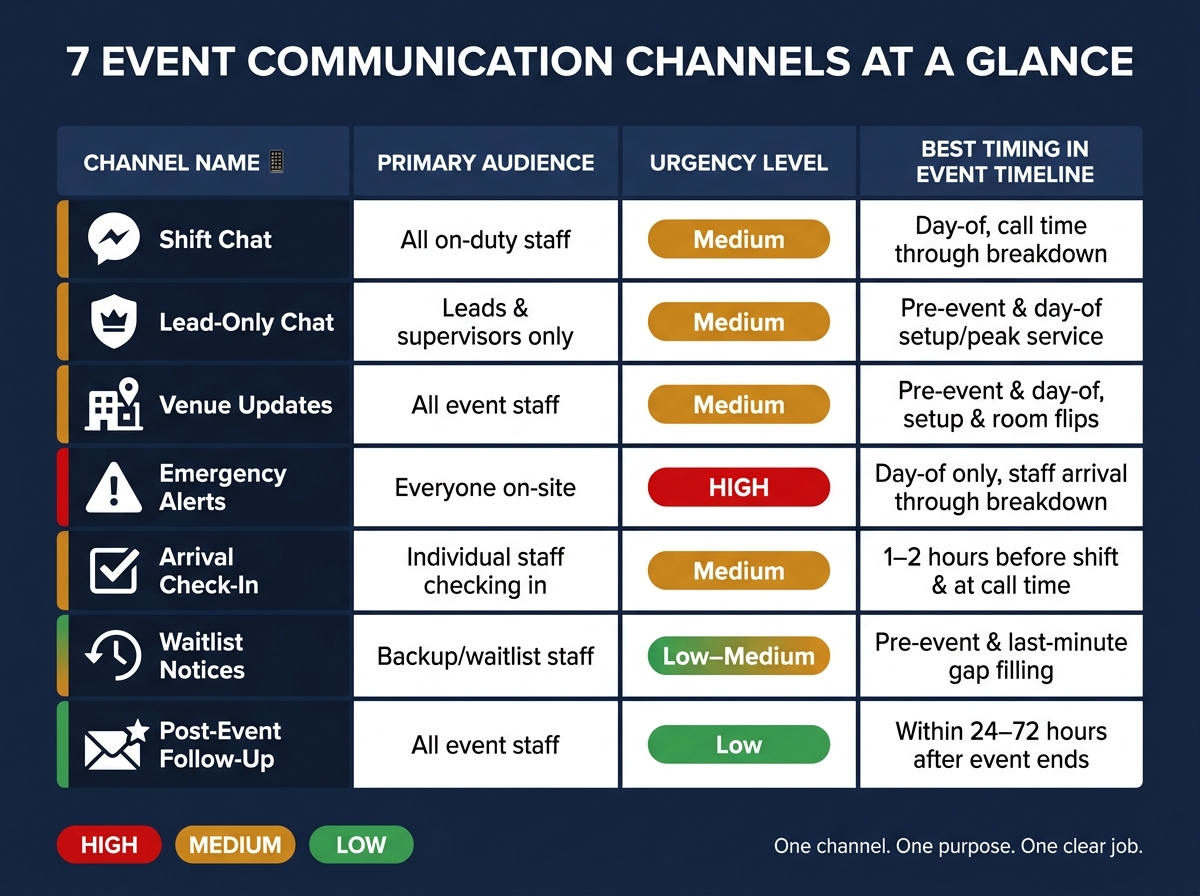
7 Event Communication Channels: Quick Reference Guide
Use this table as a quick reference. It gives you a side-by-side look at how the seven channels differ.
| Channel | Primary Audience | Urgency Level | Best Timing in Event Timeline |
|---|---|---|---|
| Shift Chat | All on-duty staff (managed by shift lead) | Medium | Day-of, during live shifts (from call time through breakdown) |
| Lead-Only Chat | Leads and supervisors only | Medium | Pre-event planning and day-of during setup and peak service |
| Venue Updates | All event staff; messages sent by leads/admin | Medium | Pre-event and day-of, especially during setup and room flips |
| Emergency Alerts | Everyone on-site; alerts sent by leads/admin/security | High | Day-of only, active from staff arrival through final breakdown |
| Arrival Check-In | Individual staff checking in to leads/admin | Medium | 1–2 hours before shift start and at call time |
| Waitlist Notices | Staff on the waitlist or backup list; notices sent by scheduler/admin | Low–Medium | Pre-event and just before event start when filling last-minute gaps |
| Post-Event Follow-Up | All event staff; messages sent by leads/admin | Low | Within 24–72 hours after the event ends |
A simple way to sort these channels is by who needs the message and how fast they need it. That’s what helps separate Shift Chat, Venue Updates, and Emergency Alerts. They may all be active on event day, but they serve different jobs.
For Emergency Alerts and Waitlist Notices, one-way posting works best. It keeps replies from piling up and makes the main message easy to spot when time is tight.
Once these roles are set, the system stays simple and easy to search.
The best event communication setup uses fewer channels, with each one doing one clear job.
Those seven channels work best when each one stays in its lane. Together, they handle live coordination, leadership decisions, venue updates, emergency response, attendance, staffing gaps, and post-event follow-up.
Quickstaff can help centralize scheduling, waitlists, check-ins, and event communication. If a channel can’t pass that test, simplify it.
The test is simple: can every staff member explain its purpose in one sentence?
Pick the channel based on urgency, complexity, and the setting.
Use two-way radios when updates need to happen right now, especially in noisy areas or remote locations. They work well for short, direct communication when speed matters most.
Use mobile messaging apps when people need more detail. They’re better for sharing floor plans, photos, and searchable documentation that teams may need to pull up again later.
For emergencies, don’t rely on just one method. Use a multi-channel setup with SMS, push notifications, and email so the message has more than one path to reach people. Keep a dedicated all-hands channel for critical alerts, and use phone calls for handoffs or sensitive issues.
If your team is too small to manage seven separate channels, combine roles and merge channels so communication stays easy to follow. On lean teams, it’s common for one person to cover more than one job.
Still, you’ll want one dedicated, high-priority channel for emergencies. And keep the chain of command short - ideally three to five roles - so decisions don’t get stuck in a long handoff.
Quickstaff can help centralize tasks and staff assignments, which makes it easier for everyone to stay in the loop without juggling too many separate threads.
Only coordinators or designated event leads should post in Emergency Alerts. That keeps messages clear, official, and easy to spot when something urgent is happening.
It also cuts down on clutter from day-to-day updates. Front-line staff should post in their role-specific channels, while supervisors and leads handle urgent, site-wide communication.