Event Communication Platform Guide For Staff Leads
August 4, 2026

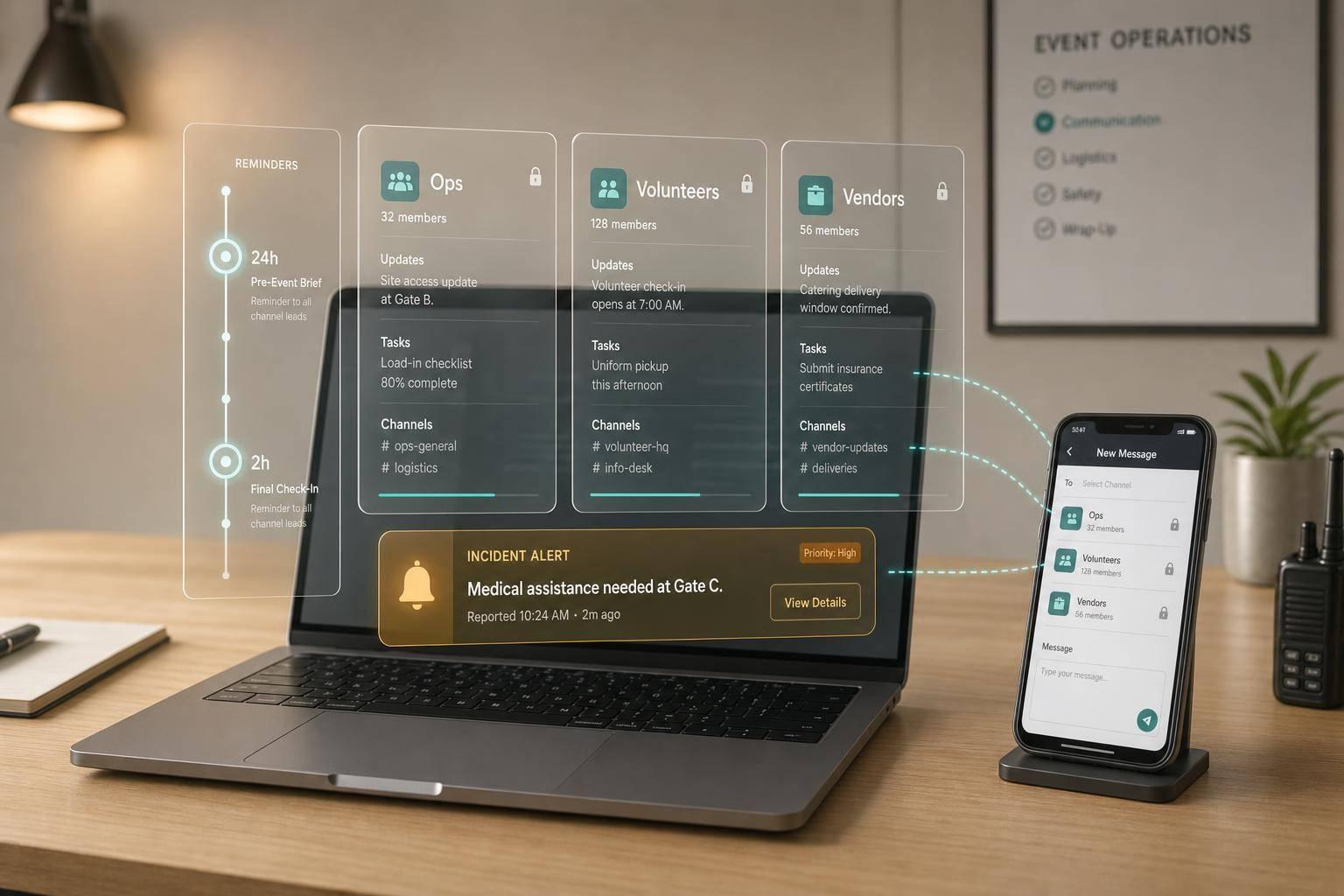
If your team uses texts, email, and group chats at the same time, mistakes are almost guaranteed. One platform for shifts, updates, reminders, notes, and issue reporting helps staff leads keep events on track.
I’d boil the guide down to this:
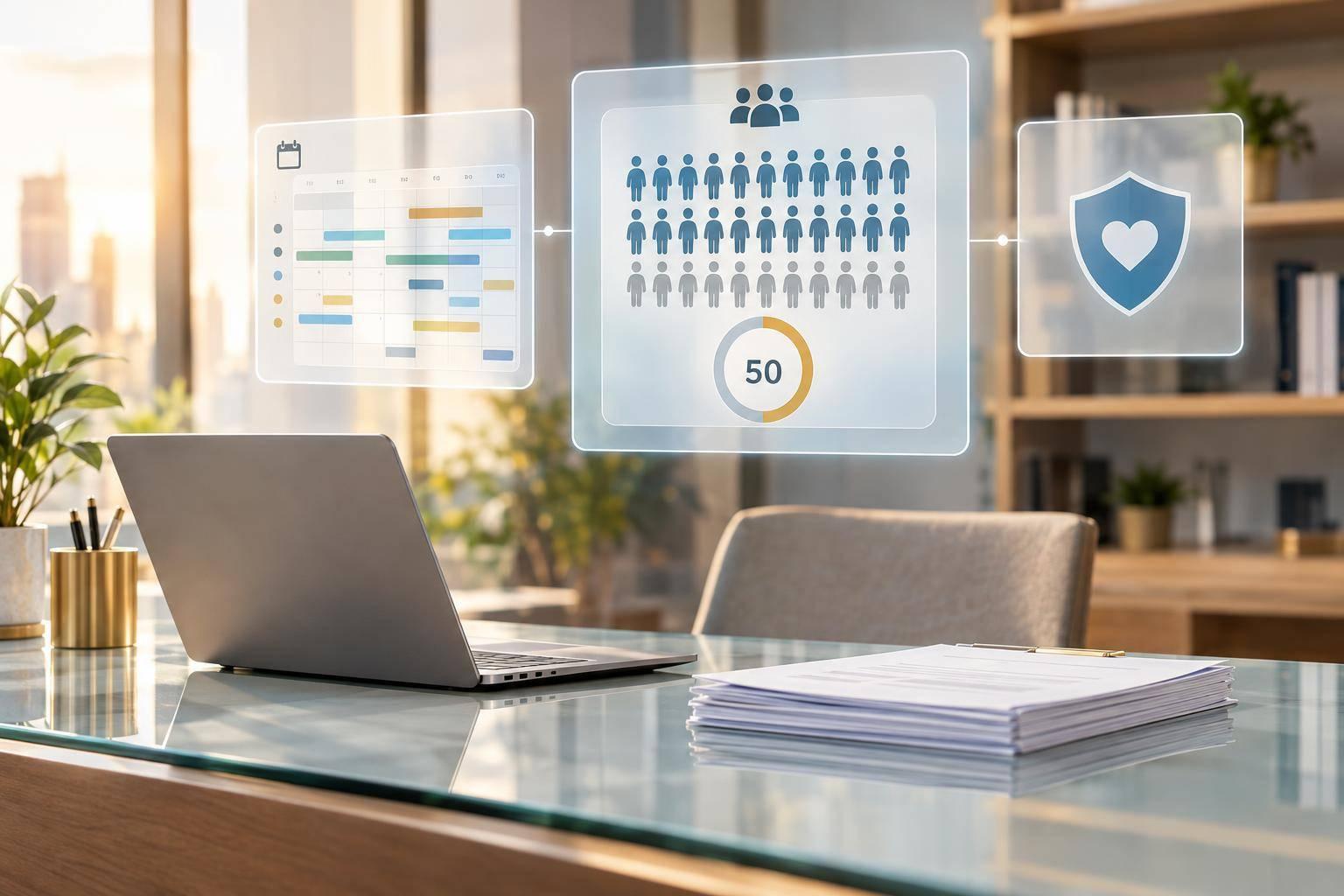
One stat stands out: teams use an average of 3.5 communication or collaboration tools. That’s a big reason event details get split up and missed.
If I were leading event staff, I’d want one place to check shifts, send updates, track changes, and log problems without digging through text threads. That’s the core idea behind this guide.
A clean setup saves time when an event is live and the pace picks up. Before you add staff, decide how you'll name events, how roles will appear, and who gets admin access. That setup shapes who can see what, who can send what, and how fast the team can respond when something goes wrong.
Each event record should answer two basic questions: where do I go, and when do I need to be there?
Include the event name, date, start and end times, venue address, parking notes, uniform requirements, and the on-site contact. When that info lives in one place, staff don't have to hunt through texts, emails, or old PDFs.
Recurring event templates help keep names, times, addresses, and instructions consistent. That's a small step up front, but it cuts down on mix-ups later.
Quickstaff stores venue details, site instructions, dress codes, and file attachments directly inside each event record, so staff can pull up everything they need from their phone before they arrive on site.
Not everyone needs the same level of access. Admins should be able to create events, edit any record, and message the full roster. A staff lead needs enough access to manage assigned events, but not payroll data or unrelated event records. General staff should only see what's tied to their shift.
The table below maps common permission levels to the actions that matter most in day-to-day event operations:
| Action | Admin | Staff Lead | Staff |
|---|---|---|---|
| Edit event details | Full access to create/edit all events | Edit assigned events | No access |
| Messaging capabilities | Message all staff | Message specific roles/teams | Reply to assigned event messages |
| View sensitive info | Full access to all data | View event-specific notes | View assigned event notes |
| Manage availability | View/Edit all staff | View team availability | Update own availability |
Clear access limits cut down on mistakes and help keep messages relevant.
Use these access levels to decide who gets updates, who can see notes, and who handles issues as they come up.
Keep admin access limited to trusted users. Payroll data and private client instructions should stay restricted to admins.
Temporary staff should be removed after their final shift so access ends right away. A centralized system makes this simple: once someone is unassigned or removed, their access to venue details, client notes, and contact information is cut off automatically. That matters even more for businesses that rotate through large groups of seasonal or on-demand workers.
Give each role only the access it needs to move fast and stay accurate.
Once access is in place, you can build message groups and reminders around those roles.
Once permissions are in place, route messages by role so the right people see the right updates fast. The main idea is simple: use those role boundaries to decide where each message belongs.
One all-staff channel may look clean at first. In practice, it gets noisy fast. If a bartender keeps seeing updates about kitchen runner assignments, they start to tune out. That’s when urgent alerts slip by.
The better move is to group with intent. Use the same naming format for every event so staff always know where to post and where to look. A practical format is: [EventCode] - [Type] - [Role/Location].
For example:
MillerWedding - FOH - ServiceMillerWedding - Late Arrivals & Schedule IssuesWhen people can tell, at a glance, what a group is for, key updates stay in view.
A good rule of thumb: if most messages in a group don’t matter to the people inside it, split the group. If the same update keeps showing up across several groups, the setup is probably too complicated and needs to be simplified.
| Grouping Type | Best For | Pros | Cons |
|---|---|---|---|
| By role (FOH/BOH/Captains) | Medium events with clear role boundaries | Easy for staff to understand; good for role-specific instructions | FOH may miss location-specific issues; captains may need to monitor multiple groups |
| By function (Setup/Service/Breakdown/Bar) | Events where work phases are distinct | Great for timing and task coordination; reduces noise outside current phase | Staff who switch functions may need to jump channels; cross-function issues can be duplicated |
| By location (Ballroom/Patio/Lobby) | Large venues and multi-room events | Fast local issue resolution; highly relevant messages | Harder for leads to oversee everything; staff moving between areas may miss updates |
A simple setup works best: keep one all-staff channel for urgent announcements, then use role- or function-specific groups for day-to-day instructions. Pin a short channel directory at the top of the main event channel so nobody has to guess where something belongs.
Once message routing is clear, the next step is automation. That’s where reminders start doing some heavy lifting.
Automated reminders cut late arrivals and no-shows, especially when you send one reminder 24 hours before the shift and another 2 hours before it starts.
The 24-hour reminder should cover the prep details staff need before they leave home: the event name, call time with time zone, full venue address, parking instructions, dress code, and the on-site lead’s name and mobile number. For example: “Call time: 4:00 PM ET”. Add a simple confirmation prompt so leads can spot issues early.
The 2-hour reminder should be much shorter. Include the start time, arrival time, venue address, and any last-minute change, like a new entrance or a weather backup plan.
Quickstaff helps leads keep event details in one place and use that same info to fill automated reminders, so the venue address, parking notes, dress code, and special instructions stay tied to the event record. If a shift time changes, leads update it once, and the new details flow through without sending a separate round of correction texts.
That same event record should also feed your notes. When reminders and notes pull from the same source, handoffs get a lot less messy.
Handoffs are where chat usually falls apart. The outgoing lead knows what happened. The incoming lead needs a fast read on what’s done, what’s still open, and who owns the next move.
A simple four-part format fixes a lot of this: Status, Issue, Action taken, and Next step/owner.
"Status: Dinner service in progress, bar busy but stable. Issue: Bar low on ice, one runner short. Action taken: Ice request sent to hotel, runner reassigned from buffet. Next step: Confirm ice arrival by 7:15 PM - Lead A owns this."
This works because it strips out the guesswork. No scrolling through a long chat thread. No piecing together half-finished updates.
| Method | Pros | Cons |
|---|---|---|
| Chat notes | Fast; fits natural behavior | Details get buried; inconsistent; hard to reconstruct later |
| Dedicated note fields | Centralized; easier to find after events | Can still be unstructured; staff may forget to use them |
| Structured handover templates | Consistent; scannable; easy to review patterns across events | Requires training and enforcement; slightly slower during busy periods |
Use both methods together: chat for live updates, and a structured note field for setup, shift changes, and closeout. Tie note-taking to set moments instead of leaving it vague, and staff are far more likely to stick with it.
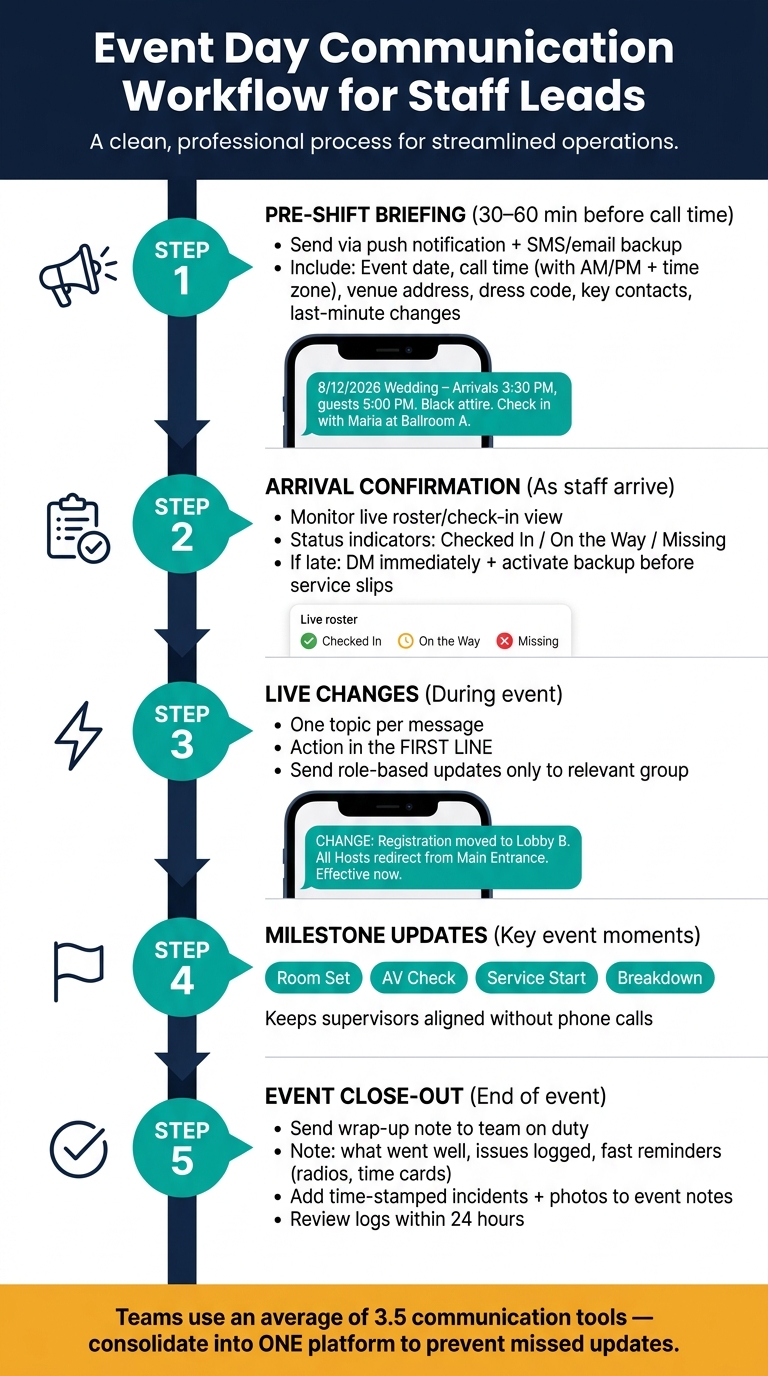
Event Communication Platform: Day-Of Workflow for Staff Leads
Once roles and message groups are locked in, live communication should follow one set process. Use one main platform for day-of updates, with ready-made threads for logistics, safety, incidents, and announcements. When the event starts, stop planning and switch to execution with the same five-step flow each time: pre-shift briefing, arrival confirmation, live changes, milestone updates, and event close-out.
Send the pre-shift update 30–60 minutes before the first call time. Keep it short and easy to read on a phone. Include the date, call time with AM/PM, venue address, dress code, key contacts, and any last-minute changes. Use push notifications, then back it up with SMS or email.
8/12/2026 Wedding – Arrivals start 3:30 PM, first guests 5:00 PM. Black attire, no logos. Check in with Maria at Ballroom A. Text #Operations if you're delayed.
As staff arrive, watch the live roster or check-in view using event staff scheduling software. You need to know, at a glance, who is checked in, on the way, or still missing. If someone is late, send a direct message right away and start moving tasks or calling backups before service slips. Check the roster live and put backups in place as soon as someone is late or absent.
During the event, keep each update to one topic and put the action in the first line. Most people will read it while walking, serving, or fixing a problem on a phone screen. That means short messages win. For example: CHANGE: Registration moved to Lobby B. All Hosts redirect guests from Main Entrance to Lobby B. Effective now. Send role-based updates only to the group that needs them.
At key moments like room set, AV check, service start, and breakdown, post a quick status update. That keeps supervisors and team leads on the same page without turning every detail into a phone call.
At the end, send a short wrap-up note to the team on duty. Note what went well, what issues were logged, and any fast reminders, like turning in radios or time cards. Add time-stamped incidents and photos to the event notes so the post-event review has a clear record to work from.
Not every problem should follow the same path. Set those paths ahead of time and pin them in your operations channel. That way, when things get hectic, no one has to stop and wonder who should handle what.
| Issue Type | Communication Path | Urgency Level | Required Documentation |
|---|---|---|---|
| Late or absent staff | Staff → Lead → Staffing Supervisor; activate waitlist | Medium (15–30 minutes before shift start) | Staff name, shift time, actions taken |
| Guest service complaint | Staff → Area Supervisor; escalate to Lead if pattern emerges | Medium to High (within 5–10 min) | Guest area, complaint nature, steps taken, outcome |
| Safety or security incident | Staff → dedicated Safety channel + on-site security; Lead → Management | Critical (immediate) | Time-stamped entry, parties involved, photos, incident number if required |
| AV / technical failure | Staff → AV channel; AV Lead coordinates; escalate if program is delayed | High (within 5 min) | Equipment affected, timeline impact, workaround, final fix |
| Food & beverage outage | Server → F&B Supervisor; escalate to Lead if guest impact is significant | Medium (within 10–15 min) | Item, time, affected area, replacement plan |
| Facility issue (spill, HVAC, restroom) | Staff → Facilities channel; escalate to Lead if safety or comfort is widely affected | Medium to High | Location, photos, hazard level, response time, resolution |
If an issue affects several roles, open a dedicated incident thread instead of flooding the main operations channel. Then post one short note in the general channel so people know where to look. For example: AV issue in Main Ballroom – see #incident-av-main for details. That keeps most of the team focused on guests while the right people handle the issue thread.
Move fast on problems: acknowledge them, assign one owner, share short progress updates, and close the loop with the time, outcome, and owner.
For anything that may come up later in review, like equipment failures, spills, or guest incidents, attach a photo and use the platform’s time-stamped notes to build a clear timeline. That record makes the post-event review much easier to run.
After each event, use the same platform data to tighten training and fix communication gaps before the next one.
Start with leads. Before frontline staff use the platform, leads should know it inside and out. The fastest way to get there is a focused 60–90 minute onboarding session built around one sample event. Have each lead run a full event workflow in the platform from start to finish.
Once leads are comfortable, move to frontline staff with 10–20 minute role-specific sessions. Keep each session narrow. Cover only the 3–5 tasks that person will actually use.
For example, a server usually only needs to know how to:
That tight scope matters. If you dump the whole system on every staff member, people forget the parts they never use.
Once leads can run the workflow cleanly, review the logs and notes to spot what slowed the team down.
Within 24 hours of wrap-up, leads should check three things: timing issues, message noise, and incident response lag. If you see clusters of “What time is call time?” messages, that usually means reminders went out too late or the call time was buried in long notes. If you spot duplicate updates on the same topic, staff likely aren’t finding or trusting the event notes. Then look at the gap between the first incident report and the first lead response. If that delay is often more than a few minutes for high-impact issues, the escalation rules need to be tighter.
In Quickstaff, message histories and event notes are stored per event, so leads can compare patterns across multiple events and adjust reminder timing, note formatting, or group structure before the next event.
Audit the logs, fix the templates within 24 hours, and give the team one clear takeaway at the next pre-event meeting.
Each event should make the next one easier to run. The full cycle - setup, permissions, message groups, reminders, day-of handling, post-event review, and retraining - works best when the team follows the same process every time. Using a catering staff scheduling checklist can help ensure no steps are missed during this cycle. Quickstaff centralizes scheduling, messaging, reminders, and event notes in one mobile-friendly system, so leads spend less time coordinating and more time running great events.
Organize channels by purpose so urgent updates don’t get mixed in with day-to-day chatter. Set up dedicated channels for command, security, medical, guest services, logistics, and vendor traffic.
Put the right teams in each channel, and use role-based messaging to send targeted updates without flooding the entire group. Keep channel names consistent from one event to the next to cut training time and help prevent mistakes.
Staff should get reminders with the details they need to show up on time and ready to work.
That usually includes:
Quickstaff can automate these reminders, so staff get the right details straight to their mobile devices.
Use a clear, multi-channel communication plan so teams can act fast. In Quickstaff, you can send instant, role-based alerts by SMS, email, or push notification, which helps the right people get the right instructions without delay.
For serious emergencies, pre-built templates save time when every second counts. Keep two-way communication open so staff can confirm receipt or ask for help if something isn’t clear. And if a staffing gap shows up, the mobile dashboard lets you find qualified replacements and send invitations right away.