Event AV Setup: Common Staff Errors
September 24, 2026

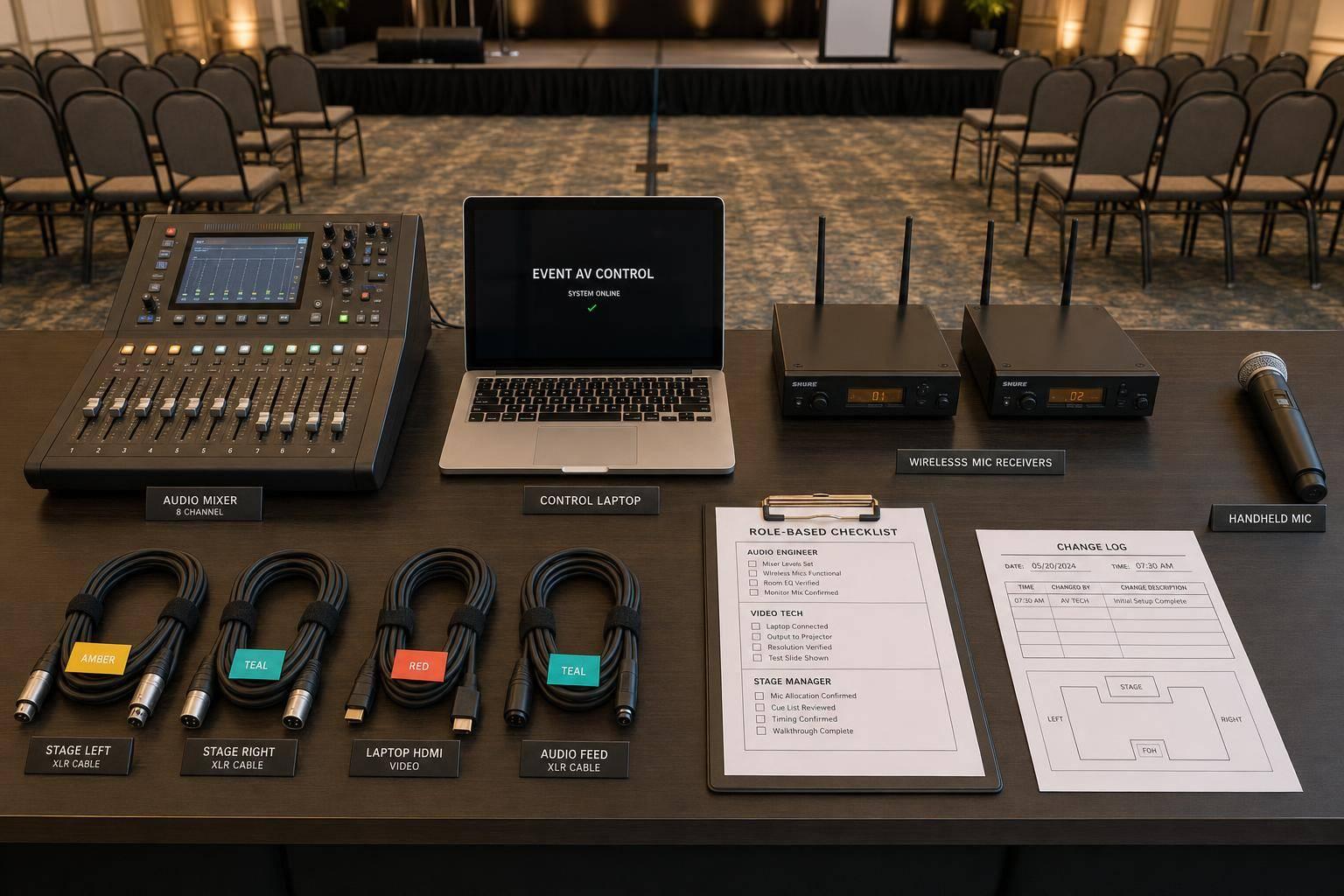
Most event AV failures start with staff process mistakes, not broken gear. In the source article, 43% of respondents said room setup and AV needs were a struggle, which fits what I see in the field: missed checks, unclear ownership, weak testing, and last-minute changes cause many show-day problems.
If I had to boil the article down, I’d say this:
The main point is simple: AV goes wrong when no one owns the process. This is why many managers use a scalable event scheduling system to ensure accountability. A mic can work fine and still fail if it’s muted, patched wrong, undercharged, or never checked from the back of the room.
Here’s the short version of the control system the article lays out:
| Control | What it does | Common error it cuts |
|---|---|---|
| Setup sheet | Lists checks, owners, and deadlines | Missed steps |
| Role notes | Tells each person what they own | Confusion during setup |
| Pre-shift check | Confirms the room is show-ready | Problems found too late |
| Rehearsal | Tests cues, handoffs, and resets | Smooth gear test, rough live show |
| Change log | Tracks last-minute edits and retests | Verbal changes that get missed |
I’d use this article as a plain guide for event managers, staffing leads, and coordinators who want fewer AV mistakes before, during, and after setup.
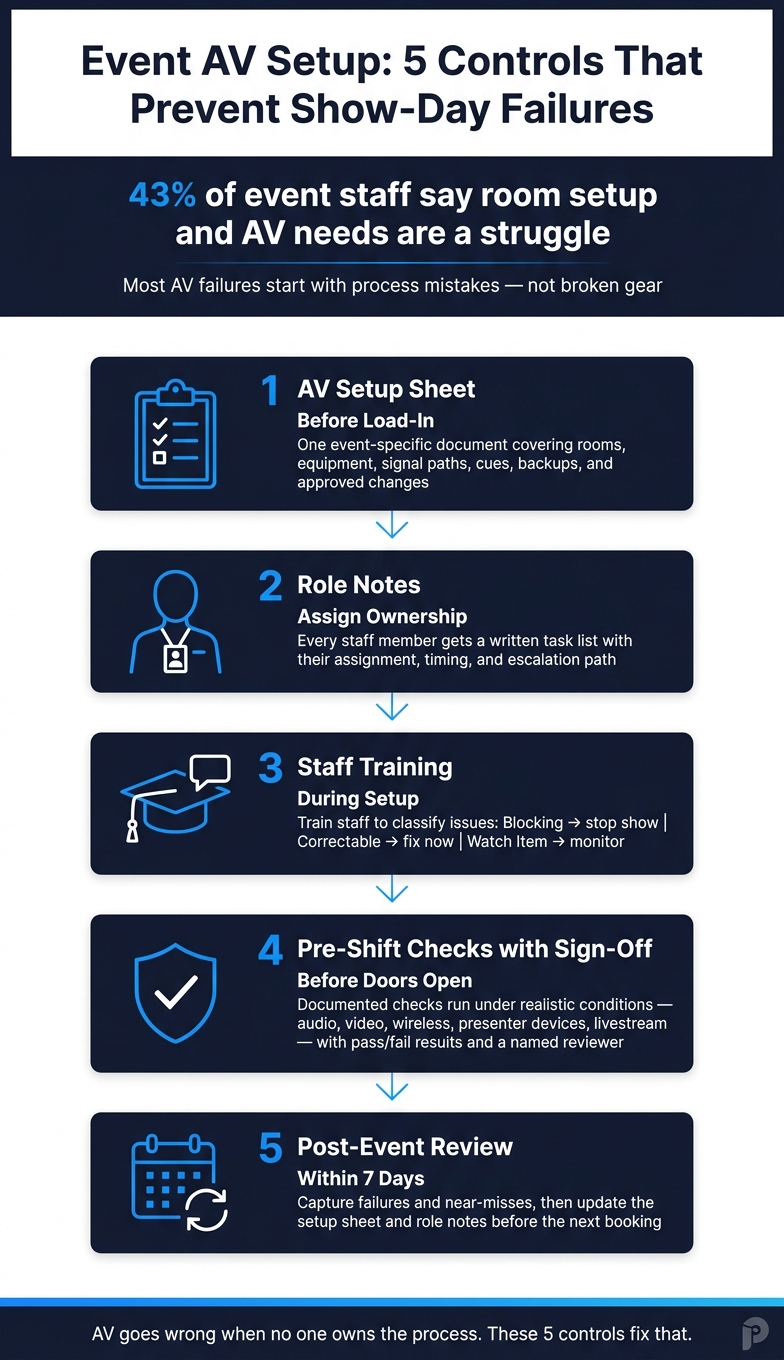
Event AV Setup: 5 Controls That Prevent Show-Day Failures
AV problems usually pile up across three stages: planning, load-in, and testing. And most of them start before the first guest walks in.
The easiest mistakes to prevent often happen before anyone unrolls a cable. When staff skip the venue walk-through - or rush it - they tend to find problems at the worst moment: during setup, with the clock ticking.
A room layout that looks fine on paper can still cause trouble. Speakers might end up behind microphones. A column that seemed minor on the floor plan can block the screen for part of the audience. Missing power outlets can lead to last-minute cable runs across guest walkways. Those aren’t gear failures. They’re planning failures.
The fix is simple: assign one person to complete an in-room survey before load-in starts. That person should walk the space in person, stand at the back and sides, and check any accessible seating areas too. The goal is to confirm that screens, the stage, presenters, and captions are visible from every seat that matters.
They should also check:
Use a marked-up floor plan and get sign-off from the event lead.
Once setup begins, the next set of mistakes usually comes from gear choice and cable handling. Staff sometimes bring the wrong equipment for the program. For example, a four-speaker panel needs four coordinated wireless channels, plus a handheld mic for audience questions. And if a presenter is using a USB-C laptop, the team needs a tested USB-C-to-HDMI adapter - not a hopeful guess that a standard HDMI cable will somehow do the job.
Unlabeled cables and channels make things worse fast. When something fails, staff have to trace the signal chain under pressure, and that eats time. Label both ends of every cable. Name mixer channels to match the setup sheet - Podium Mic, Q&A Mic 1, Laptop A - so any crew member can follow the path without guessing.
The University of San Francisco's AV safety guidance recommends using the shortest practical cable lengths, organizing parallel cable runs, and installing cable guards wherever cables cross foot-traffic areas.
Cables near water, heat, or doorways also need to be secured and protected before doors open, not slapped down with tape at the last minute.
A sound check has to cover every channel, not just whether the room sounds okay at front of house. Each microphone should be tested on its own at normal presentation volume. One staff member should speak while another walks the room and checks the back rows, side seats, and accessible areas for dead spots, hum, feedback, or uneven coverage.
Playback audio, monitors, and the Q&A microphone each need their own check. Wireless systems also need a simultaneous active-channel test with microphones in their expected operating positions, plus a battery check right before doors open.
The display chain needs the same level of care. Test it with the actual event files, including the adapter, cable, switcher, and display. Then verify resolution, aspect ratio, embedded video, presenter view, and the confidence monitor as separate checks.
One more thing trips teams up all the time: changes after testing. Move seating, shift a screen, or adjust the stage, and you’ve changed sightlines, audio coverage, and feedback risk. A passing test from earlier no longer counts. Document the confirmed setup so the next shift can repeat it without starting from scratch.
Verbal instructions fall apart when the room gets busy. People miss details, hear different versions, or act on memory. A written setup sheet and role notes keep the crew working from the same plan. The move is simple: document the plan before anyone starts moving gear.
The setup sheet is the master plan. Role notes turn that plan into clear tasks for each person.
Start with the event basics at the top: date (MM/DD/YYYY), venue, room, load-in, doors, show, strike, audience size, layout, access needs, and escalation contact. Then map out the AV plan: audio, video, lighting, livestream, power, cabling, and backups.
Where this lives or dies is in the checks.
Each row should cover one specific task that’s easy to confirm, not a broad area. “Test microphones” leaves too much room for guesswork. “Test the podium mic on Channel 1 at presentation volume and verify a spare battery is present” tells the crew exactly what done looks like.
For each row:
| AV Area | Specific Check | Assigned Role | Completion Time | Sign-Off |
|---|---|---|---|---|
| Audio | Verify every assigned microphone, channel, mute state, and spare batteries | Audio lead | 2:00 PM | Initials/time |
| Video | Confirm each input, adapter, resolution, screen, and confidence monitor | Video operator | 2:15 PM | Initials/time |
| Lighting | Verify fixture power, focus, and programmed cues | Lighting operator | 2:20 PM | Initials/time |
| Livestream | Confirm platform login, encoder settings, audio/video feed, and backup connectivity | Streaming operator | 2:30 PM | Initials/time |
| Room and safety | Confirm stage layout, accessible sightlines, cable routes, and audience flow | Floor coordinator | 2:35 PM | Initials/time |
| Final approval | Review unresolved checks and authorize show-ready status | Technical director or event manager | 2:45 PM | Initials/time |
Put the event name, date, and revision number at the top. That small step helps keep someone from using an old version by mistake.
Once the master sheet is done, break it into role-based instructions. Handing the floor coordinator a full checklist adds clutter. A one-page role note gives them a clean lane.
Each role note should spell out:
Every staff member should know what they own, what they check, and when they need to escalate. Use the same equipment names in the role notes and the setup sheet - Podium Mic, Input 3, Laptop A - so nobody has to decode labels when the clock is ticking.
For example, the video operator’s note could say: "Before doors, connect Presenter 2 to Input 3, confirm the first slide and embedded video, and report any failure after the approved adapter and backup laptop are tested."
Send these notes before the shift using event staff scheduling software in a shared format people can open on a phone during load-in and setup.
After roles are assigned, staff still need a simple way to sort what they find. Not every issue deserves the same response. Treating everything like a five-alarm fire creates confusion fast.
Train staff to sort issues into three groups before escalating anything.
Blocking issues are stop-the-show problems. A required function can’t be used: no audio from the podium mic, no image on the main screen, or an unsafe cable route. These call for an immediate stop, notice to the technical lead, and a switch to the approved backup.
Correctable issues need attention now, but they don’t stop the program. That could mean the wrong screen input, a mislabeled channel, or the wrong resolution. The assigned operator fixes it and logs the change.
Watch items are usable for now but could get worse. Think a wireless battery near the warning threshold, shaky RF stability, or an untested backup device. The owner documents a threshold, gets the backup ready, and escalates only if that threshold is crossed.
| Issue Type | Definition | Example | Response |
|---|---|---|---|
| Blocking | Prevents the event from starting or continuing | No audio, failed playback, unsafe cable route | Stop the affected cue, notify the technical lead, use the approved backup |
| Correctable | Localized error that can be fixed without changing the program | Wrong screen input, incorrect resolution | Operator corrects and retests; logs the change |
| Watch item | Currently usable but could escalate | Low battery, unstable RF, untested backup device | Document a threshold, prepare the backup, escalate only if the threshold is crossed |
This system cuts down on noise. Small issues stay small, and true show-stoppers get handled like they should.
Once staff can sort issues the right way, the next job is spotting them during a live pre-shift check.
An empty-room check doesn't cut it. You need to test gear under the same conditions it will face before doors open.
Start with a room walk using the approved floor plan, not memory. Check that sightlines, accessible routes, and cable paths match the plan. Then work through the system in order: power, audio, wireless, presenter devices, and recording/livestream.
Test every microphone through its full signal path, including any recording feed. Walk the presenter routes with live mics so you can catch feedback or dead spots before the room fills. For presenter devices, connect each actual laptop to the real switcher and display. Then test the clicker from the presenter’s actual spot on stage.
Use three status labels for each item: Pass, Needs correction, or Escalated. If something is marked Needs correction, fix it and retest it before doors open. If it’s Escalated - like an unsafe circuit, unresolved wireless interference, or a presenter laptop that won’t connect - the event lead or venue contact needs to step in, and the team needs an approved backup plan before the room gets signed off.
The manager’s sign-off closes the sequence. If anything is still unresolved, document the owner, the workaround, and the monitoring plan. Don’t leave it as a verbal note that disappears five minutes later.
That checks the room. The rehearsal checks the show.
| Check Area | What to Verify | Status Options |
|---|---|---|
| Room walk | Stage, seating, sightlines, cable paths, accessible routes | Pass / Needs correction / Escalated |
| Power and circuits | Approved circuits, no overloaded or improvised connections | Pass / Needs correction / Escalated |
| Audio line check | Every mic, channel, playback source, monitor, and mute behavior | Pass / Needs correction / Escalated |
| Wireless systems | Frequencies, pairing, battery level, range, labeled spares | Pass / Needs correction / Escalated |
| Presenter devices | Laptop, adapter, clicker, slides, embedded video, screen output | Pass / Needs correction / Escalated |
| Recording / Livestream | Network, encoder, destination, audio/video feed, backup path | Pass / Needs correction / Escalated |
Equipment tests show that the gear works. Rehearsals show that the show works.
Run the actual sequence from start to finish. The outgoing speaker steps off. The next presenter is mic’d and ready. The operator switches sources. A video starts and ends cleanly. The moderator hands a microphone to an audience member. Then the next speaker begins.
Use the real lighting states, monitor views, and any communication between the floor and the control position. Staff should also rehearse at least one likely failure, such as a muted mic, a frozen laptop, or a failed video start. That way, everyone knows who makes the call and who handles the backup.
After the room is reset, run the checks again. Any material change means repeating the room walk, cable, power, audio, wireless, presenter-device, sightline, and recording/livestream checks before reopening the room. Log the reset time, the changes made, the repeated tests, and the approver.
Even after sign-off, last-minute changes still happen. And when they do, they need the same discipline you used during setup.
A presenter swaps files. A speaker asks for a lavalier mic instead of a handheld. A session gets moved to another room. On the surface, these seem like small live-event adjustments. But the pattern is the same: missed ownership, skipped logging, and changes that never got tested.
Log every change in the setup sheet. Don't depend on group chats or verbal handoffs. Write down:
A change is not done until the team has retested the source, routing, volume, display, and cue on site.
Set approval rules before doors open. The event manager approves client or schedule changes. The AV lead approves technical swaps. Staff steady the issue, the AV lead picks the fix, and the event manager signs off on client-facing changes. That chain stops two people from making conflicting calls at the same time.
Keep a labeled contingency kit at the operating position or stage access point. It should include spare batteries, compatible microphones, adapters, cables, and a tested backup playback device or laptop.
After any physical change, retest:
Once the change is logged and retested, close the loop with a short review of what failed and why.
Reliable AV comes from a process people can repeat the same way every time. Five controls make that work:
For staffing and assignment control, Quickstaff keeps schedules, role assignments, reminders, and event details in one mobile-friendly place.
Treat each event as a process review. Then update the setup sheet and role notes before the next booking.
AV setup needs one clear owner. That keeps confusion down and makes sure one person has the final say when decisions need to happen fast. In most cases, the Technical Director oversees audio, video, and lighting.
During load-in, the Load-In Lead owns the sequence of work. The AV Lead handles technical issues and equipment calls. Roles like A1, A2, and systems tech should also be assigned and confirmed for each phase of the event.
An AV setup sheet should work like a clear technical playbook for your team.
Include a cue sheet for:
You should also add a patch map with:
On top of that, include load-in schedules, power outlet locations, and soundcheck times.
Keep it short - ideally one page - and make sure your team can get it in both print and digital formats.
Retest AV at key points throughout the day. Do one check before doors open, another 90 minutes before doors for audio and power backup checks, another 60 minutes out for communication checks, and a final pass 30 minutes before to confirm backups are ready.
Have team leads check in during the busiest moments too, especially right before a keynote or major presentation. That last-minute pulse check can catch issues before they turn into a mess.