Employee Privacy in Scheduling Apps: Best Practices
June 22, 2026

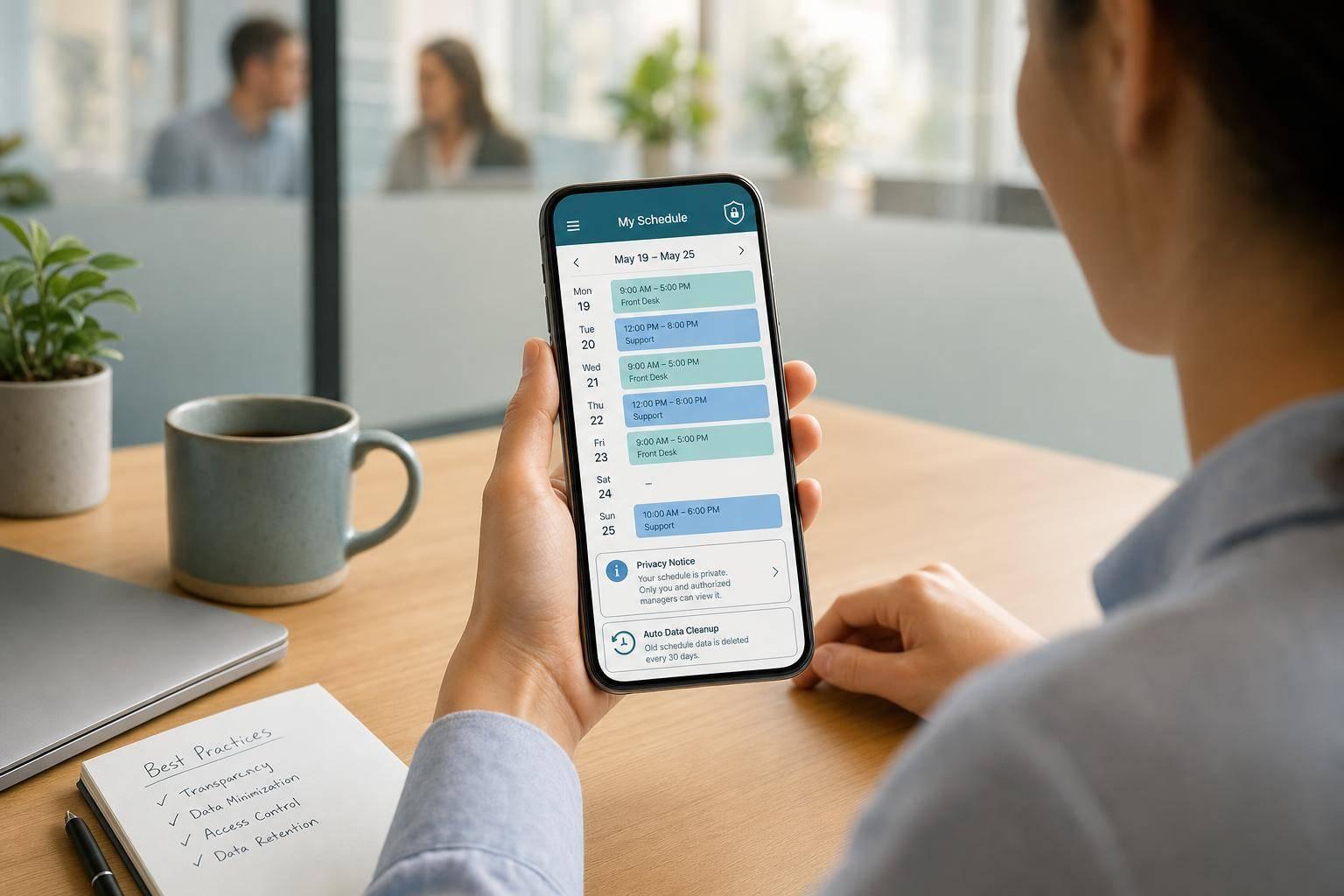
Employee scheduling data needs the same care as payroll or HR records. By January 1, 2026, 20 U.S. states had privacy laws in effect, and scheduling software benefits include managing names, phone numbers, availability, time-off details, location data, and message history.
If I were boiling this down, I’d say the article comes down to five rules:
A few points stand out fast. Biometric data can bring steep costs under Illinois BIPA: $1,000 per negligent violation and $5,000 per intentional violation. California employee privacy requests may need a response within 45 days. And for FLSA records, shift history often needs to stay for 3 years.
This means privacy in scheduling apps is not just about hackers. It’s also about everyday choices: who sees a phone number, whether a sick-leave note is stored in the wrong place, and whether location tracking shuts off after a shift ends.
Read this article as a simple checklist: know your data, explain your rules, limit access, secure the app, and review the setup on a fixed schedule.
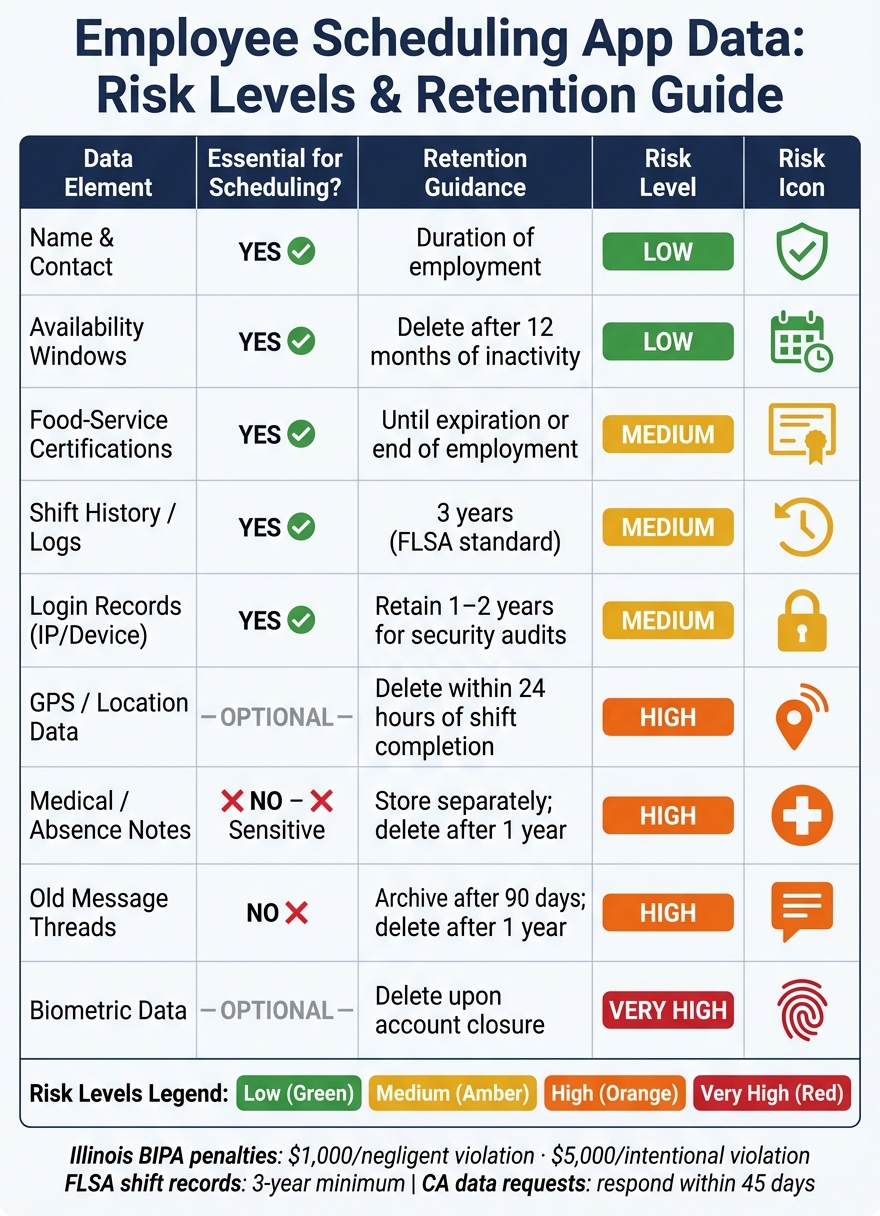
Employee Scheduling App Data: Risk Levels & Retention Guide
Most event teams collect more data than they need. A sign-up form that asks for a home address or full birth date may seem thorough, but if those details don't help with scheduling or communication, they just add risk. The better move is to use data minimization and purpose limitation: collect only what you need for scheduling, communication, and compliance. Before you set permissions or write notices, start with a field-by-field inventory.
Event staff scheduling data is pretty limited: name, mobile number, email, role, certifications, and availability windows. Shift history, attendance records, and login logs also make sense because they help document work, support communication, and secure access. Anything beyond that should get extra scrutiny.
Some fields are clearly required. Others are optional but still useful. Then there are fields that carry legal and security risk if they're handled poorly.
Required fields include name, contact details, role, availability, and any certifications tied to the job, like a food handler's permit for catering staff.
High-risk fields include GPS tracking, medical notes, biometric data, and wage data. GPS tracking can help verify arrival at a venue, but it's still optional. Under laws like the Illinois Biometric Information Privacy Act (BIPA), mishandling biometric data can trigger statutory damages of $1,000 per negligent violation and $5,000 per intentional violation.
Profile photos are optional too. Only collect them if there's a clear reason.
Once you know what you're collecting, write it down. A simple internal reference table for each field can do the job: purpose, retention, and risk.
The table below covers the data types most relevant to event staffing teams, based on common scheduling workflows:
| Data Element | Purpose | Essential for Scheduling? | Retention Guidance | Risk Level |
|---|---|---|---|---|
| Name & Contact | Communication and identification | Yes | Duration of employment | Low |
| Availability Windows | Matching staff to event shifts | Yes | Delete after 12 months of inactivity | Low |
| Food-service certifications | Verify eligibility for catering roles | Yes | Until expiration or end of employment | Medium |
| Shift History / Logs | Payroll and labor law compliance | Yes | 3 years (FLSA standard) | Medium |
| Login Records (IP/Device) | Prevent unauthorized account access | Yes | Retain 1–2 years for security audits | Medium |
| GPS / Location Data | Verify arrival at event venue | Optional | Delete within 24 hours of shift completion | High |
| Medical / Absence Notes | Document sick leave or accommodations | No (Sensitive) | Store separately; delete after 1 year | High |
| Old message threads | Team coordination history | No | Archive after 90 days; delete after 1 year | High |
| Biometric Data | Secure app login or time-tracking | Optional | Delete upon account closure | Very High |
Once the data inventory is clear, the next step is telling staff what you collect and how they can review it.
Once your data inventory is in place, the next step is simple: spell out how employees are told about data use, how consent works, and how they can check or fix their records.
In U.S. workplaces, consent by itself doesn't carry much weight. A better approach is clear notice, a documented job-related reason, and tight limits on what you collect. For scheduling privacy, a written policy should be the foundation, not vague or implied consent.
Create a short, one-page notice that explains what the app does, what data it collects, who can view it, how long records stay on file, and how employees can ask for corrections. Don't hide this inside a 50-page employee handbook. A separate notice given at onboarding sends a clear message that your team treats this seriously.
That also helps with state rules. Connecticut, Delaware, and New York require written notice before monitoring work communications, so giving notice up front can help keep your process in line with state law.
For standard scheduling data, like shift times, availability, and work email, a clear notice is often enough. Written acknowledgment matters more when the data use carries more risk.
Use a signed acknowledgment for cases like:
If you collect biometric data such as fingerprints for time-clocking, Illinois, Texas, and Washington require written consent. That same plain, direct approach should also shape how you limit internal access.
Assign one HR or operations contact to handle data requests, and publish a set response timeline. California's CCPA/CPRA requires employers to respond to employee data requests within 45 days. Even if you're not based in California, that's a solid standard to use across the board.
| Use Case | Necessary Data | Common Pitfalls | Better Practice |
|---|---|---|---|
| Shift Reminders | App notification ID or work email | Accessing personal contact lists or call logs | Use in-app notifications and let staff choose their preferred channel |
| Time-Off Approvals | Requested dates and a broad reason category | Requiring detailed diagnoses or doctor's notes for every short-term absence | Store any medical documentation in a separate, restricted file |
| Event Communication | In-app shift-related messages and swap logs | Monitoring personal social media or private messages on personal devices | Use a dedicated work channel and make clear that only work-related messages are monitored |
| Location Tracking | GPS data during active shift hours | Continuous background tracking when staff are off-clock | Use geofencing that disables automatically when a shift ends; get written consent for personal devices |
When employees know who can access their data, how to review it, and how to fix mistakes, later security rules are much easier to put into practice.
Once you've decided what data to collect, the next step is simple: limit who can see it. Data minimization cuts down what you store. Access control cuts down who can get to it.
Give each person access based on their job. No more than that.
Field staff should see only their own shifts, their own profile, and the on-site contact names they need for the job. Coordinators should see the teams they manage and have permission to approve swaps. Admins can have access to full settings and payroll-related data.
Before launch, set Quickstaff role boundaries with care. It also helps to use limited status labels instead of live location data.
Multi-factor authentication (MFA) is non-negotiable for admin and coordinator accounts. If a password gets stolen, that alone shouldn't open your full staff roster.
For field staff who check schedules on personal phones, allow device-level fingerprint or face ID unlock. It's a simple guardrail, but it matters.
Set mobile apps to log out after a short period of inactivity - five minutes or less is a good target on shared or field devices. If a staff member loses a phone, or it gets stolen, remote wipe or session-timeout tools can limit the fallout. And when staff need to coordinate, keep sensitive details out of text messages. Use logged in-app channels instead.
Before you hand out login credentials to your first staff member, make sure each control below is active:
| Control Category | Risk if Missing | Recommended Control | Scheduling-Specific Example |
|---|---|---|---|
| Authentication | Unauthorized access via stolen credentials | MFA and phishing-resistant passkeys | A coordinator signs in with a passkey or authenticator app. |
| Access Control | Staff viewing coworkers' pay rates or contact info | Role-Based Access Control (RBAC) | Field staff see only their own shift times; managers see the full roster and contact details. |
| Data Storage | Data theft from lost or stolen devices | AES-256 encryption at rest | Cached schedule data on a stolen phone stays unreadable without the app key. |
| Data Transmission | Interception on public Wi-Fi | TLS 1.3 encryption | Shift swap requests sent from a venue's guest network are encrypted in transit. |
| Backup & Recovery | Permanent loss of event schedules | Encrypted, off-site backups | Daily backups of the master event roster are stored in a separate encrypted cloud bucket. |
| Logging & Monitoring | Undetected bulk data exports or insider access | Tamper-evident audit logs | An alert triggers if any user attempts to export the full staff contact list. |
| Device Protection | Data exposed on unattended tablets or phones | Remote wipe and session timeouts | The app automatically logs out after five minutes of inactivity on a field staffer's device. |
Go through this checklist with the person who manages your platform settings before launch. Then apply the same tight limits to schedules, notes, and staff messages. After that, carry the same discipline into day-to-day scheduling work.
Once access controls are set, the day-to-day stuff still decides how private employee data stays.
Most scheduling privacy problems don't come from hackers. They come from people sharing too much. A manager drops an employee's personal cell number into a group chat. Someone adds a health-related note right into a shift description. That's usually where things go wrong.
Keep personal phone numbers out of broad staff messages. Use in-app messaging instead, so conversations stay logged and visible only to the people who need them. For shift notes, stick to job-related details. If something is sensitive, put it in a manager-only field.
There's another easy fix here: cut down on after-hours notifications. Routine schedule changes don't need to ping staff when they're off the clock.
And even when notes or messages are private, they still shouldn't live in the system forever.
Not every type of scheduling data needs the same shelf life. Use legal minimums as the floor, then keep everything else for less time when you can.
Availability records can reveal a lot about someone's personal life, obligations, and routines. Delete or anonymize them once they're no longer needed. Shift notes and message histories usually only need to stay for 3 to 6 months. GPS or location check-in data carries more risk, so use it only for work purposes, like confirming arrival, never during off-duty hours, and delete it on a set schedule. If you collect biometric data, such as fingerprint check-ins, Illinois' BIPA is a good model: publish a formal retention schedule and clear destruction rules before you collect anything.
Automate deletion wherever you can. Manual cleanups are easy to postpone, and then they don't happen.
Once the rules exist, someone has to own them and check them on a set schedule.
Privacy rules don't run themselves. A policy without an owner usually turns into shelfware. The table below shows who should handle each governance area, how often they should review it, and what records to keep.
| Governance Component | Owner | Frequency | Key Activities | Evidence to Keep |
|---|---|---|---|---|
| Policy Review | Legal / HR | Annual | Update privacy notices; review state law compliance (e.g., CCPA, BIPA) | Signed policy versions; updated employee handbooks |
| Staff Training | HR / Ops | Quarterly | Role-specific training on shift notes, messages, and data handling | Training completion logs; assessment scores |
| Vendor Management | IT / Procurement | Pre-contract & Annual | Review SOC 2 reports and Data Processing Agreements (DPAs) | Signed DPAs; vendor security questionnaires |
| Access Reviews | System Admin | Quarterly | Audit RBAC permissions; revoke access for former staff | Access log reports; permission change history |
| Incident Response | Security / Legal | Annual | Tabletop exercises for employee data breach scenarios | Incident response plan; test results and debriefs |
| Privacy Audits | Privacy Officer | Bi-annual | Verify data deletion and check for purpose drift | Audit findings report; deletion certificates |
The idea is straightforward: assign a clear owner, then review the work on a routine basis.
That matters whether you're checking a vendor contract, removing a former coordinator's login, or deciding if a shift note needs a staff member's personal details at all. Those small calls add up fast. They either build trust with your team or chip away at it.
Scheduling apps should follow data minimization. In plain English, that means they should collect only the information needed to book, manage, and confirm appointments.
If a piece of data isn’t clearly needed for scheduling, it shouldn’t be collected or processed. Simple as that.
That also means avoiding things like:
The basic rule here is common sense: if the app can do its job without the data, it shouldn’t ask for it.
Federal law doesn’t say much about GPS tracking. In practice, that means state law usually decides what employers can and can’t do.
A common rule is this: if you want to track an employee in their personally owned vehicle, you’ll usually need written consent first. And in some states, the bar is even higher. They may require explicit, informed consent for any electronic geolocation monitoring.
That’s why it’s smart to give employees clear written notice before tracking starts, no matter what device you use. Spell out the tracking’s:
The rules can differ from state to state, and they can shift over time. Clear notice up front helps set expectations and cuts down on confusion.
Organizations should review privacy settings and access permissions on a regular basis to stay in line with compliance rules and keep data safe. How often that happens will depend on internal risk reviews and any rules the company has to follow.
A smart approach includes permission audits from time to time so teams can remove access people no longer need. It also helps to watch higher-risk actions more closely, such as:
Quickstaff’s centralized management tools can help teams keep access secure and organized.