How Staffing Agencies Connect Timesheets to Payroll
August 11, 2026


Payroll errors usually start before payroll. If I set up worker IDs, roles, pay codes, and approval rules the right way, approved hours can move into payroll with far less cleanup.
Here’s the short version:
A simple example: if a worker is scheduled under the wrong role, their hours may go to the wrong pay code. If a timesheet is still pending, pay may be late. If clock-out time is missing, someone may need to rebuild the shift by hand.
That’s the big idea of this article: clean setup leads to clean payroll. And that matters because the article notes that about 1 in 5 U.S. payrolls has at least one mistake.
What I see as the core steps:
If I had to sum it up in one line: timesheets do not become payroll by magic - they become payroll through clean data, rule-based mapping, and tight approval control.
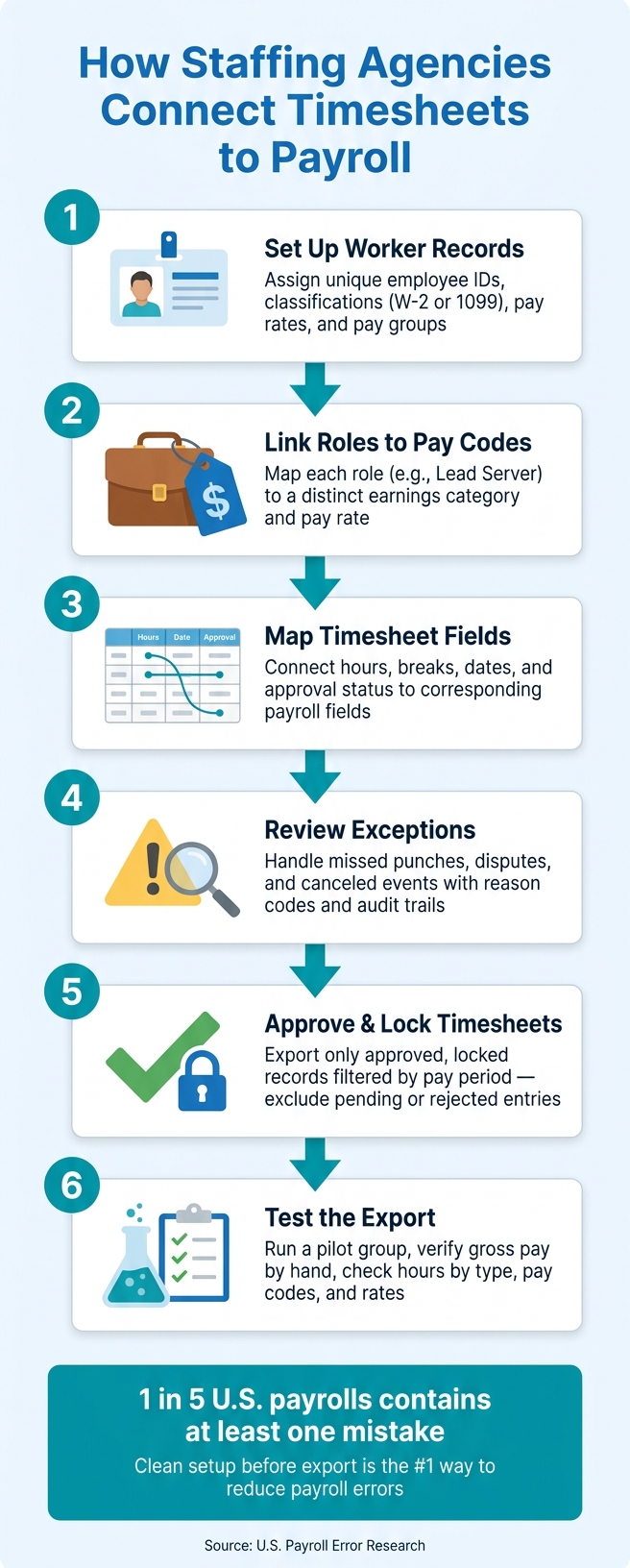
How Staffing Agencies Connect Timesheets to Payroll: 6-Step Process
Start with clean staff, event, and pay-rule data. If your setup is wrong at the start, every approved hour carries that mistake into payroll.
Each worker in your system needs a unique employee ID. That ID links approved hours from your scheduling tool to the right payroll profile.
Before your first payroll run, standardize these fields:
| Field Category | What to Standardize | Why It Matters |
|---|---|---|
| Identity | Legal first/last name, unique employee ID | Matches hours to the correct tax identity |
| Employment | Employment status (active/inactive), worker classification (W-2 or 1099) | Determines eligibility for a paycheck and applicable withholding |
| Role and pay group | Primary role, department, pay group | Maps hours to the right pay rate and budget |
| Logistics | Default location, cost center | Allocates labor costs to the correct client or venue |
| Compliance | Tax forms and withholding details, state recordkeeping rules | Supports accurate withholding and payroll records |
Enter pay rates in U.S. dollars ($) and check them against payroll records before export. Move seasonal or departed workers to inactive status so they don't show up in active payroll exports.
Once worker records are standardized, the next step is linking roles and events to payroll categories.
Each event should connect to the client, venue, date, and job code. That gives payroll the context it needs to show where the hours came from and how to sort them.
Roles are the key link here. A Lead Server role should map to a different earnings category than a General Server role. That affects the pay rate. Set those role-to-earnings mappings up front, and approved hours can flow into the right pay buckets on their own.
Set overtime, double-time, holiday, and break rules before scheduling starts so timesheets map cleanly to payroll.
After those categories are set, the next step is mapping timesheet fields to payroll fields.
When event details, staff assignments, and role-based assignments live in different places, payroll turns into a patch job. Separate systems often mean manual fixes before hours can be processed.
Quickstaff keeps event details, role-based assignments, staff availability, and assignment records in one place. That helps make timesheet capture cleaner before payroll processing starts.
That alignment cuts rework before timesheets ever reach payroll.
Once your staff, roles, and pay rules are set, the next move is to connect each timesheet field to the payroll field it feeds. That’s what field mapping is: a direct, field-by-field link that tells the system what value goes where, how it should look, and which rule applies.
A mapping document is usually a spreadsheet that shows each timesheet field and the payroll field tied to it. If you skip this step, exports turn into guesswork. And guesswork is how payroll data gets messy.
Build a mapping sheet that includes every timesheet field, its payroll target, and any format or rule tied to that field.
Keep regular, overtime, and double-time hours in separate fields instead of rolling them into one total. Payroll systems need those hours split into separate buckets so they can apply the right codes and rates. If you combine them, someone has to split them by hand later.
Format mismatches can derail payroll imports. Before export, standardize dates, times, decimals, and currency so they match payroll rules: MM/DD/YYYY, the time format your payroll system expects, decimal hours, and U.S. dollar values.
If one worker is paid at different rates during the same pay period, export separate payroll lines for each rate and code.
Use these standards as the base for your payroll mapping sheet.
Use the table below as the minimum mapping set.
| Timesheet Field | Payroll Field | US-Specific Note |
|---|---|---|
| Employee ID | Employee record | Must match payroll system's ID exactly; preserve leading zeros (e.g., "000123") |
| Event ID | Job/project code | Use alphanumeric format consistently (e.g., EVT-2026-0812) |
| Role | Earnings category / pay code | Each role maps to a distinct code (e.g., "Banquet Server Regular") |
| Work date | Pay period/date field | Format: MM/DD/YYYY (e.g., 08/12/2026) |
| Start time / end time | Hours worked calculation | Specify 12-hour (7:00 PM) or 24-hour (19:00); match payroll import template |
| Unpaid breaks | Deducted from net paid hours | Paid breaks stay in paid hours; unpaid breaks reduce them |
| Regular hours | Regular earnings line | Decimal format (e.g., 7.5) |
| Overtime hours | Overtime earnings (OT1.5 / OT2.0) | Thresholds vary by state; some states apply daily overtime rules |
| Premium hours | Premium pay codes | Holiday, night differential, or lead premium - each needs its own code |
| Approval status | Payroll eligibility flag | Only "Approved" rows should export; exclude pending or rejected entries |
| Department / client / location | Cost center / GL code | Drives labor cost allocation for billing and financial reporting |
Once the mapping sheet is done, approval status becomes the gatekeeper for payroll export. That matters more than it may seem. With the right field mapping in place, you can send only approved timesheets into payroll and keep disputed or unreviewed hours out of the pay run.
A simple four-step workflow works well:
That approval trail helps stop disputed hours from slipping into payroll.
Exceptions need their own process too. If someone misses a punch, that should trigger manual review. The manager can update the time using event logs or documented communication, add a reason code, and let the system record who made the change and when.
If disputed hours still can't be sorted out before the payroll cutoff, leave them out of the current pay run. Document the dispute clearly so you don't create underpayment risk later. Canceled events need a policy as well, especially around minimum guarantee pay. If staff are owed two hours at base rate, those hours should go under a dedicated pay code with a note that explains the adjustment.
Locking timesheets after approval is non-negotiable. Once a record is locked, any change should require a documented correction request. That protects the audit trail and helps keep records aligned with FLSA recordkeeping and overtime rules.
After timesheets are approved and locked, filter the export by pay period dates and approved status only. From there, pick the transfer method that fits your payroll system and your team's day-to-day process.
Direct API sync sends approved records into payroll automatically. It keeps manual work low and moves data fast, but it needs setup work at the start and vendor support.
CSV export/import is easier to get going. It also gives you a chance to review the data before it lands in payroll. The tradeoff is speed. It's slower, and it depends on someone running the export the right way every cycle.
Middleware connectors sit between systems and automate the flow. For agencies juggling many events across more than one platform, that can be a strong fit. The downside is added licensing cost and upkeep.
Before you run a live pay cycle, start with a small pilot group. Import their approved records into a test environment, then calculate gross pay by hand for a sample set and compare it line by line against the system output. Check hours by type, pay codes, and rates. If something doesn't match, you're likely looking at a mapping issue or missing data that needs to be fixed before the full run.
Use the tables below to line up your approval model and export method with how your team works.
Approval models
| Model | Control Level | Administrative Effort | Risk of Errors |
|---|---|---|---|
| One-step (event manager only) | Lower - one reviewer may miss complex pay rules | Low | Higher - overtime, premiums, and cross-event assignments can slip through |
| Multi-level (manager + payroll/HR) | Higher - pay rules and compliance reviewed before lock | Medium to high | Lower - catches edge cases before export |
Export methods
| Method | Data Latency | Manual Effort | Configuration Complexity | Fit for Multi-Event Agencies |
|---|---|---|---|---|
| Direct API sync | Near real-time | Low | High | Strong - automated, scales well across many events |
| CSV export/import | End of pay period | Medium to high | Low | Moderate - works for predictable cycles, harder to manage at volume |
| Middleware connectors | Configurable | Low (after setup) | High | Strong - handles multiple platforms and complex mappings in one flow |
Choose the method your payroll system and team can actually support week after week. For agencies using Quickstaff to manage event staffing in one place, middleware or solid API integrations often make the most sense. When scheduling data is already centralized and structured, payroll export cleanup stays light.
Once staff data, mappings, and approvals are set, payroll turns into a clean export instead of a last-minute cleanup job. In event staffing, payroll accuracy starts before export. That matters, because about one in five U.S. payrolls contains at least one mistake.
Start by standardizing, then compare manual vs digital staff scheduling to automate. Set worker classifications, encode FLSA overtime rules, lock in role-based pay rates, and document your field mapping before you connect any system. That prep work is what makes automated exports dependable, not just fast.
It all begins with clean scheduling data. When each worker is linked to a confirmed role, a specific event, and a documented pay rate before the shift starts, timesheets pick up the right rules on their own. Quickstaff can centralize event creation, role assignments, and availability, so timesheet data starts clean. That helps keep payroll inputs structured from day one.
Each step sets up the next one, which helps the final export stay accurate. Think of data discipline as a workflow: capture it well, approve it with care, and export it cleanly. The payoff is simple - faster payroll, fewer corrections, and more accurate pay.
Start with the core identifiers: employee name, staff ID, and the event name or code. Then add the main time and pay fields that tie work hours to earnings, like daily and weekly hours, pay rates, and overtime hours.
You can also add other fields when they matter. Common ones include tips, service charge distributions, meal breaks, and deduction categories such as federal income tax, Social Security, and court-ordered garnishments.
Before payroll export, document every correction with the reason, who made it, and when.
Use one central system like Quickstaff to track missed punches and edits. That keeps everything in one place instead of scattered across emails, sticky notes, or side spreadsheets.
Have employees review and certify their timecards, then lock approved records. If someone needs to fix a record later, reopen it and require a new review and approval. That way, the audit trail stays accurate and easy to follow.
It comes down to automation vs. simplicity.
API sync is the better fit for ongoing payroll work because it keeps data up to date and cuts down on manual entry and mistakes.
CSV export works well as a backup or a flexible option when you don't need direct integration.
If your goal is smooth, current alignment between systems, API sync is usually the better choice.