How Shift Reminders Cut Replacement Costs
August 26, 2026

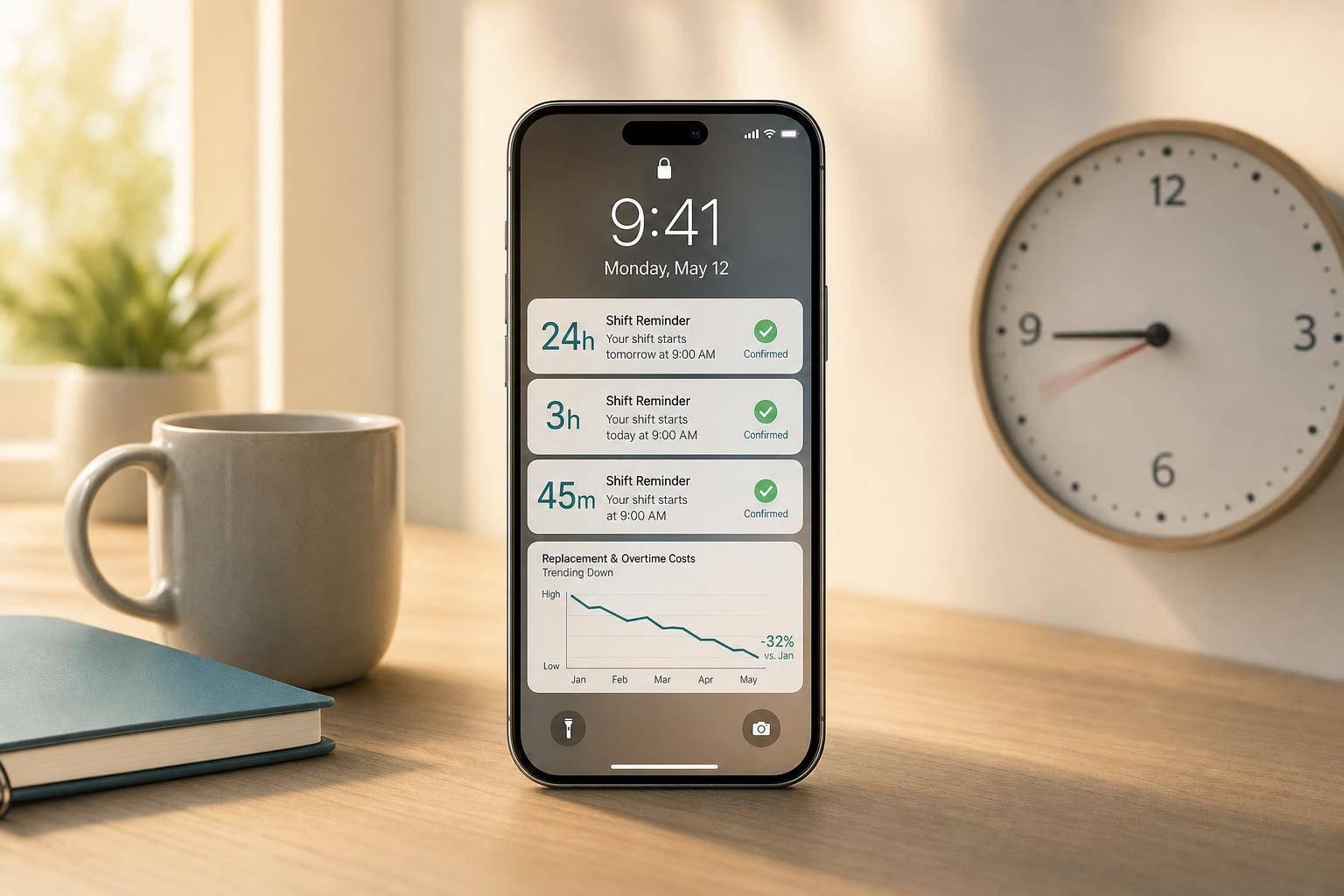
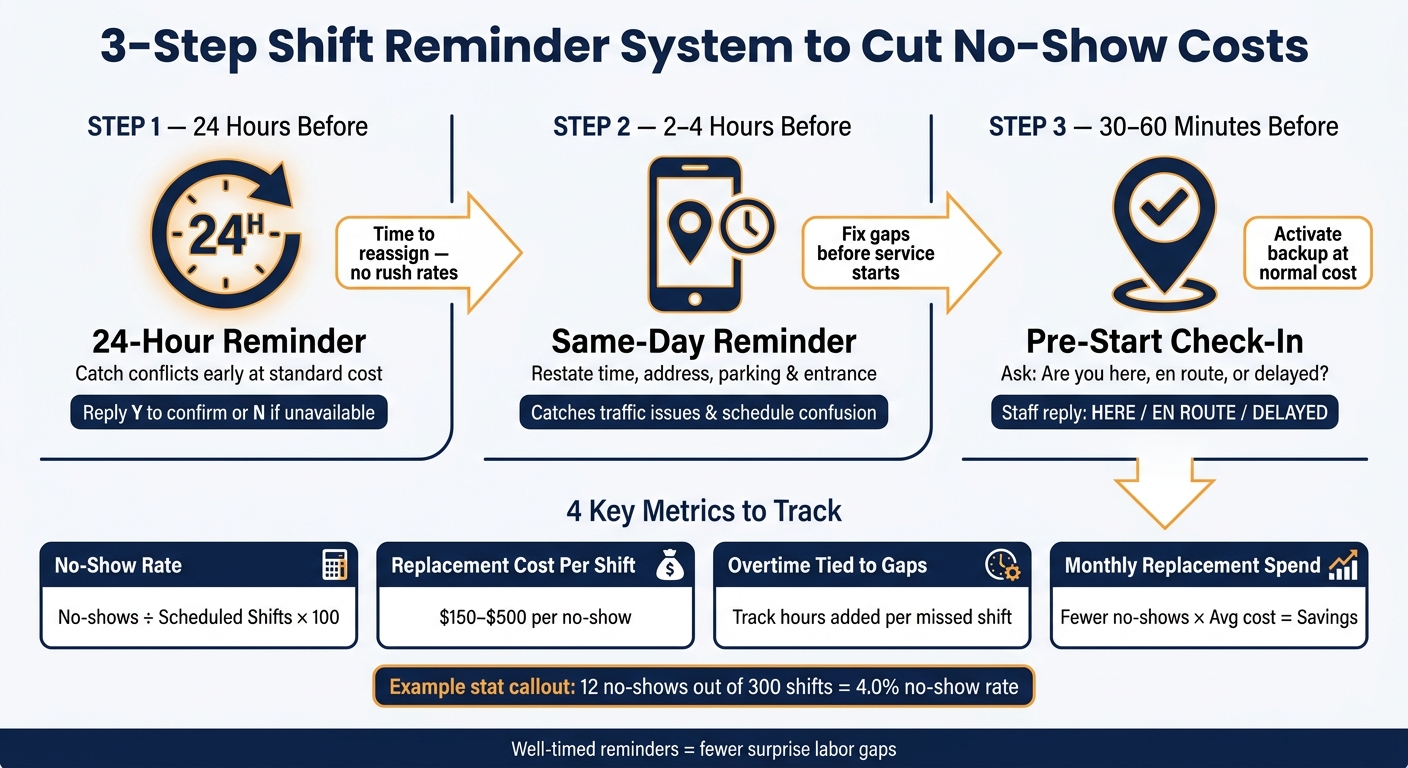
One missed shift can cost you $150–$500 fast. I’d cut that risk with three reminder points: 24 hours before, 2–4 hours before, and 30–60 minutes before start time.
Here’s the short version: if I remind staff early, ask for a clear YES/NO reply, and check who is here, en route, or delayed, I can spot trouble before overtime, rush pay, manager call time, and travel support pile up. That matters even more in events, where one missing server or bartender can strain the whole floor. This is why managers need a scalable event scheduling system to handle complex staffing needs.
If I wanted the shortest playbook, it would be this:
A no-show rate is easy to track: no-shows ÷ scheduled shifts × 100. So if 12 people miss 300 shifts, that’s a 4.0% no-show rate. And if each no-show costs $150 to $500, even a small drop can save real money over a month.
I’d also keep each reminder simple and action-focused:
This is the core idea: reminders work best when they give staff time to respond and give managers time to fill gaps. From there, budget-friendly staff scheduling tools can automate sends, track confirmations, and help backfill shifts before labor costs climb.
3-Step Shift Reminder System to Cut No-Show Costs
Sending reminders helps. But sending them at the right time is what cuts replacement costs.
If a reminder shows up too late, managers don't have many options left. If it shows up at the right moment, a possible no-show can turn into a simple reassignment instead of a frantic last-minute fix. That's the whole point of a event staff scheduling system: catch problems early, before they turn into added labor costs. For that to work, each reminder has to give staff enough time to respond and give managers enough time to act.
A reminder sent 24 hours before the shift is the first checkpoint. It catches staff who forgot they were booked, and it brings conflicts to the surface while there's still time to deal with them at standard cost. When someone flags an issue a day ahead, managers can usually handle it through a normal reassignment instead of a same-day scramble. That 24-hour window gives managers time to reassign the shift before rush rates apply.
The message itself matters too. You don't want to just hope someone opens it. You want a clear answer. A prompt like Reply Y to confirm or N if you cannot work this shift gives coordinators a clean view of the board:
A same-day reminder sent 2–4 hours before the shift helps catch traffic issues, call-time mistakes, and venue changes while there's still time to fix them. If someone realizes the drive will take longer than expected, they can leave earlier. If they missed a detail, they can ask before ending up at the wrong entrance.
This timing also helps when a call time moves by 30 to 60 minutes or when a room assignment changes inside the same venue. Restating the current details in the reminder - address, parking instructions, and entrance info - cuts the kind of low-level confusion that creates the same staffing gap as a no-show.
A pre-start check-in prompt, sent 30 to 60 minutes before call time, asks one simple question: are you on your way or already there? Staff can reply with a quick status like here, en route, or delayed, and managers get a live view of who is actually going to show up.
A 45-minute delay found before call time gives managers a chance to activate a backup at normal cost instead of paying emergency rates after service starts.
Timing cuts risk. The next step is writing reminders that get a clear response.
Timing puts a reminder in front of the right person at the right moment. But if the message is vague, staff still have to guess about the basics. And that’s how missed shifts happen. The fix is simple: send a reminder that gives people everything they need to reply fast.
Spell out the role, date, time, venue, address, dress code, parking or entrance notes, and a contact method. For example:
"Banquet Server - 08/27/2026, 5:30 PM–11:00 PM. Oakview Ballroom, 123 Main St., Chicago, IL 60601. Black slacks, white shirt, black non-slip shoes. Park in Lot B, west service door. Delayed? Text Maria at (555) 123-4567."
That kind of message gives staff what they need to walk out the door without making a follow-up call. And when confirmations come in faster, managers get more time to backfill before rush pay or overtime starts.
Don’t send a reminder people can just glance at and ignore. Ask for a direct reply: YES to confirm or NO if unavailable.
That turns the reminder into an attendance control tool. Managers can quickly spot:
It also makes reminders much easier to automate and track.
People read messages on their phones in a hurry. So keep the structure tight: lead with the role and time, follow with the location and dress code, then end with one clear action.
Full-detail confirmation reminders cut down on back-and-forth and make early backfills easier.
Once the message is clear, mobile scheduling tools can send it automatically and track replies in one place.
Once reminder text is set, the software sends it the same way across every shift. Mobile tools can automate 24-hour, same-day, and check-in reminders, which means managers don't have to send each one by hand. That's where mobile scheduling software turns a plan into day-to-day action.
The main functions here are timing, confirmation, visibility, and role-based alerts.
Configurable reminder timing lets managers set 24-hour, same-day, and check-in messages once, then let the system send them on schedule. Confirmation tracking turns the roster into a live backfill list. If a shift starts in three hours and two people still show as Pending, the manager knows where to act right away.
Mobile access lets staff check details before they head out. They can pull up shift info on their phone, including role, call time, venue address, and dress code. That cuts the classic last-minute mess: "What time am I supposed to be there?" or "Which entrance do I use?" Research found that shift reminders cut missed shifts and reduced lateness.
Role-based messaging keeps backfill alerts tight. If a bartender declines at 8:00 a.m., the manager can notify only bartender backups instead of blasting the whole team.
A mobile platform brings those controls into one place. Quickstaff supports this workflow by putting event details, confirmations, and reminders on mobile. Managers create an event, assign roles, and publish the schedule. Staff then see everything on their phones right away, including event notes, directions, and attached documents like dress codes or floor plans. When an invitation goes out, staff reply with Accept or Decline, so confirmation status updates in real time instead of getting lost in text threads.
Quickstaff's Automagic Waitlists handles backfills directly. Managers can invite backups, fill the shift as people accept, and keep the rest on standby. In plain English, the bench is ready before there's a problem. That helps managers avoid common scheduling problems like emergency coverage.
Quickstaff's availability tracking also cuts a common waste of time: inviting staff who already blocked off the date. Managers can check availability before sending invitations, which keeps the backfill pool realistic and speeds up the replacement process. With that shared view, there's less scramble and lower replacement spend when a no-show happens.
Once reminders and backfills are automated, track whether replacement spend drops.
Measure the same gaps your reminders are meant to stop.
Focus on four numbers: no-show rate by role, replacement cost per shift, overtime tied to attendance gaps, and monthly replacement spend. Each one connects to what reminders can change directly: missed confirmations, pending replies, and shifts that stay open.
The formula is simple: no-show rate = no-shows ÷ scheduled shifts × 100. So if 12 workers miss 300 assigned shifts in a month, the no-show rate is 4.0%.
It also helps to break the data out by role. Servers, bartenders, and setup crew don’t miss shifts at the same rate, and they don’t cost the same amount to replace. When you track results by role, you can see where reminder updates are most likely to save money.
For each replacement cost, include:
Look at the same metrics before and after you change reminder timing or confirmation wording. Use a 30-day before-and-after window. Then log:
This kind of before-and-after view helps you measure the effect of better timing and clearer confirmation prompts, not just other scheduling changes happening in the background.
The savings math is direct: fewer no-shows × average replacement cost per shift = monthly savings.
Once the numbers start moving, the cost savings are easy to spot.
Well-timed reminders can cut no-shows, get confirmations faster, and reduce replacement spend. That means fewer surprise labor gaps and less scrambling for last-minute coverage.
First, check that reminder triggers are turned on in the Quickstaff user profile, that the staff member hasn’t opted out, and that their contact details are correct.
If email isn’t dependable, switch to SMS or push notifications instead. Use the Quickstaff dashboard to track responses in real time. If the shift still isn’t confirmed, use the automated waitlist to contact available staff fast.
The most effective approach is a layered reminder strategy, not a single reminder time.
Quickstaff can help automate these reminders and track responses in real time.
Measure cost savings during event closeout after each event. This helps you see if your staffing goals were met and gives you hard numbers you can use to improve future schedules.
For tracking, get your payroll export ready 1–2 days after the event. Then run a broader internal review within 5–7 days. Watch no-shows, shift disputes, and response times to see if your reminder plan is cutting replacement spend over time.