Event Staff Time Tracking: Guide for Teams
August 15, 2026

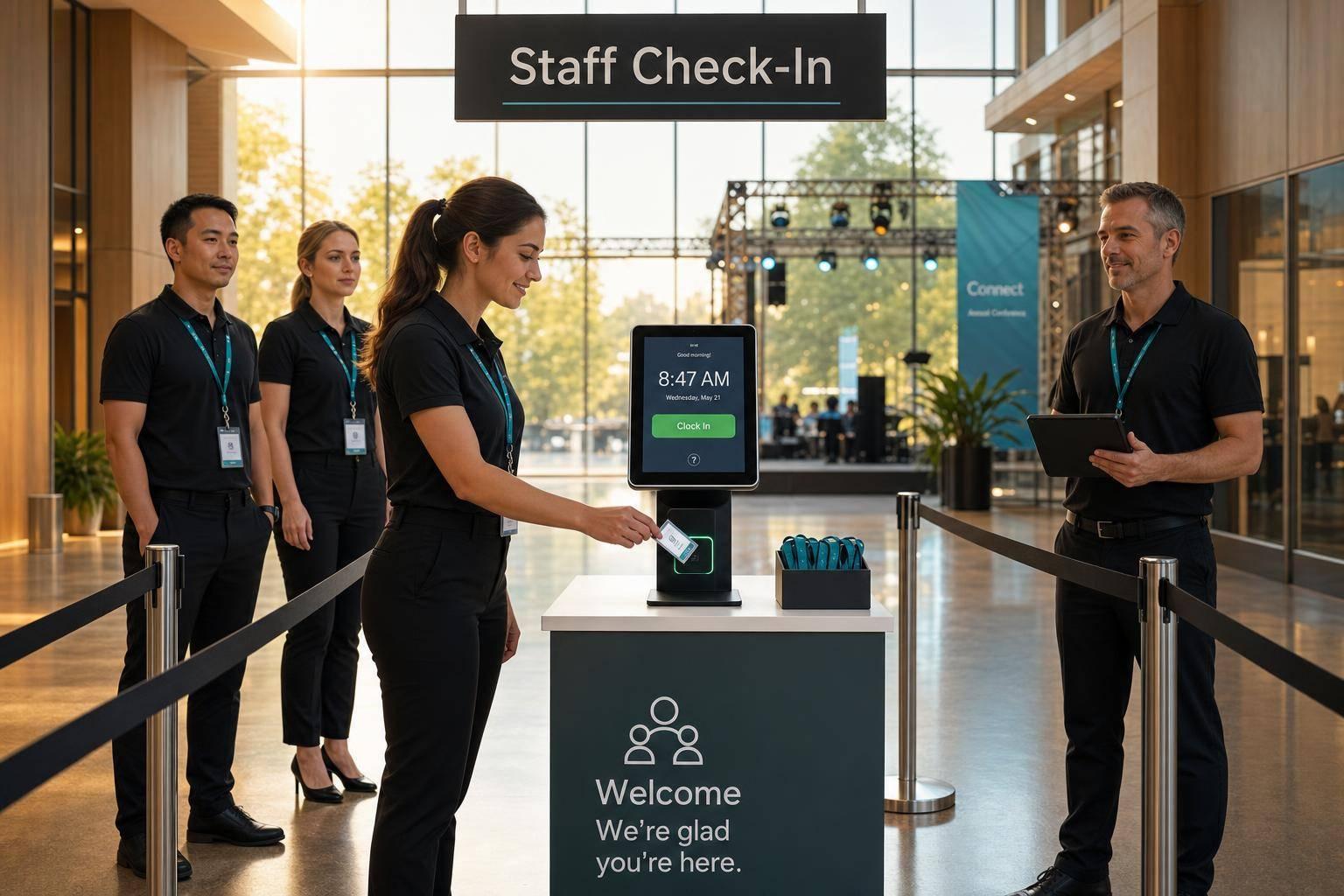
If your event team tracks time three different ways, payroll errors are almost guaranteed. I’d keep it simple: set a scalable event scheduling policy, use one clock-in process for every site, train staff on the same daily steps, and review hours before payroll closes.
Here’s the short version:
A few rules matter most right away:
Here’s a quick view of the main clock-in options:
| Method | Best for | Main watchout |
|---|---|---|
| Mobile app | Small events, private homes, crews on the move | Needs review for off-site punches |
| GPS/geofence | Hotels, stadiums, festival grounds | Staff need notice about location use |
| QR code | Tents, backstage, zone-based events | Codes must stay posted and controlled |
| Kiosk or manager entry | Warehouses, kitchens, weak-signal sites | More manual checks later |
In short, I’d treat time tracking as a single system, not a last-minute payroll task. That means clear rules, clean approvals, and the same process across weddings, festivals, warehouses, and multi-site days.
Write the policy before rollout so the app applies the same rules in every location. That matters more than it may seem. Clear rules cut down on missed punches, setup-time gaps, and confusion when people work across more than one venue. They also help prevent break issues and split-day record mistakes. From there, map the policy to your clock-in method, event roles, and approval flow.
Set a clock-in window, such as 15 minutes before start. If someone arrives early and starts working, that time needs approval and must be recorded. Off-the-clock work should not be allowed. Pre-event setup and post-event breakdown count as paid time when worked.
Break rules need to be plain and specific. Under federal law, breaks of 20 minutes or less count as paid time. Unpaid meal breaks, usually 30 minutes or more, only qualify when staff are fully relieved of duties. For events longer than 6 hours, schedule one 30-minute unpaid meal break and keep short rest breaks on the clock. State law may set tighter rules, so check those too.
Set the workweek start day in writing. Pay hours over 40 in a workweek at 1.5× the regular rate. Home-to-venue commuting should be marked unpaid, while travel between event sites should be tracked as paid working time. That helps keep same-day venue changes from being dumped into one messy time entry.
Every part of time tracking needs a clear owner. If nobody owns a step, problems sit there until payroll is due.
| Role | Responsibility | Deadline |
|---|---|---|
| Staff | Submit accurate punches; report errors same day | Same day |
| Shift Lead | Confirm attendance; flag missed punches | Before venue close |
| Event Manager | Approve exceptions and overtime | Next business day |
| Payroll | Final review and period lock | Payroll deadline |
For corrections, staff should use one standard app workflow or form. Every manual change should include a reason and the approver’s name. For example:
"Missed clock-out corrected per shift lead confirmation."
If an issue is still open at the payroll cutoff, note whether it will move to the next payroll or need an off-cycle adjustment.
If the time tracking method uses GPS or geofencing to verify on-site clock-ins, say exactly how that data is used. Keep location data limited to confirming that a worker was at the event site when clocking in or out. Continuous tracking outside those moments should be turned off. Staff should acknowledge this in writing, since many U.S. states require notice or consent for location monitoring.
For record retention, employers generally need to keep payroll records for at least 3 years and underlying time cards, schedules, or basic timekeeping records for at least 2 years. A practical policy can keep detailed time and attendance data, including location-verification logs, for at least 4 years unless state law requires more time.
Access should stay tight. Staff should only see their own records. Managers and payroll can have broader access based on role, and location data should stay limited to clock-in verification. Once the policy is done, move those rules into the app settings and manager permissions.
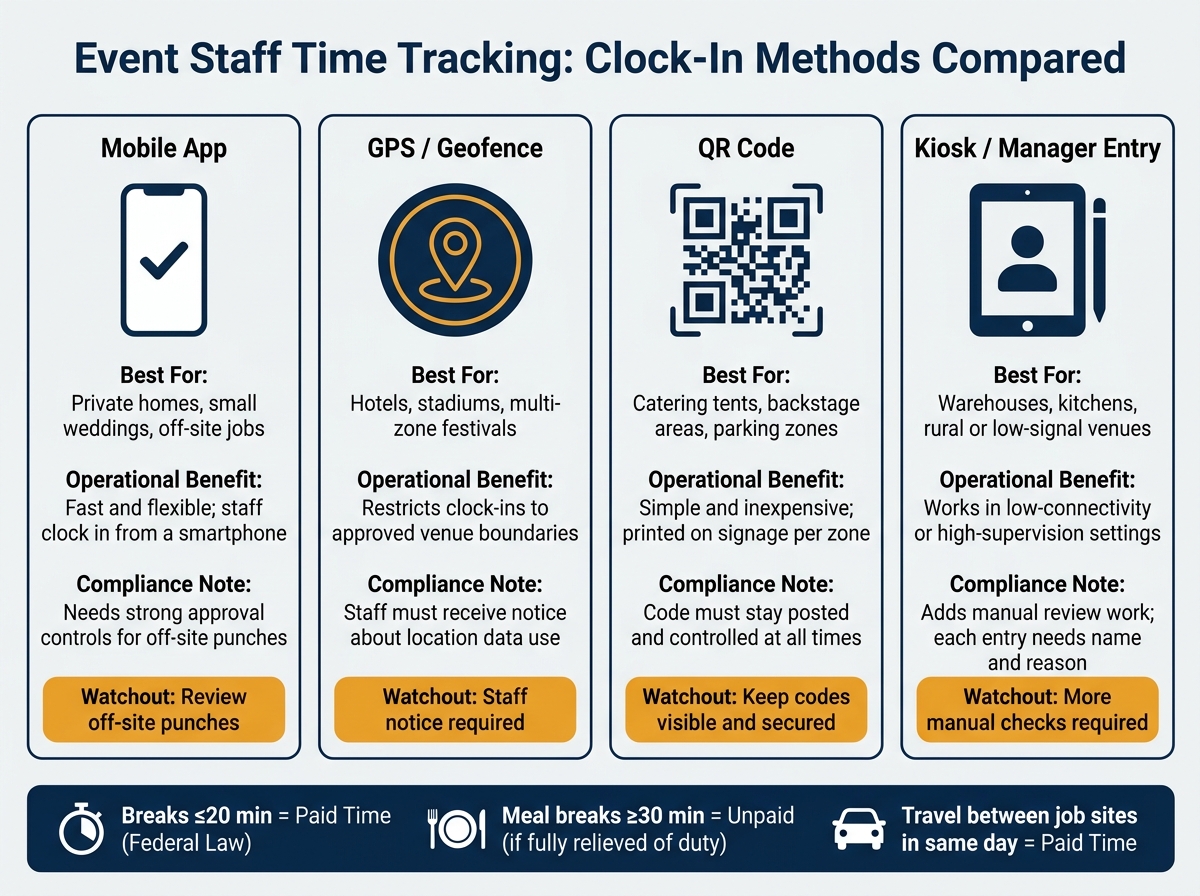
Event Staff Time Tracking: Clock-In Methods Compared
Once your policy is in place, the next job is simple: turn it into a clock-in workflow people can use in the field. And event teams don't work in just one kind of setting. One day it's a hotel. The next it's a private home, a festival site, or a warehouse load-in.
Choose a clock-in method based on three things: how much control you have over the site, whether the internet is stable, and how much punch verification you need. The goal is to make clock-in easy for staff without creating payroll problems later.
| Method | Operational Benefit | Compliance Impact | Best-Fit Event Use Case |
|---|---|---|---|
| Mobile app clock-in | Fast and flexible; staff can start and end shifts from a smartphone | Works well for dispersed crews, but usually needs strong approval controls for off-site punches | Private homes, small weddings, off-site jobs |
| GPS/geofenced check-in | Restricts clock-ins to approved venue boundaries | Reduces off-site punches | Hotels, stadiums, multi-zone festivals |
| QR code check-in | Simple and inexpensive; QR codes can be printed on signage at each zone | Ties clock-ins to the posted location, so the code needs to be visible and controlled | Catering tents, backstage areas, parking zones |
| Manager-entered attendance | Useful in low-connectivity or high-supervision settings | Adds more manual review work; each entry should include a name and reason | Backup workflow, small crews, rural venues |
For stadiums and large hotels, QR codes and geofencing can help keep zones separate, like catering, security, and setup. In warehouses and central kitchens, a tablet kiosk with PIN entry linked to the facility address gives you clear start and stop records.
Private homes and small weddings are different. Wi-Fi can be spotty, and the setup is often more relaxed. In those cases, mobile app clock-ins with simple GPS validation or manager-verified attendance tend to work best.
Once you've picked the method, set up each event record so staff clock into the right shift and the right place.
Before anyone clocks in, create each event as its own record. That record should include the venue, date, start and end times, role assignments, and labor code.
Map roles before the shift begins. That means servers, bartenders, setup crews, valet staff, and captains should already be assigned in the system. When you do that up front, clocked hours flow into payroll and job costing the right way.
If a team works more than one site in a day, split that work into separate event records. It keeps hours clean across venues and makes payroll easier to trace. Say a crew handles a breakfast banquet at a downtown hotel, then heads to an evening wedding at another venue. Those should be two separate entries, each with its own geofence or QR code.
The next piece is just as important: tie the schedule to the time record so managers can see planned hours and actual hours side by side.
The easiest way to cut missed punches and manual fixes is to give staff their full assignment before they arrive: the right event, the right role, and the right report time. Then clock-in becomes a confirmation of what's already in the system.
When scheduling and attendance live in separate places, managers usually end up cleaning up spreadsheets and text threads after the event. That's where mistakes creep in. When both sit in one workflow, actual hours can be checked against scheduled hours right away, and exceptions are much easier to spot.
This matters most when crews split across locations, switch roles mid-shift, or begin at different times.
For teams using Quickstaff, event creation, scheduling, and reminders help keep assignments clear before clock-in.
Once the policy and workflow are set, training is what makes time tracking happen the same way at every event. It takes the rules off the page and turns them into daily habits. Staff and managers need to follow the same steps for clock-ins, breaks, corrections, and approvals every time.
Give staff a simple routine they can follow almost on autopilot: clock in, log breaks, and clock out after teardown is done. Build training around that sequence and repeat it before each busy season.
Staff also need to know the difference between paid breaks and unpaid meal breaks, along with any state rules that apply.
Walk them through backup steps too. Event days rarely go perfectly, so people need to know what to do when something goes sideways.
Staff training works better when managers are checking things live during the event. That way, mistakes get fixed before payroll instead of after. Managers should review attendance as the event unfolds so missed punches, no-shows, and duplicate clock-ins are handled on the spot.
Train managers to check the live attendance view at three moments: arrival time, mid-event, and pre-teardown. At arrival, they should flag anyone who hasn't clocked in within the grace period and follow up before service starts. Mid-event, they should look for staff who have been on the clock for more than 6 hours without a recorded break. In places with strict break rules, that can turn into a compliance issue. Before teardown, they should confirm which shifts are still active so any last problems can be fixed before the event wraps up.
If a manager edits a time entry, every correction needs a note. The note should say what changed and why. Under U.S. wage and hour law, employers need accurate records of hours worked, including overtime. Edits with no explanation can create audit risk.
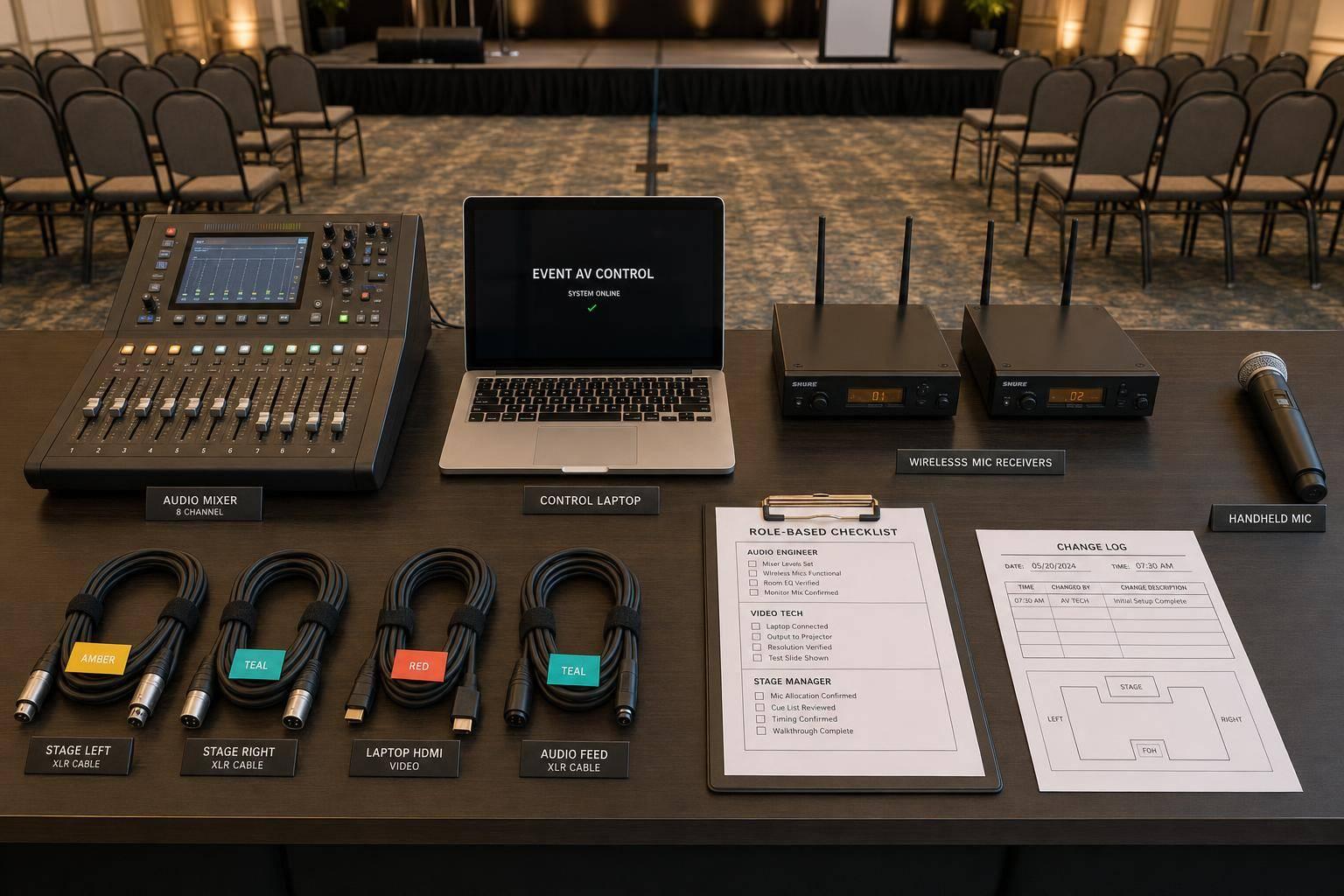
One role-based checklist can keep staff, leads, managers, and payroll working from the same playbook. Each role has a different part in the time-tracking process, so training should match what that person actually needs to do. This table gives you a repeatable reference for onboarding seasonal hires and temporary staff:
| Role | Clock Rules to Learn | Correction Steps | Approval Deadlines | Mobile/Browser Tasks |
|---|---|---|---|---|
| Staff | When to clock in/out; paid vs. unpaid breaks; onsite location rules | Report forgotten punches to the shift lead immediately; raise disputes within 3–5 business days | Check hours before leaving | Follow the standard clock-in and break workflow |
| Shift Lead | Team clock-in verification; early/late arrival handling | Correct simple errors with notes; escalate disputes to the event manager | Approve team hours by the end of the event day | Monitor team attendance on a tablet or phone; submit corrections with notes |
| Event Manager | Full event clock rules; when overtime applies; role reassignment process | Resolve complex exceptions; document every edit with a reason | Approve all hours before payroll cutoff | Monitor attendance, edit exceptions, and approve shifts |
| Payroll/Operations Admin | Company-wide rules; state rules | Review and confirm manager edits; escalate wage and hour concerns | Meet payroll processing and reporting deadlines | Run time reports; export to payroll; review audit logs for changes |
For temporary and seasonal workers, this table works best as a one-page handout or as part of the onboarding packet they get before their first shift. It also helps to pair it with a short 10- to 15-minute walkthrough of the actual app screens, so the checklist matches what they'll see on event day.
Use the same system staff used to confirm their shift so the clock-in step feels familiar when the event starts.
Once training is done, the day-to-day work begins: review hours each day, fix issues fast, and run the same process across every site.
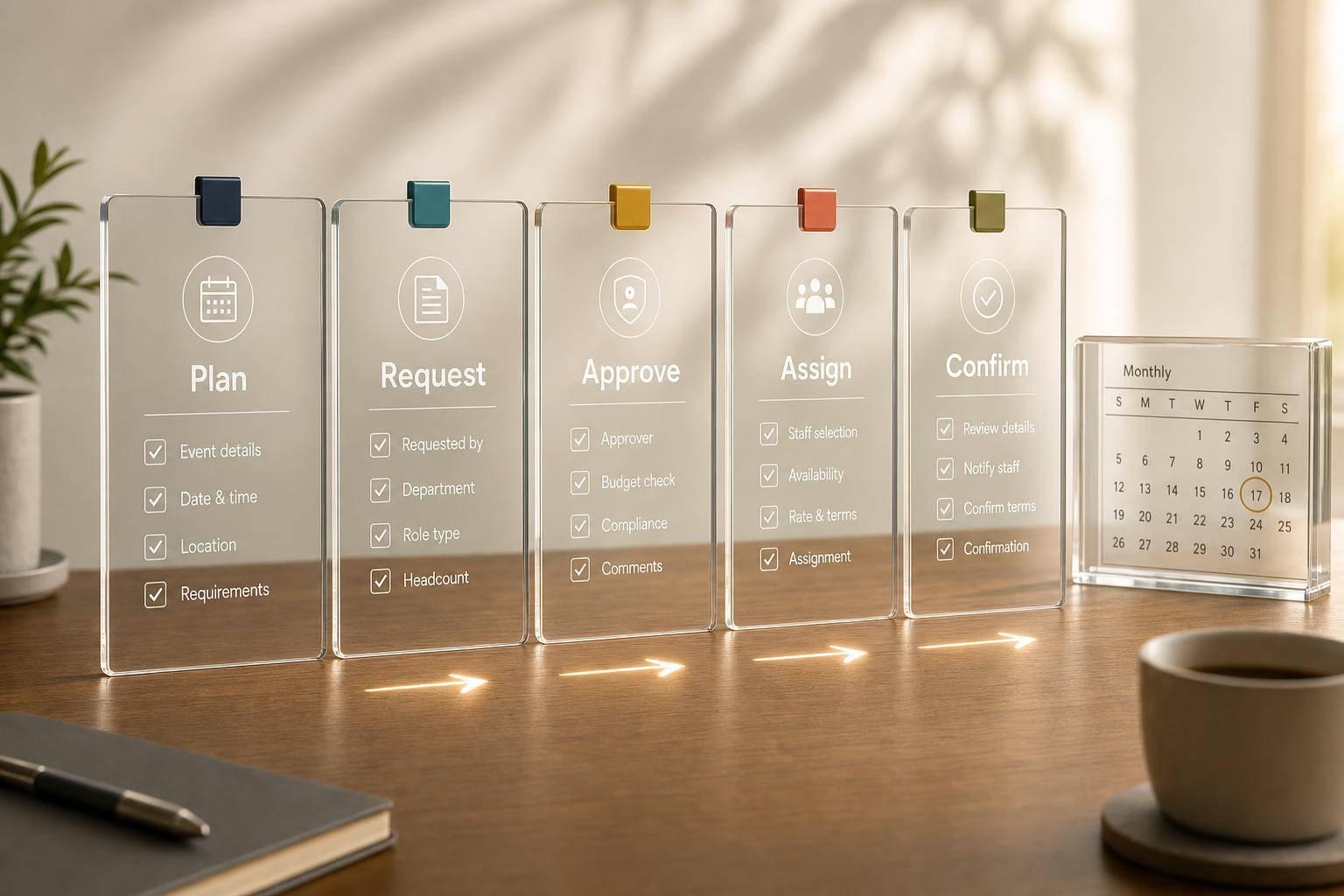
Use a four-step approval flow tied to payroll deadlines. Keep the same roles used in training: staff, shift lead, event manager, and payroll. Staff should review and confirm their own hours by a set cutoff, often by 10:00 p.m. local time on the last day of the pay period. Next, the shift lead confirms attendance for the crew and notes no-shows, early departures, and swaps. Then the event manager reviews exceptions like missed punches, overtime, travel time, or wrong-site punches. Last, payroll or operations does a final review, locks the period, and exports approved hours to payroll.
Set the staff submission deadline 24–48 hours before payroll processing and state it plainly. For example: submit by Monday, 5:00 PM PT, two days after the pay period ends.
| Step | Responsible Party | Required Documentation | Target Resolution |
|---|---|---|---|
| Staff self-review | Frontline staff | Verified clock-in/out times, confirmed breaks, correction requests | By the end of each event day or by 10:00 p.m. on the last day of the pay period |
| Shift lead confirmation | Banquet captain or crew chief | Attendance list, notes on late arrivals, early departures, no-shows, or swaps | Within 12–24 hours after event end |
| Event manager exception review | Event or operations manager | Sign-off on overtime, travel, and manual edits; sign-in sheet photos, GPS logs, or email approvals for schedule changes | Within 24 hours of shift lead review |
| Payroll finalization | Payroll/operations admin | Locked timesheet report and pay-code summary (regular, overtime, travel, on-call) | By payroll close |
Corrections should go through one channel only. That could be a form in the time tracking app, a dedicated email address, or an HR portal. Either way, keep it in one place so nothing slips through the cracks. Each request should include the event name, the date in MM/DD/YYYY format, the approximate start and end times, and a short note explaining the issue.
Good supporting records can include venue sign-in sheets, manager messages about schedule changes, GPS or badge logs, and written confirmation from other staff. Approve the correction when the records clearly back up the hours claimed. If the records are missing or conflict with attendance data, reject the request or send it up for review.
Every manual edit needs a note. Missed punch, overtime adjustment, wrong-site punch - it all needs to show what changed, who changed it, when, and why. Under the FLSA, keep payroll records for three years and time records used to compute wages for two years. A full audit trail also helps staff because it shows the history behind every correction and approval.
Use the same approval flow across site types, then adjust the setup for the job. That’s the basic idea. Weddings, festivals, warehouses, and multi-site days all need different rules in practice, but the workflow stays the same. The table below shows how those settings change by site type so managers can apply the same process without rebuilding it each time.
| Site Type | Location Rule | Typical Shift Pattern | Recommended Tracking Method |
|---|---|---|---|
| Weddings / banquet halls | Clock in only at the venue; geofenced GPS validation | Setup + service + breakdown, 6–10 hours, often evenings and weekends | Mobile or kiosk clock-in with required break entries |
| Festivals / outdoor events | Clock in at designated gate or staging area; confirm assignment zone | Long continuous shifts, 8–12 hours, with scheduled rest periods | Mobile geofenced clock-in; notes for zone changes |
| Warehouses / depots | Clock in at fixed terminal or badge reader | Standard day shifts, such as 8:00 a.m.–4:30 p.m. | On-site terminal or badge system integrated with time tracking |
| Multi-site days | Clock in at first site; record travel between sites separately; clock out at final site | Multiple short shifts across two or more locations | Mobile app with per-site clock-ins and a separate travel time category |
If you use Quickstaff to manage scheduling, line up its event and role settings with your time tracking app so each site type loads the right shift templates and location rules by default. Sync event and role settings so each site pulls in the right template and location rule.
Handle missed punches with clear records and full visibility. If someone forgets to clock in or clock out, don’t shorten the shift or make quiet changes with no record.
Instead, set a simple process:
This kind of paper trail matters. It helps you pay people correctly, cuts down on disputes, and shows exactly what happened if anyone looks back at the record later.
The best clock-in method depends on your venue’s setup, but a centralized digital system usually works best for accuracy and compliance. It gives you one place to track hours and cuts down on messy records or missed punches.
Mobile-friendly timekeeping also makes day-to-day use much easier. Staff can log their exact hours for setup, service, and teardown without extra back-and-forth.
For many venues, QR code check-ins are a smart option. They cut manual tracking and give managers real-time updates as people clock in.
Whether you use an app, kiosk, or digital roster, stick to one consistent check-in point before guest load-in. That keeps the process clear, helps avoid confusion, and makes time records easier to trust.
Under the Fair Labor Standards Act, travel between venues during a shift is compensable. That means it should be tracked as part of each worker’s total daily and weekly hours.
If you use Quickstaff, record travel time in the same central mobile records you use for the rest of the shift. Be clear about when travel starts and ends, and have employees review and certify their timecards before payroll closes.