Stream Encoding Skills: Event Staff Training Guide
October 19, 2026

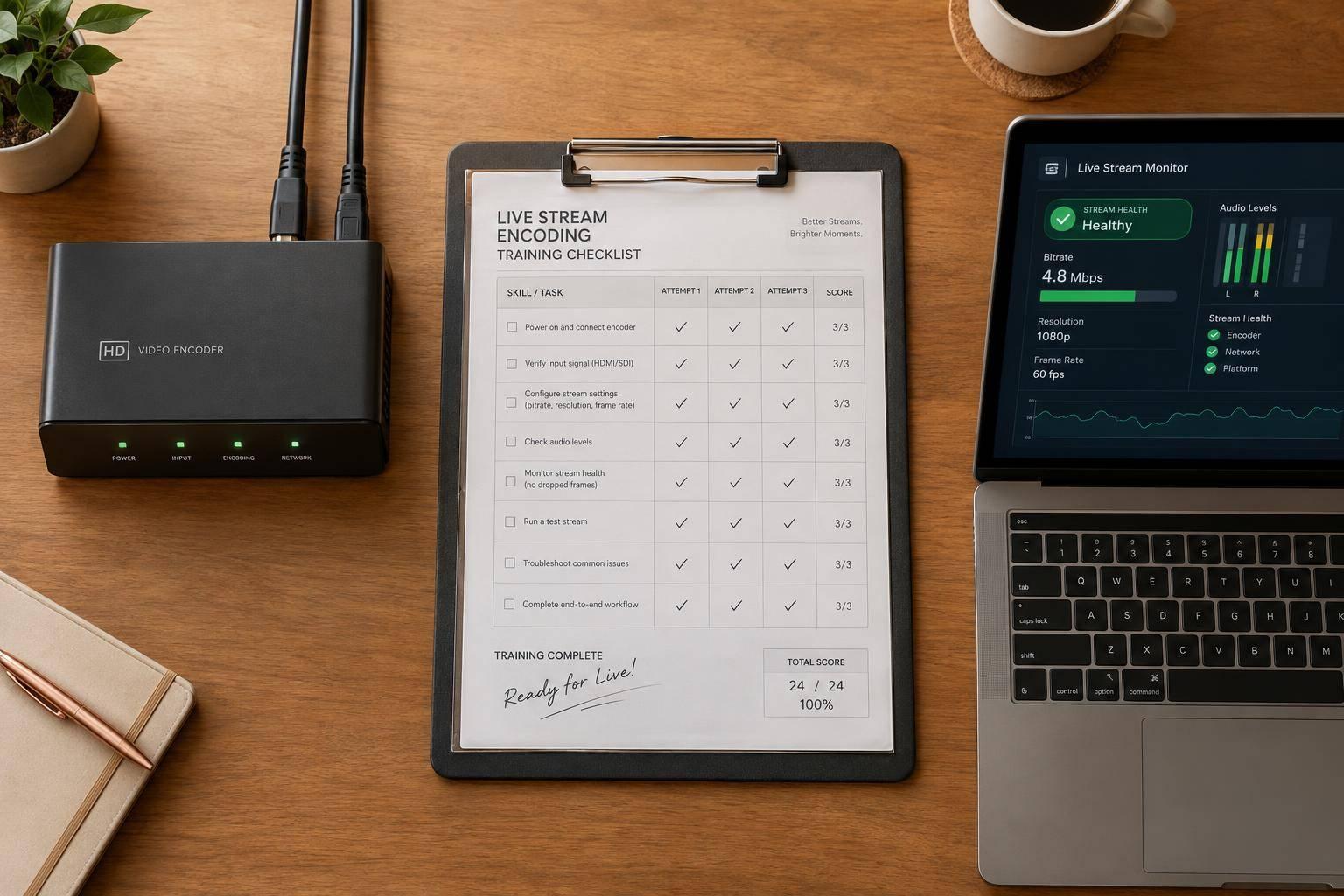
I approve staff for live broadcasts based on tested skills - not training attendance. I start with encoder setup and a 10–15 minute practice stream, then check switching, fault recovery, and a scored rehearsal before assigning a supervised broadcast.
My training checklist covers:
My rule: <u>approval applies only to the tasks each person has passed</u>. If you can set up the encoder, that doesn’t mean you’re ready to handle an outage alone.

Stream Encoding Training: From Practice to Approved Duties
Give trainees an equipment checklist covering cameras, presentation laptops, microphones, mixers, capture cards, the encoder computer, a monitoring display, HDMI/SDI/USB cables, adapters, power, surge protection, wired network access, approved destination access, and the approved OBS Studio version. Check power, approved I/O, and labeled spares for critical gear. If the organization tracks assets, record serial numbers or asset labels, along with the backup plan for camera, cable, computer, or network failure. This documentation should be integrated into your scalable event scheduling workflow to ensure technical readiness across all shifts.
Have trainees trace the signal path aloud and on a diagram. Cameras and presentation laptops feed capture devices into OBS. Microphones feed the mixer. OBS combines video, titles, and mixed audio, then the encoder sends the stream to the approved destination. Preview and monitoring displays confirm the output.
At each connection, ask what they would check first if the signal disappeared. The first check depends on the failure: mixer mute, capture input, cable, network, or scene. Trainees must repeat this signal trace during practice.
In OBS Studio, create scenes for the camera, presentation, combined camera-and-presentation view, title/holding screen, and standby/troubleshooting screen. Start with a 1,280 × 720, 30 fps baseline, using H.264, AAC, CBR, and a 2-second keyframe interval. Choose the approved encoder, then set the bitrate based on destination guidance and tested upload capacity.
Save a versioned profile and scene collection, such as:
Practice - 720p30 - H264 - v1
Keep stream keys out of messages, screenshots, exports, and training records. Use this profile as the baseline for every practice run.
Inspect and power the equipment, connect labeled sources, check mixer levels, open the approved profile, verify scenes, and test wired upload speed. Upload capacity must exceed the total stream bitrate. Leave at least 30% upload headroom, and allow more on shared connections.
Start a local recording, launch the practice stream, and check the destination preview and playback on a second device.
| Setting | Required check | Verification method |
|---|---|---|
| Resolution | Approved output dimensions | Check settings and slide readability. |
| Frame rate | Approved fps | Check settings, camera movement, and presentation playback. |
| Bitrate | Destination guidance and upload capacity | Check configured bitrate and dropped frames. |
| Codecs | Approved H.264 video and AAC audio | Inspect encoder settings. |
| Keyframe interval | 2 seconds unless destination requirements differ. | Inspect encoder settings. |
| Audio settings | Approved sample rate, channels, and bitrate | Check settings, routing, levels, and lip-sync. |
| Upload capacity | Sufficient upload headroom | Test wired upload at the venue and document headroom. |
Run a 10–15 minute test that includes scene changes and presentation playback. Listen through headphones for hum, clipping, or missing channels. Compare the local recording with destination playback to check sync and buffering.
Review OBS statistics for rendering lag, encoding lag, and network drops. If problems persist, switch to the approved fallback profile and retest. Record settings, upload results, observed statistics, recording playback, and corrections - never credentials.
When staff can repeat the setup and test sequence without errors, move to setup, switching, and recovery drills.
Have a trainer watch a full setup run-through, then cue switching, graphics, and recording checks under time pressure. Practice moving to an approved holding scene and returning to program. Include the event’s most demanding transitions.
In a closed practice setup, introduce one fault at a time:
Muted audio, an incorrect scene, a frozen source, dropped frames, network loss, an unavailable recording path, or invalid credentials.
Check whether trainees can recover without help. Log detection time, recovery time, the first fix attempted, viewer impact, prompts, and escalation. Require trainees to follow the runbook and verify recovery through audience-side playback. If authentication fails, stop and escalate to the authorized supervisor.
Once staff can recover from individual faults, move to a full rehearsal using the actual run of show.
After fault drills, score a complete rehearsal at event pace. Follow the actual run of show: opening slate, program start, presentations, breaks, closing slate, recording verification, and shutdown.
Score safety, configuration, audio-video quality, switching, monitoring, credential handling, troubleshooting, communication, and checklist completion on a 0–3 scale: not demonstrated, prompted, independent, reliable under pressure. Set prompt limits, recovery targets, and passing scores before rehearsal. Log each prompt’s timing and type. A general reminder does not count as corrective coaching.
Assign Not ready, Ready with supervision, or Approved for assigned duties based on observed performance. Critical failures - including exposed credentials, unsafe handling, or failure to escalate an outage - block independent approval.
For each failed task, document the corrective practice, responsible trainer, and reassessment deadline. Reassess the failed skill under comparable conditions. Require the trainee to explain the correct procedure and perform it without help.
Record each person’s name, date, trainer, session ID, equipment models, software versions, completed sessions, scores, prompts, corrective actions, approval level, restrictions, and reassessment date.
Use the matrix below for each person. Enter observed results, not attendance alone, and assign supervised broadcast shifts only when the required skills are complete, using event staff scheduling tools to manage the roster.
Store credentials separately and limit record access to authorized staff. Reassess after major incidents, workflow or software changes, or extended inactivity.
| Competency | Status | Observed session | Assessment result | Trainer initials | Restrictions | Reassessment date |
|---|---|---|---|---|---|---|
| Equipment connection, labeling, and encoder profile verification | Not started / In progress / Complete | Session date; independent setup and source checks | Pending / Pass / Remediate | Assessor initials | Approved duties only | MM/DD/YYYY |
| Audio-level, switching, and graphics | Not started / In progress / Complete | Cues completed; prompts needed | Pending / Pass / Remediate | Assessor initials | Specify supervision needed | MM/DD/YYYY |
| Network and dropped-frame recovery | Not started / In progress / Complete | Fault; recovery time; escalation | Pending / Pass / Remediate | Assessor initials | Specify recovery limits | MM/DD/YYYY |
| Shutdown and post-event recordkeeping | Not started / In progress / Complete | Recording verified; checklist completed | Pending / Pass / Remediate | Assessor initials | Specify remaining limits | MM/DD/YYYY |
Use the rehearsal score and skills matrix to decide who can fill each broadcast role.
Availability alone isn’t enough. Staff must have technical approval for the exact role and equipment. Check their approved status in the skills matrix before assigning duties.
Give observers low-risk support tasks, with a qualified operator remaining in control. For higher-risk events, assign a supervisor and backup, both with explicit authority to take over.
Build the shift schedule in Quickstaff using the approval record. Check availability, assign staff by role, send reminders, and keep communication in one place. Check separate technical approval records before confirming anyone - including replacements.
Share the venue, call time, role, supervisor, backup, and escalation contact. Include call, broadcast, and wrap times, with a full date and explicit time zone:
October 20, 2026, Eastern Time (ET)
Quickstaff coordinates staffing. It does not certify operators or monitor encoder performance.
Use the preflight checklist as the final check before going live. Prepare prearrival checklists covering access, power, network, equipment, credentials, scenes, audio, captions, recording, and contingencies.
Repeat the signal, audio, and playback checks used in training, this time under live-event timing. On-site, have the trainee verify conditions and run a private or access-controlled test. An unlisted YouTube stream is not private; anyone with the link can view or share it.
The supervisor should watch the audience-facing output, stream health, audio, and recording - not just the encoder interface. Before going live, agree on takeover triggers: missing or distorted audio, black or frozen video, lost connections, missing recordings, or privacy and accessibility failures.
Allow one recovery attempt, then escalate unresolved issues immediately. Serious failures need immediate intervention. Repeated retries must not delay outage reporting or a switch to the approved backup.
Confirm that the stream has ended and that required recordings exist and are accessible. Log actual start and end times, defects, incidents, recovery outcomes, prompts, and supervisor interventions.
Review performance with the trainee and set one or two targeted follow-up actions. The authorized trainer - not the scheduler - must update approvals, restrictions, and the skills record before the next shift. File the review in the skills record before the next assignment.
Start with one approved encoder profile, one controlled preflight checklist, and one skills matrix. Use that framework to guide staffing: each stage should provide evidence for the next, not automatic permission to work alone.
Keep approval tied to specific tasks. Being able to handle setup does not authorize switching or emergency recovery. Record those limits, and reassess after changes to equipment, platforms, networks, workflows, or roles - even after a successful broadcast.
When training ends, staffing begins. Assign the next shift based on demonstrated performance with the same equipment, platform, and role. Let the training record determine whether someone needs another drill, a supervised shift, or independent duty.
Set clear, measurable benchmarks, such as an 80% competency pass rate or a 25% improvement in test scores. Go beyond written recall: use tasks trainers can observe, time, and score, such as completing setup or troubleshooting within a set time limit.
Track results on a 5-point proficiency scale to see who needs supervision, who can work independently, and who’s ready to train others.
The provided sources don’t set a fixed number of supervised broadcasts. Training focuses on hands-on shadowing and practice, rather than classroom instruction alone.
To check readiness, use a skills matrix to compare each staff member’s skills against role requirements. Pair junior technicians with senior operators for hands-on learning. Quickstaff can help schedule staff and assign work based on their training and capabilities.
Before the live event, test your available upload bandwidth to make sure it meets your encoder’s needs without interference. Keep streaming traffic separate from guest Wi-Fi and connect all streaming devices through a dedicated, wired Ethernet connection. This helps reduce congestion and prevent dropouts.
If a dedicated connection isn’t an option, give streaming traffic priority on the shared network and test the setup before going live.