How Calendar Views Improve Staff Scheduling
January 4, 2026

Managing staff schedules can be a nightmare without the right tools. Relying on outdated methods like spreadsheets leads to errors such as double-booking, missed shifts, and unnecessary stress. Modern calendar views streamline this process by offering:
Quickstaff takes this further with tools like automated reminders, mobile access, and role-based filtering, ensuring smoother scheduling and fewer errors. Whether managing a single event or multiple bookings, these features help you focus on delivering great experiences instead of fixing scheduling mistakes.

Staff Scheduling Statistics: Time Savings and Cost Impact
Relying on outdated scheduling tools not only eats up your time but also opens the door to avoidable mistakes. In fact, over half of business owners spend at least two hours every week manually creating team schedules. A significant chunk of that time is spent fixing errors that could have been prevented with better tools.
Traditional calendars aren’t designed for managing staff schedules. They list events in chronological order, but they don’t provide an easy way to see who’s available across the team. To get a full picture of your staffing situation, you’re forced to click through individual entries, trying to piece everything together. This tedious process makes it hard to quickly spot gaps or compare availability side-by-side - especially when juggling multiple events in a single day. The result? Wasted time and more room for booking mistakes or misassignments.
Without automated tools to detect conflicts, it’s all too easy to double-book staff or assign them to the wrong roles. For example, you might accidentally schedule the same bartender for two weddings at the same time. Basic tools don’t let you filter by skills or qualifications, leaving you to rely on memory or manual checks. This inefficiency adds up - businesses lose as much as $1.85 billion every week due to poor scheduling practices. Reusing last week’s schedule without updating staff availability only makes things worse, leading to frantic phone calls and last-minute changes. When updates aren’t reflected immediately, the cycle of errors continues.
Manual scheduling methods create a dangerous lag between when someone requests time off and when the schedule gets updated. You might be working off a spreadsheet that’s already outdated, leading to version mix-ups, missed shifts, and frustrated team members. Managers then spend extra time correcting schedules, which could’ve been avoided with tools that update in real time.
"Using manual spreadsheets to set your team's schedule can drain time and money, as there are too many variables to account for." – Liam Martin, Co-founder, Time Doctor
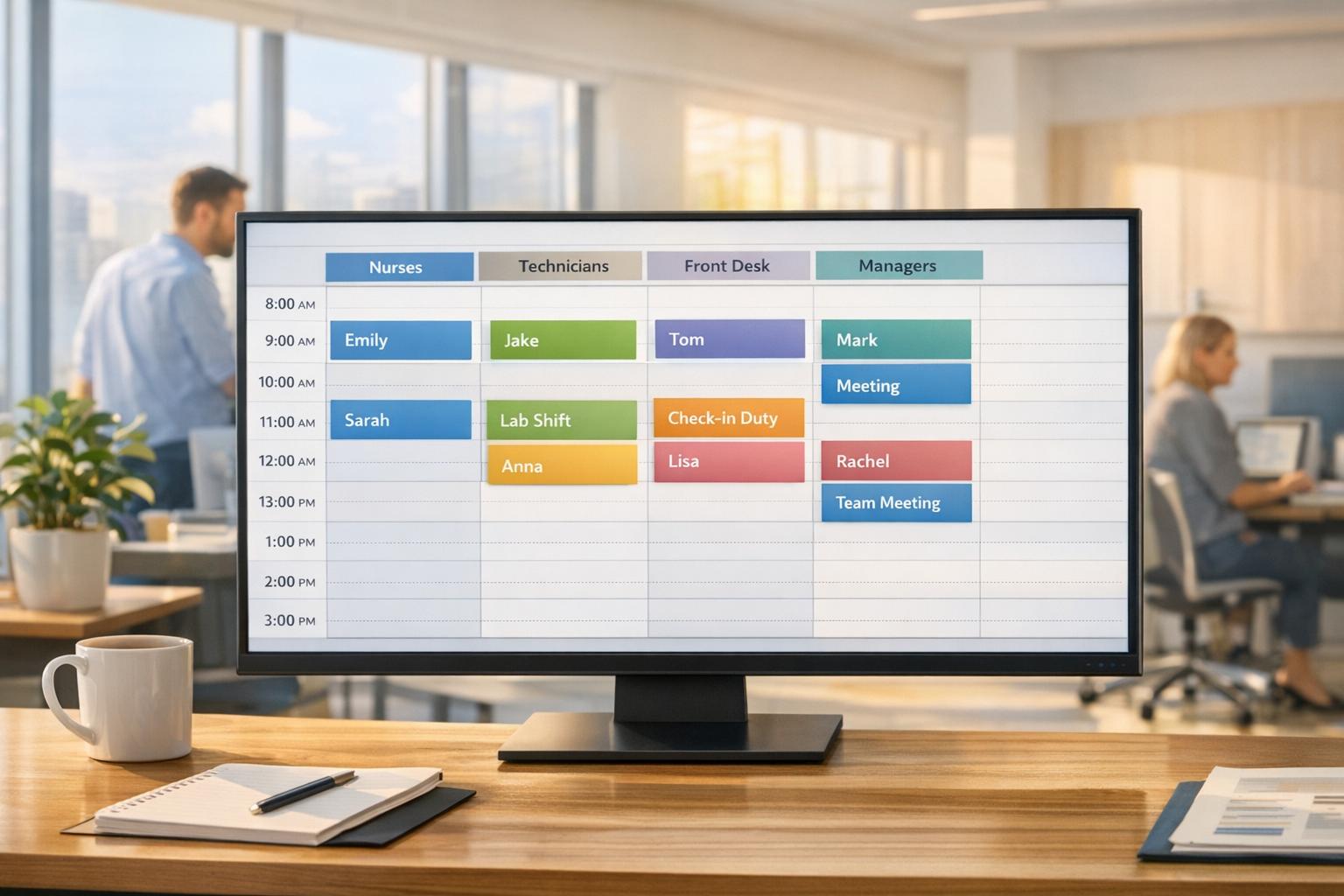
Modern calendar views tackle common scheduling headaches like poor visibility, double-bookings, and outdated availability. They simplify planning by replacing chaotic spreadsheets and endless clicks with intuitive column-based displays. These views allow you to organize your team’s schedules side-by-side, making it easier to spot gaps and avoid errors - especially when juggling multiple events in a single day. Let’s break down how these features address specific scheduling challenges.
Column-based views organize staff or sub-calendars into side-by-side columns, giving you a clear snapshot of everyone’s availability. Instead of scrolling endlessly through a list, you can quickly compare schedules at a glance. For example, you might need to check if your bartenders are free for a Saturday wedding. With this layout, it’s easy to verify availability without the hassle of clicking through individual entries. You can even filter by roles, such as servers, bartenders, or kitchen assistants, ensuring that the right people are assigned to the right tasks.
"The calendar makes it really easy for me to see what my week looks like. The sorting function helps me isolate events to more easily see events." – Jennifer Manley, Staffing Coordinator
Improved visibility is just the start - adjustable date settings make it possible to plan both short-term details and long-term strategies. You can zoom in for precise daily planning or zoom out for a big-picture view. For instance, if you’re managing a busy Saturday with overlapping events, the single-day view offers a 5-minute resolution for detailed scheduling. On the other hand, if you’re preparing for the holiday season, a monthly or yearly view highlights heavy booking periods and potential staffing gaps well in advance. This flexibility allows you to answer client inquiries - like checking availability for a March event - in minutes, instead of piecing together information from scattered emails and notes.
When staff request time off or block out dates, the calendar updates instantly, preventing accidental scheduling conflicts. Features like icons for overlapping shifts or approved time-off requests keep everything up-to-date. This automatic conflict detection ensures that double-booking issues are caught before they become a problem, saving you from frantic last-minute calls. By serving as a single source of truth, these calendars eliminate the confusion and errors often caused by outdated spreadsheets or manual systems.

Quickstaff brings all its calendar tools together in one streamlined event staffing platform. Since its launch in 2013, Quickstaff has helped manage over 20,000 events, offering caterers, wedding planners, and event vendors a way to move beyond spreadsheets and endless phone calls. From checking availability to sending automated reminders, everything is handled within a mobile-friendly system that works wherever you need it.
With these calendar tools, Quickstaff introduces features that make scheduling seamless and help avoid common mistakes.
Quickstaff simplifies scheduling by providing clear, easy-to-read availability displays. Before sending out invitations, the system performs pre-scheduling checks to confirm staff availability. It also integrates with Google and Apple Calendars, ensuring availability is always up to date. If a staff member blocks out certain dates, they’re automatically excluded from scheduling conflicts. Plus, if more staff accept shifts than needed, the system creates an automated waitlist for any last-minute adjustments. A central dashboard gives you a clear picture of all upcoming events, their staffing levels, and which ones still need attention.
Quickstaff’s calendar includes built-in messaging for seamless communication, whether you’re addressing the whole team or specific roles like bartenders or servers. When you create an event, the platform sends automated invitations, allowing staff to accept or decline with a single click - no login required. You can also set up reminders to go out one or two days before an event, reducing the chances of no-shows. Event notes let you share important details like directions, dress codes, or special instructions, so your team arrives ready.
"I used to be on the phone all the time to schedule staff. Now, within a few minutes, I can schedule all the staffing I need for my events." – Steven Townsend, Event Manager
Quickstaff extends its convenience to mobile devices, ensuring you can manage your scheduling from anywhere. Whether you’re at an event site or in the office, the platform’s cloud-based system provides real-time updates on any device. Its mobile interface offers clean Monthly and Schedule views, showing upcoming events and daily details without unnecessary clutter. With over 15,000 staff invitations managed annually by some users, these mobile tools make it easy to make quick changes. Staff can also use the app to block out dates or accept invitations, instantly updating the master schedule.
With these visual tools at your disposal, here’s how you can streamline your scheduling process and keep everything running smoothly.
Start by creating custom roles tailored to your event needs. Quickstaff lets you set up as many roles as you need - whether it’s bartender, kitchen assistant, photographer, or event setup crew - so you can assign the right people to the right shifts. Use the sorting feature to filter your calendar by specific roles, making it easier to focus on just the servers or any other team members you need for multiple events.
Encourage your staff to mark their unavailable dates directly in the system. Once they do, they’ll automatically be removed as options for scheduling, saving you from the endless back-and-forth of checking availability. Combine this with role-based filtering, and you’ll have a clear picture of which events are fully staffed and which still need attention.
Tailor your calendar views to suit both short-term and long-term planning. For instance, save a Weekly View to focus on immediate staffing needs during specific hours - like 7:00 AM to 3:30 PM - to avoid unnecessary clutter during daily operations. For broader planning, set up a Monthly View to see staff availability up to three months ahead. This is especially useful when finalizing event contracts or checking availability for future dates.
Need to manage weekday corporate events or weekend weddings? Toggle weekend visibility to customize your view. And when a client asks about staffing for an event months in advance, your long-term calendar makes it easy to confirm availability and avoid double-booking staff or equipment.
Once your calendar views and time ranges are in place, take it a step further by enabling controlled self-booking for your team. Quickstaff uses an "invite and confirm" model, where you choose which staff or roles receive invitations. They can accept or decline via email - no login needed. This system gives your team flexibility while keeping you in control of who’s invited. If more staff accept than you need, the system automatically creates a waitlist to handle last-minute changes.
To reduce no-shows, set up automated reminders to send alerts 24 to 48 hours before the event. Meanwhile, your real-time dashboard will give you an instant snapshot of who’s committed to which shifts, making it easy to monitor staffing levels.
Scheduling event staff doesn’t have to mean endless phone calls, messy spreadsheets, or last-minute panic. Calendar views tackle the biggest headaches for event managers - like poor visibility, double-booking, and outdated availability - by offering a clear, organized solution. With features that improve visibility, prevent scheduling conflicts, and reduce delays, these tools simplify the entire staffing process. Unified team views, real-time updates, and role-based filters take the guesswork out of scheduling, making it faster and far less frustrating.
Quickstaff takes these benefits to the next level. As Steven Townsend, an Event Manager, shared: "I used to be on the phone all the time to schedule staff. Now, within a few minutes, I can schedule all the staffing I need for my events". This kind of efficiency not only saves time but also allows you to focus on delivering memorable events instead of getting stuck in the logistics.
Features like visual clarity, automated invitations, and mobile access reduce errors and speed up planning. Whether you’re organizing a single weekend wedding or juggling dozens of corporate events over several months, the right calendar view ensures everything stays on track and your team stays informed.
Calendar views offer a straightforward and visual way to manage staff schedules while preventing double-booking. By presenting each team member’s assignments and availability side by side, managers can easily identify overlapping shifts or potential conflicts before finalizing the schedule. Many systems even include built-in alerts to highlight issues, ensuring no one gets scheduled for two events at the same time.
Quickstaff takes this a step further with real-time availability updates. When a team member marks themselves as unavailable, those dates are instantly removed from the scheduling options. This automatic synchronization across devices keeps everyone aligned, minimizes mistakes, and simplifies the scheduling process. With these tools in place, double-booking becomes a non-issue, ensuring events run seamlessly.
Real-time updates give managers an up-to-the-minute view of staff availability, open shifts, and any last-minute changes. No more juggling spreadsheets or digging through email threads. When a team member updates their availability, accepts a shift, or swaps one, the schedule updates instantly. This helps avoid double-bookings, no-shows, and potential compliance issues.
These live updates also make it easier to handle unexpected situations. Whether it’s a staff shortage or a weather-related delay, managers can quickly adjust by reassigning shifts or filling open slots - all directly from the scheduling dashboard. This not only simplifies communication but also cuts down on administrative tasks, freeing up managers to focus on running successful events instead of wrestling with scheduling problems.
Quickstaff takes these benefits further with features like automatic confirmations, mobile reminders, and real-time availability tracking. These tools ensure the scheduling process runs smoothly and keeps both managers and staff on the same page.
Filtering by role helps managers zero in on specific positions - like waitstaff, bartenders, or cooks - by showing only the roles they need to manage. This cuts through the noise, making it simple to identify which team members are qualified, available, and ready to step into open shifts.
Focusing on relevant roles can also prevent common scheduling slip-ups, such as assigning staff to jobs they’re not trained for or accidentally double-booking a position. This targeted approach ensures every role is properly staffed, reducing last-minute changes or unexpected no-shows, which keeps the event schedule running smoothly.
With features like customizable calendar views, managers can quickly check staffing requirements and confirm schedules with ease, ensuring the right people are always in the right roles.