7 Asana Workflows for Event Staff Scheduling
July 24, 2026

If event staffing lives in spreadsheets, texts, and inboxes, mistakes are almost guaranteed. I’d use Asana to turn a staffing plan into a clear task system with owners, due dates, approvals, check-ins, and follow-up work all in one place.
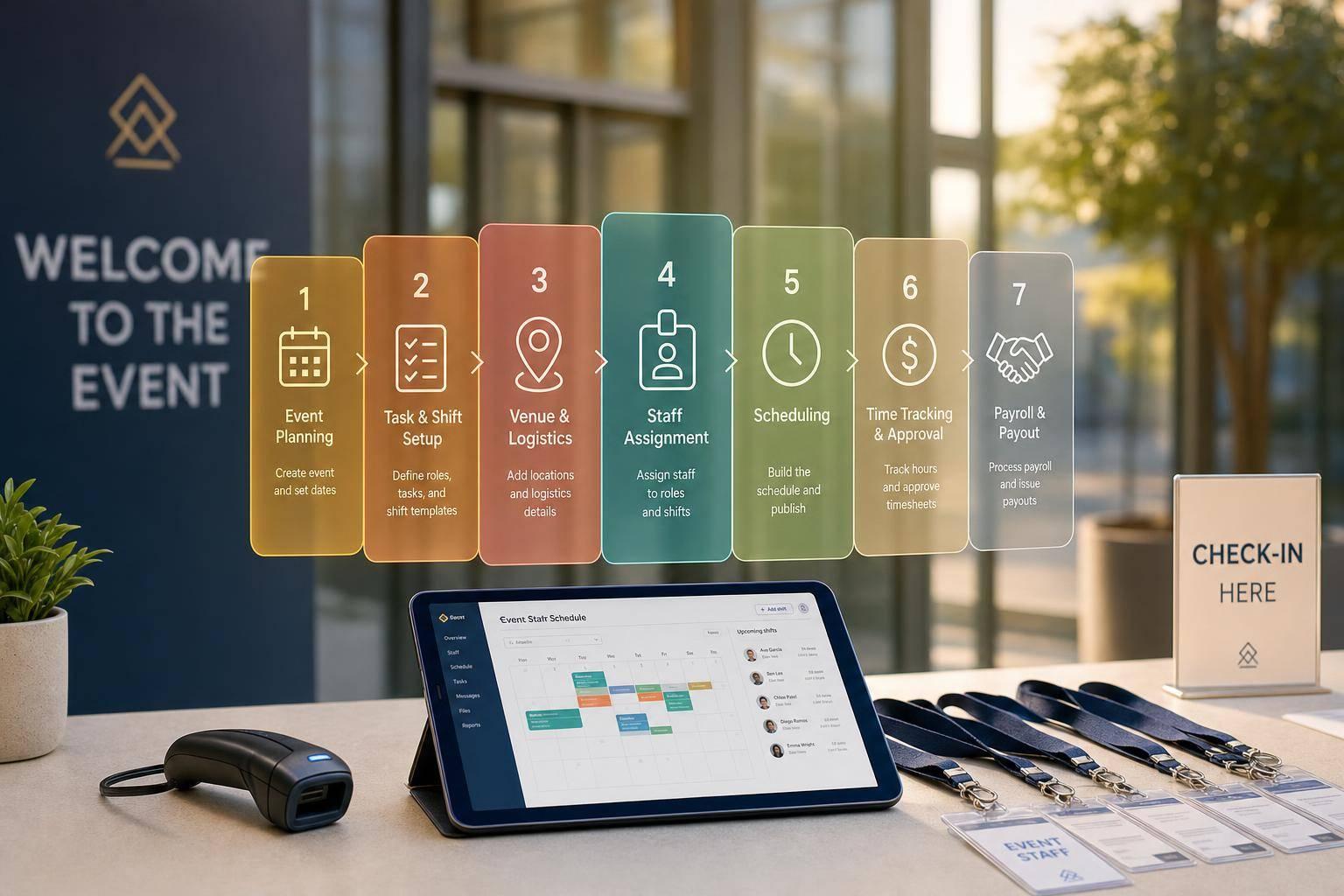
Here’s the short version: this article walks through 7 workflows that cover the full event cycle, from early prep to payroll wrap-up. It also shows which Asana tools fit each step, like templates, custom fields, forms, rules, timeline view, milestones, and mobile updates.
You’ll see how to use Asana for:
A few details stand out. The setup uses one task per person for check-ins and assignments, dependencies to stop tasks from moving too early, and templates so teams don’t rebuild the same event setup every time. The article also points out where Asana fits best: after staffing is set, when the job becomes execution and follow-through.
Quick Comparison
| Workflow | Main job | Best time to use it | Key Asana tools |
|---|---|---|---|
| Shift Prep | Plan staffing details and logistics | Weeks or months before event day | Templates, custom fields, dependencies |
| Client Update | Track approvals and changes | During planning | Status updates, dashboards, approval tasks |
| Staff Check-In | Monitor arrivals on site | Event day | Board view, forms, mobile app |
| Event-Day Task List | Run the schedule | During the event | Due times, timeline view, dependencies |
| Post-Event Follow-Up | Close out payroll, feedback, and reports | 1 to 7 days after event | Rules, files, follow-up tasks |
| Deadline Tracking | Watch key dates and handoffs | Across the planning window | Milestones, timeline view, rules |
| Staff Assignment Tracking | Track who is doing what and where | Before and during the event | Custom fields, linked tasks, rules |
In short, I see this article as a guide to building one source of truth for event staffing work in Asana, so your team can move from planning to event day to wrap-up with less confusion.
Asana turns staffing plans into work your team can track day by day. You can build repeatable setups with templates, assign each task to one person, set dates and dependencies, collect requests with forms, and keep everyone posted with mobile updates. Put those pieces together, and the workflows below become much easier to run.
If your team runs the same kind of event more than once - annual galas, trade shows, or corporate dinners - starting from scratch every time eats up hours. Asana's project templates help cut that extra work.
Set up one master staffing project, save it as a template, and duplicate it for each new event. Then update the dates and event details. That way, your team isn't rebuilding the same staffing workflow over and over.
Sections split the project into stages, such as Pre-Event, Day-Of, and Post-Event. Each section holds the tasks tied to that part of the job. And each task has one assigned owner, so there's no confusion about who's on the hook.
Subtasks help with smaller handoffs inside a larger task. Say the task is "Confirm catering staff." The subtasks could be:
That makes small but important steps easier to track.
In event staffing, timing matters just as much as the work itself. Due dates and times help keep run-of-show tasks on schedule. Dependencies connect tasks in order, so a "check-in complete" task can block a "staff on floor" task until it's finished. That helps your team avoid awkward gaps during handoffs.
Milestones mark the must-hit moments, like Final Vendor Confirmations or Budget Approval. They give stakeholders a fast way to see major progress points without digging through every task.
Forms give managers a clean way to collect staffing requests. Instead of chasing details across email threads or text messages, a form sends that intake straight into the project. From there, custom fields can track the details that matter most, like role, shift status, location, or certification requirements, without making people open each task one by one.
Comments keep updates tied to the task itself, and the mobile app helps staff see schedules while they're on site. With that setup in place, the first workflow starts with shift prep.
Shift prep is where a lot of staffing mistakes begin. Roles don’t get locked in, uniform sizes are missing, and the briefing slips through the cracks. The template, fields, and dependencies above help you keep all pre-event staffing details in one place instead of chasing them across messages and spreadsheets.
Use sections like Staffing Requirements, Vendor & Logistics, and AV & Run of Show. Inside those sections, add tasks such as Confirm headcount, Verify certifications, and Distribute uniforms. Then add subtasks for onboarding steps and set dependencies so handoffs happen in the right order.
Once tasks are assigned, custom fields make it easy to see role, location, and certification status at a glance. That way, managers can catch missing details fast without opening every single task.
Next, use the same project structure to track client updates.
Once staffing is mapped, client approvals and change requests need the same level of visibility. After shift prep, use Asana to keep headcount updates, shift scheduling, and approvals in one place.
Set up the project with four main sections: Event Information, Timeline, Approvals, and Change Management. Use approval tasks for sign-offs, milestones for fixed dates, and check-ins for recurring updates. Assign each task to an internal lead, then add the client as a collaborator so ownership stays clear.
Custom fields make the project much easier to scan. Add fields like:
That way, the team can see what needs attention at a glance.
Dependencies matter here too. For example, Staff Briefing shouldn't move forward until Client Headcount Approval is done. It sounds simple, but this kind of guardrail can save a lot of back-and-forth later.
Once approvals are assigned, updates stay in Asana instead of getting buried in email threads. Use Messages, Status Updates, and Dashboard views to keep progress visible and make bottlenecks easier to spot. Centralized updates help prevent lost approvals and scattered feedback.
If a client asks for a change, log the impact before you update the project. Then save the workflow as a template so the structure, approvals, and custom fields carry over.
Next, use the same project structure to track staff check-ins.
Once staff assignments are set, switch from planning mode to live attendance tracking in a dedicated Asana check-in project.
Set up the project with sections based on arrival windows, like "08:00 AM Arrival" and "12:00 PM Arrival". Inside each section, create one task for each staff member. Then add a Check-In Status custom field with three options: Unconfirmed, Arrived, and Late.
Use Board view to make updates on the fly. Each column matches a check-in status, so managers can drag a staff card from Unconfirmed to Arrived the moment someone shows up. It’s simple, visual, and easy to manage during a busy event.
You can also add a Rule to handle missed arrivals. If a task still isn’t marked Arrived at shift start, Asana can change the status to Late and alert the assigned manager. That way, nobody slips through the cracks. For teams working on-site, the mobile app makes these updates easy from the floor.
Add a Phone Number custom field to every staff task too. When someone is still unconfirmed or shows up late, the manager can call or text them straight from the mobile app without digging through another system.
For pre-event confirmations, place a QR code at the staff entrance that opens an Asana Form and creates a timestamped task. That gives you a clean record of who checked in and when.
To keep the day moving in the right order, connect check-in to event-day work with dependencies. For example, keep Staff Briefing blocked until check-in is done. This helps the team start event-day tasks in the right sequence.
After check-in is finished, the team can move straight into the event-day task list.
Once check-in is done, the project shifts into the live run-of-show. An event-day Asana task list keeps timing, tasks, and ownership in one spot.
Set up sections like Setup, Service, and Breakdown. Then add due times so everyone can see the schedule at a glance. For event-day work, custom fields such as Role and Location make it easier for staff to filter the list and focus on what applies to them. Use Dependencies so stage reset is done before the panel begins.
Timeline View helps teams spot overlaps and gaps before the event starts. During the final run-through before doors open, that view gives coordinators a clear picture of what’s happening and when.
On event day, the Asana mobile app helps keep things moving. Staff can update status, complete tasks, and upload photos on site. You can also use Rules to notify the lead coordinator when a critical task is done or move the next task forward once dependencies clear.
It also helps to link the current staffing schedule inside the right Asana tasks, so coordinators are always looking at the latest assignments.
When the event wraps, move the project into post-event follow-up.
After the event, follow-up work stacks up fast - payroll questions, incident notes, client feedback, and debrief tasks can end up scattered across inboxes and spreadsheets. A dedicated Asana project gives your team one place to manage all of it.
Set up the project with four sections: Financials & Payroll, Incident Reports, Client & Attendee Feedback, and Internal Debrief/Wrap-up. Then add custom fields for Hours Worked, Actual Costs, and Budgeted Costs. That makes it much easier to spot payroll gaps without digging through separate files.
Keep signed timesheets and vendor contracts in the Files tab. Add Dependencies so Final Payroll Processing opens only after Timesheet Approval is marked complete. You can also use Rules to auto-assign follow-up tasks to the right team members once the event date passes.
For feedback, send client and attendee comments from Gmail, Outlook, or Slack into assigned follow-up tasks in Asana. Once those tasks are in place, move any feedback item into the wrap-up template.
Save the project as a Post-Event Wrap-Up template with subtasks like:
That way, every future event starts from the same base. From there, use deadline tracking to keep closeout dates on schedule.
Use the same staffing project to manage the dates that drive each phase. When one staffing deadline gets missed - like a 72-hour confirmation window or the final headcount cutoff - it can throw the rest of the event schedule out of sync. A dedicated deadline tracking workflow in Asana keeps those dates in plain view and tied together, so nothing slips through the cracks.
Set up sections for Recruiting, Booking, Training, Confirmation, and Execution. Then use Milestones for fixed deadlines such as final headcount confirmation, staff briefing, and call times. Add custom fields for Priority, Risk Level, and Status so you can spot urgent items fast.
Use Dependencies to connect tasks in the right order. For example, Staff Briefing shouldn’t start until Final Confirmations are done, and Final Confirmations can depend on Contracts Signed. This makes it easier to spot deadline risk before one late task causes problems for the next one.
Switch to Timeline View to see the full schedule in one place. It helps you notice overlaps, gaps, and timing issues without digging through individual tasks. You can also use Rules to alert stakeholders when a milestone moves or gets missed.
Save the project as a template with relative due dates so future events fill in automatically based on the new event date.
Once staffing is locked in, use Asana to track each role, location, and status in a single project. The main pain point is simple: every assignment needs to stay connected to the right role, location, and status. When that setup is clean, updates stay attached to the right task instead of getting lost in Slack threads, texts, or email chains.
Build the project around custom fields like role, location, shift type, and status, such as Confirmed, On-site, and Completed. That way, anyone can scan the project and know what's going on. Create one task per staff member so ownership is clear and the project lines up with the workflow-first setup in this article.
If the same staffer shows up in more than one project, keep one assignment record linked across both. Link that assignment task to the event project and to a master Staffing Calendar project. Then any change made in one place shows up everywhere automatically, which gives managers one current view of every open role.
You can also use Rules to handle the repetitive admin work. For example, when a staff member's status changes to "On-site", Asana can notify the event lead right away. That means coordinators update a single task, and both projects stay in sync.
Save the whole setup as a Master Staffing Template with pre-set sections, custom fields, and automation rules. Then duplicate it for each event so the assignments, fields, and automations are ready from day one. It also makes it much easier to compare assignment tracking across workflows.
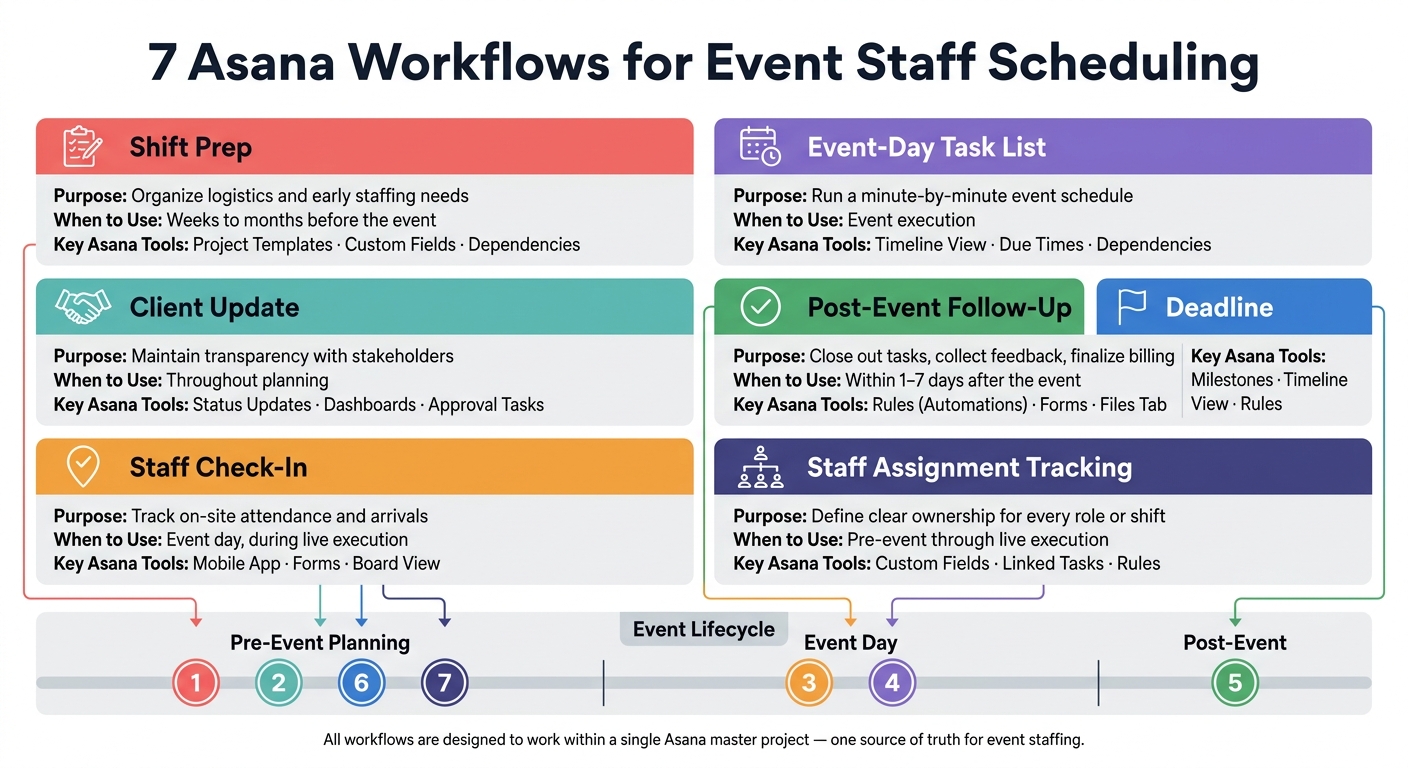
7 Asana Workflows for Event Staff Scheduling: Quick Reference Guide
Use this table to line up each workflow with its job, the main Asana features it relies on, and the right time to use it.
| Workflow | Purpose | Best Asana Features | When to Use It |
|---|---|---|---|
| 1. Shift Prep | Organize logistics and early staffing needs | Project Templates, Custom Fields (Roles), Dependencies | Weeks to months before the event |
| 2. Client Update | Maintain transparency with stakeholders | Status Updates, Dashboards | Throughout planning |
| 3. Staff Check-In | Track on-site attendance and arrivals | Mobile App, Forms, Custom Fields (Check-In Status) | Event day, during live execution |
| 4. Event-Day Task List | Run a minute-by-minute event schedule | Timeline View, Start/Due Times, Dependencies | Event execution |
| 5. Post-Event Follow-Up | Close out tasks, collect feedback, and finalize billing | Rules (Automations), Forms, Files Tab | Within 1–7 days after the event |
| 6. Deadline Tracking | Monitor critical milestones and prevent delays | Milestones, Timeline View | Throughout the planning phase |
| 7. Staff Assignment Tracking | Define clear ownership for every role or shift | Custom Fields, Rules | Pre-event through live execution |
A simple way to think about it: Shift Prep and Staff Assignment Tracking are your pre-event pair. One handles logistics, and the other makes sure each role has a clear owner.
Then, on event day, Staff Check-In and the Event-Day Task List work side by side. Check-ins show who’s actually on-site, while the task list keeps the production schedule moving minute by minute.
These workflows take staffing from planning to execution in one system. The seven workflows create a repeatable way to run staffing, from pre-event setup to event-day execution and post-event closeout, so timelines and ownership stay clear at each stage.
Start with one master project. Set up the same sections and fields, then duplicate it for each event. After every event, go back to the master template and update what needs to change.
When schedules, briefings, and updates live in one project, the team stays aligned even when plans shift. One project. One staffing source of truth. Better events every time.
Create one reusable event template project, then copy it for each new event. That gives you a repeatable setup instead of building from scratch every time.
Split the project into clear sections:
Use List, Calendar, and Dashboard views to keep the work easy to follow. List view is great for day-to-day task management. Calendar helps you spot deadlines and date conflicts fast. Dashboard gives you a quick read on progress, blockers, and what still needs attention.
For each task, assign an owner, connect dependencies, and store key files inside the project. That way, everyone knows who’s doing what, what has to happen first, and where to find the latest documents. In plain English: one project becomes the team’s single source of truth.
Use Asana as the team’s central hub so updates don’t get lost in email threads or chat. When everyone works from the same place, it’s much easier to see what changed, who owns what, and what needs attention next.
A run-of-show template can help a lot here. Include staff task lists and key contact details so people stay clear on roles and know exactly who to reach out to if something shifts.
During the event, use the mobile app to check the project roadmap, track dependencies, and update assignments on the spot. If the schedule changes, communicate those updates clearly and fast so the whole team stays aligned.
Use Asana for high-level project management during the weeks leading up to an event. It’s a good fit for tracking logistics, vendor coordination, and internal deliverables that span teams and move through a clear workflow.
Think of it as the place for the big-picture plan: checklists, timelines, and cross-team tasks all in one view.
When it’s time to handle shift scheduling, staff availability, or coverage for last-minute cancellations, use Quickstaff to keep the event staffed and organized.