15 Apple Calendar Tips to Save Event Managers Time
April 8, 2026

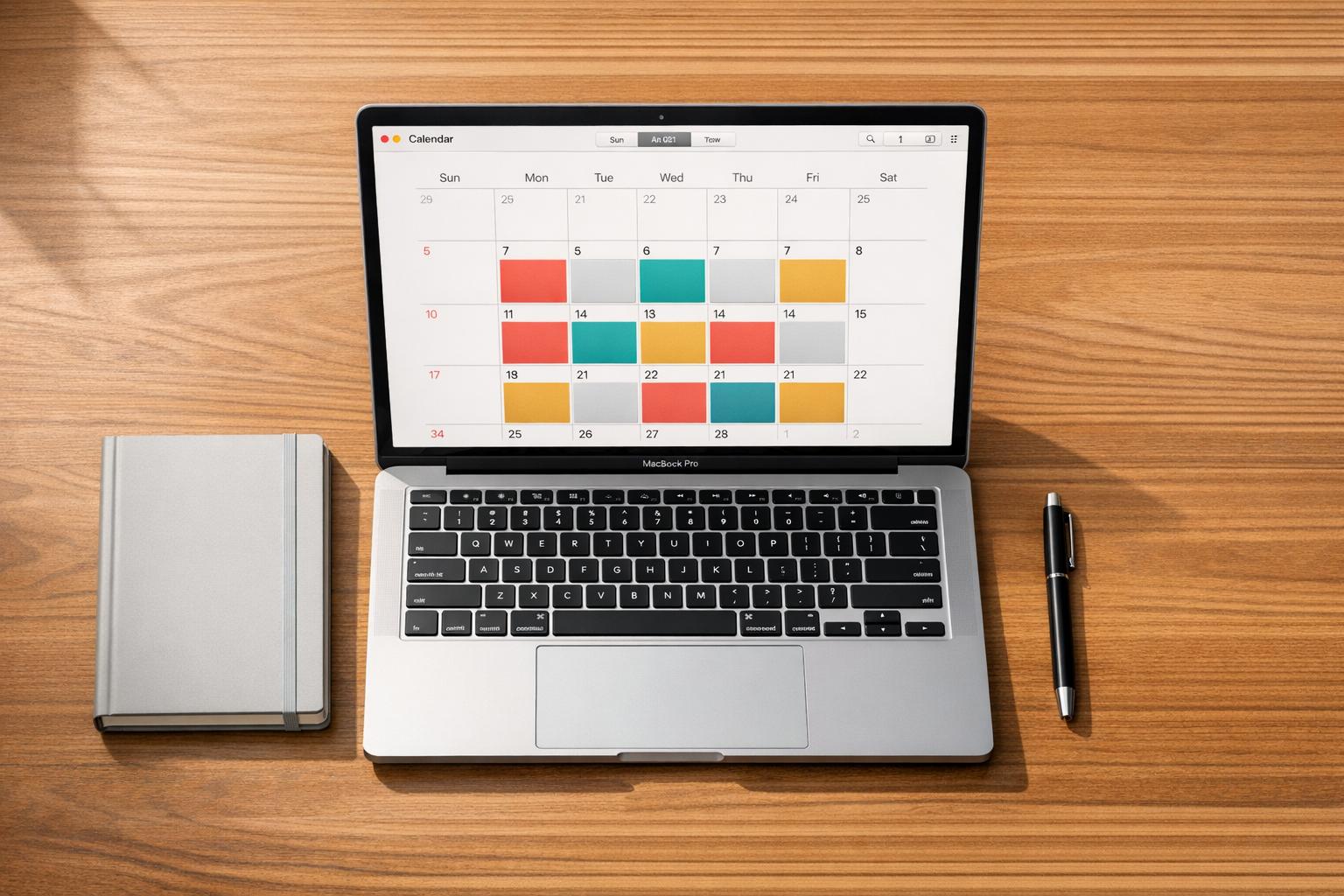
Managing events is no small feat. Whether you're coordinating a wedding, planning a corporate retreat, or staffing an industry conference, your calendar is the backbone of your operations. While many event managers rely on third-party tools, you might be underestimating the power of the default Apple Calendar app. With a slew of features designed for efficiency, Apple Calendar has evolved into a robust tool that can save you time, reduce scheduling stress, and streamline your workflow.
In this article, we’ll explore 15 practical tips to help you master Apple Calendar, making it your ultimate organizational ally. From leveraging custom views to integrating travel time and seamlessly managing multiple calendars, these insights are tailored to professionals in the events industry looking to elevate their scheduling game.
Apple Calendar may not always grab the spotlight, but its simplicity, seamless integration across Apple devices, and hidden productivity features make it a powerful tool. Apple has consistently enhanced its suite of productivity apps, and the Calendar app has quietly grown into a sophisticated planner. Whether you're managing staffing schedules, tracking client meetings, or juggling venue appointments, Apple Calendar's features can help you stay on top of your game.
Let’s dive into the tips and tricks to unlock its full potential.
Apple Calendar allows you to toggle between multiple viewing options to suit your needs:
These flexible views ensure you can adapt your calendar to any situation. For a quick zoom in or out, use the pinch gesture on your iPhone - great for navigating between detailed and broader perspectives.
Rotating your iPhone to landscape mode unlocks a week-by-week view that makes it easier to plan across multiple days. This feature is particularly helpful when managing complex event schedules or juggling overlapping commitments.
Apple Calendar simplifies event invitations with a dedicated tray for pending and accepted invites. You can review, accept, decline, or mark "maybe" for invitations directly within the app. This is especially useful for event managers who frequently coordinate team schedules or client meetings.
Apple Calendar lets you manage multiple calendars, each color-coded for easy differentiation. For example:
Pro Tip: Assign specific colors to each calendar for quick visual recognition. Unfortunately, Apple Calendar doesn’t allow event-level color customization, so you'll need separate calendars for distinct activities.
You’re not limited to Apple’s ecosystem. Easily connect external calendars like Google Calendar or Microsoft Outlook by adding accounts via your device’s settings. This ensures all your events are visible in one unified platform, perfect for event professionals who manage multiple systems.
Need a dedicated calendar for a one-time project or event? Create custom calendars directly within Apple Calendar, name them, and assign unique colors. You can even share these calendars with team members, ensuring everyone is on the same page.
Travel time integration is a game-changer for on-the-go professionals. When creating events, enable travel time by entering your starting location and destination. Apple Calendar automatically calculates travel duration based on your mode of transportation and adjusts alerts accordingly. For added peace of mind, set multiple alerts, such as 15 minutes before travel and at the time to leave.
Many event professionals deal with recurring meetings or tasks. Apple Calendar offers deep customization options for repeating events. Beyond standard daily or weekly recurrence, you can set custom intervals like "every three days" or "the last Friday of the month."
Rescheduling an event is as simple as dragging and dropping it to a new time or date. For recurring events, Apple Calendar gives you the option to move either a single instance or the entire series - perfect for last-minute changes.
Apple Calendar recognizes dates and times in emails or messages. Tapping on an underlined date allows you to instantly create events, linking them back to the original email for context. This is a lifesaver when dealing with contracts, agendas, or other event-specific details.
With Apple Calendar’s integration with the Reminders app, you can attach actionable tasks to calendar events. For example, a calendar entry for a venue walkthrough might feature a reminder to review the seating chart. Easily toggle these reminders on or off for a clutter-free calendar view.
Save time by setting default alert times for different types of events. For example, you can ensure all meetings have a 10-minute warning, while venue inspections default to 30 minutes. Adjust the standard duration of new events to fit your typical schedule.
If you regularly work in multiple time zones, Apple Calendar’s time zone override feature ensures consistency. All events can be displayed in your chosen home time zone, regardless of your current location - essential for coordinating national or international events.
Add a Calendar widget to your home screen or lock screen for instant access to upcoming events. Widgets are fully customizable, allowing you to display specific calendars or event previews.
Don’t overlook Siri’s ability to simplify event creation and management. Use commands like:
Apple Calendar is more than a standard app; it’s a productivity powerhouse waiting to be unlocked. For event professionals, its intuitive features, seamless integrations, and customization options can make the difference between a chaotic schedule and a well-oiled planning machine. By leveraging the tips outlined here, you can save time, reduce stress, and focus on delivering exceptional events.
It’s time to rethink how you use your calendar. A little optimization can go a long way in transforming your day-to-day operations!
Source: "15 Apple Calendar Tips You SHOULD Be Using!" - brooke tierney, YouTube, Feb 16, 2026 - https://www.youtube.com/watch?v=RRC5WOXr-lM